
Settings → Automations sets what MX does on its own: drafting and sending review replies, and approving location changes made by your team. The rules apply to every location in the company. Owners and Admins change them; every other role can read them.
Pick a preset
A preset sets every rule on the page at once. The built-in ones are:
- Full automation: MX drafts replies, approves and sends them, and approves low-risk location changes from your team.
- Always require approval: MX drafts replies and submits them for approval; a person approves every reply and every location change.
- Auto reply only: MX drafts replies, then approves and sends them automatically; location changes still wait for a person.
- Open Settings → Automations and pick a Preset under Automation rules.
- Adjust any rule below it if you need to. The rows under Review reply automation are explained in the Reviews topic.
- Select Apply. The Applied rules card shows the rules now in effect and the preset they came from.
Save your own preset
-
Set the rules the way you want them.
-
Select Save as new preset, type a Preset name and select Save.
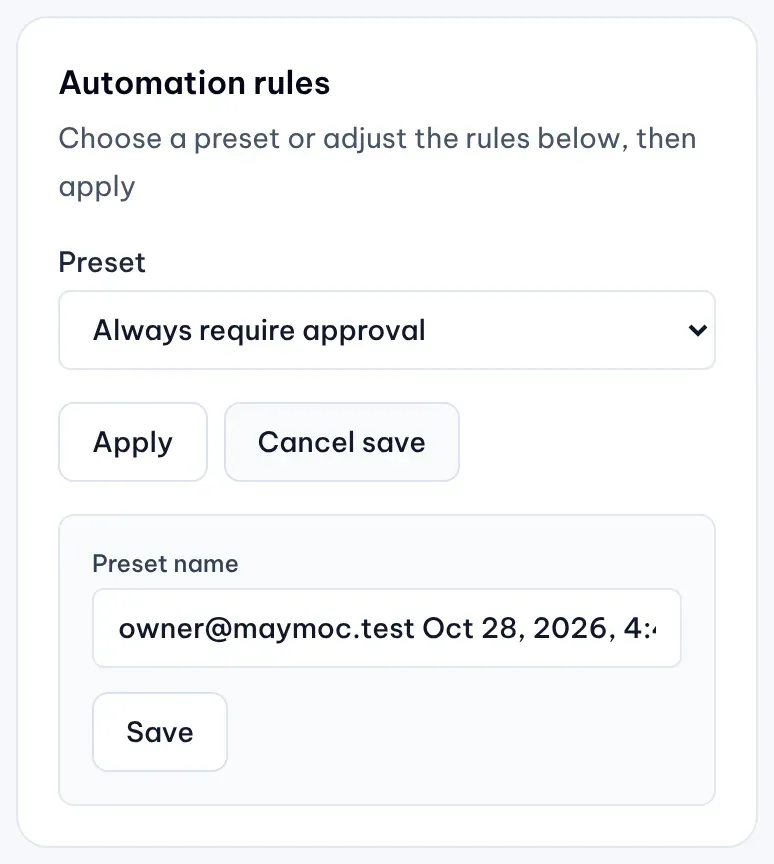
1: Preset. 2: Preset nameIllustrative data -
Your preset appears under Custom in the Preset list, for everyone in the company. Saving does not apply it: select Apply when you want to use it.
To delete a custom preset, pick it and select Delete preset, then Confirm delete. The rules already applied stay the same.
Approve your team’s location changes automatically
-
Under Location detail change automation, turn on the switch.
-
Turn on Auto-approve changes from company members.
-
Select Apply.

Illustrative data
Low-risk changes your members submit are then approved without a separate step. High-risk changes always wait for a person in Approvals, and so does any change to a field locked by Protect, which needs an Owner or Admin. To deal with changes made on Google itself, use Protect (Business), linked from the same section.
Turn automations off
The Automations card at the top of the page has one button for everything. Add a note in Comment (optional) if you like, then select Turn automations off. MX stops drafting and approving anything new on its own. You can still approve and send replies and changes yourself, and they go out right away. Select Turn automations on to resume.
Read the automation history
Rule changes and automation pauses appear here. Find automatic approval decisions in Approvals.
Open History at the bottom of the page. Each entry shows who applied rules or turned automations off or on, when, and any comment they left. Select Load more for older entries. There they show System automation as the creator or decider.