
Protect follows the modes you choose for each field. It watches six fields on the Google profile of every location in MX: Name, Phone, Website, Address, Description and Hours. When someone changes a locked field outside MX, on Google or through a Google suggestion, MX finds it and tells you or puts your value back, depending on the field’s mode.
Only Owners and Admins see Locations → Protect. For other roles the page doesn’t exist.
Set a field’s mode
- Open Locations → Protect.
- In Locked fields, find the field and choose its mode: Off, Notify or Revert.
- If you choose Revert for Name or Address, MX asks you to confirm, because changing a name or address on Google can trigger re-verification. Select Use Revert to go ahead.
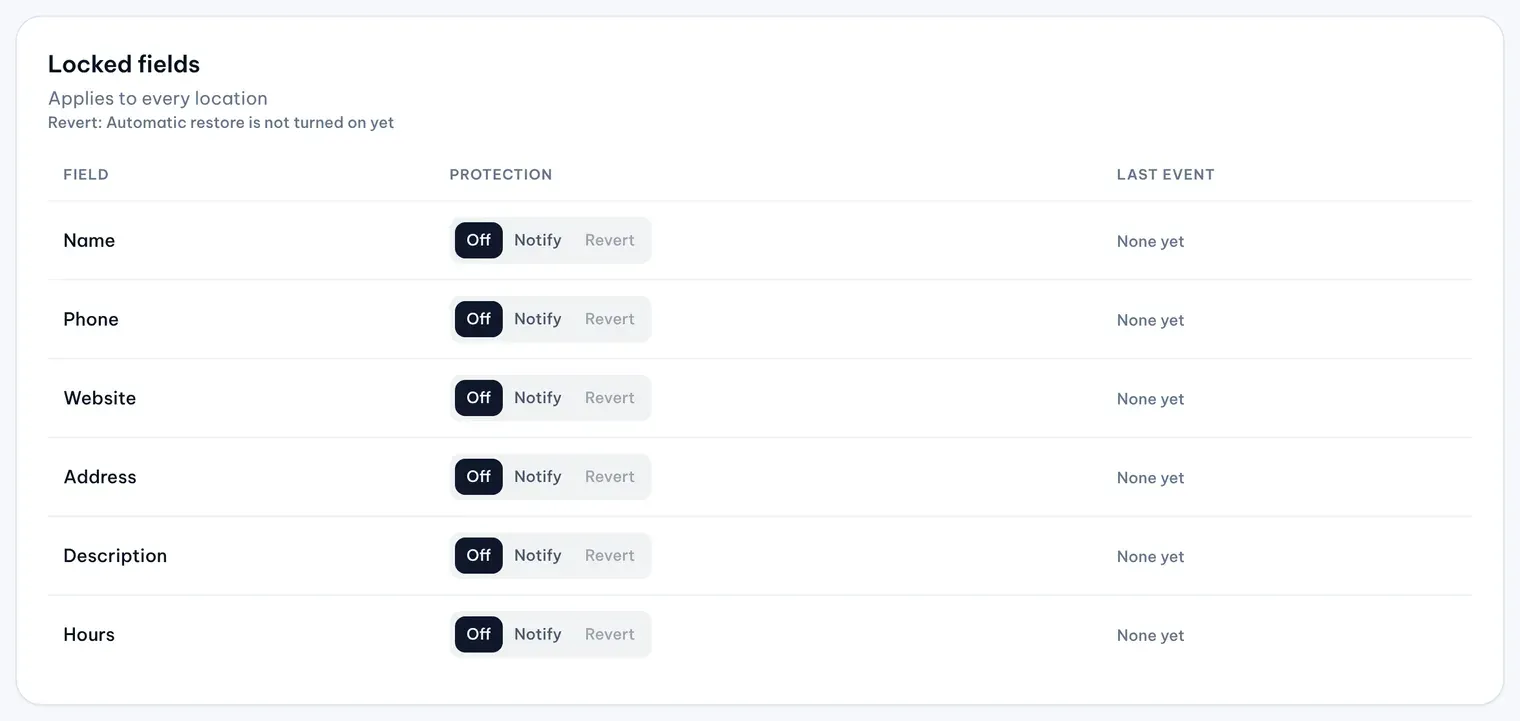
The mode applies to every location; you can’t set it per location. Each locked field shows who set it.
| Mode | What MX does when the field changes outside MX |
|---|---|
| Off | Nothing. The field isn’t watched. |
| Notify | Lists the change in Activity and adds a Protect alert to the Dashboard’s Needs attention for Owners and Admins. Nothing is sent to Google. |
| Revert | Sends the protected value back to Google automatically, then checks that Google shows it. |
Phone means the primary phone, and Hours means the whole regular weekly schedule. Store code, categories, special hours, attributes, additional phones and photos aren’t protected.
When protection starts
After you lock a field, protection starts with MX’s next check of Google. That first check records each location’s current Google value as its protected value and restores nothing, so make sure the values on Google are correct before you lock a field. Under Locked fields, “Google last checked” shows when the last check finished.
Switching a field from Notify to Revert only affects changes found after the switch. Changes already listed stay for you to decide. Setting a field to Off closes its open changes as Protection turned off.
Revert has limits. A restore that can’t run can become a notification, and repeated changes to the same field at one location can pause automatic restoration there until an Owner or Admin decides. Changes Google suggested before protection started are never restored automatically, and pausing automations holds restores too. Handle a change to a locked field explains each case. If automatic restore isn’t available for your company yet, Locked fields reads “Revert: Automatic restore is not turned on yet”.
Read the numbers
Four tiles sit at the top.

Protected counts the locations protected now, Detected and Restored count changes in the last 30 days, and Needs attention counts the open changes that wait for an Owner or Admin. Use the location picker to see the numbers and activity for one location or group. The picker never changes a setting.