
Every decision in Approvals is kept: who made it, when, and what it covered. Every role can read the history.
Find decided batches
-
Open Approvals. Owners, Admins and Approvers find decided batches under History, below Needs review. Editors and Viewers see them in the same list as the waiting ones.
-
To see one outcome only, pick it in Status: Approved, Completed, Rejected or Failed.
-
To separate your team’s work from automatic work, pick Manual or Automation in Creation source.
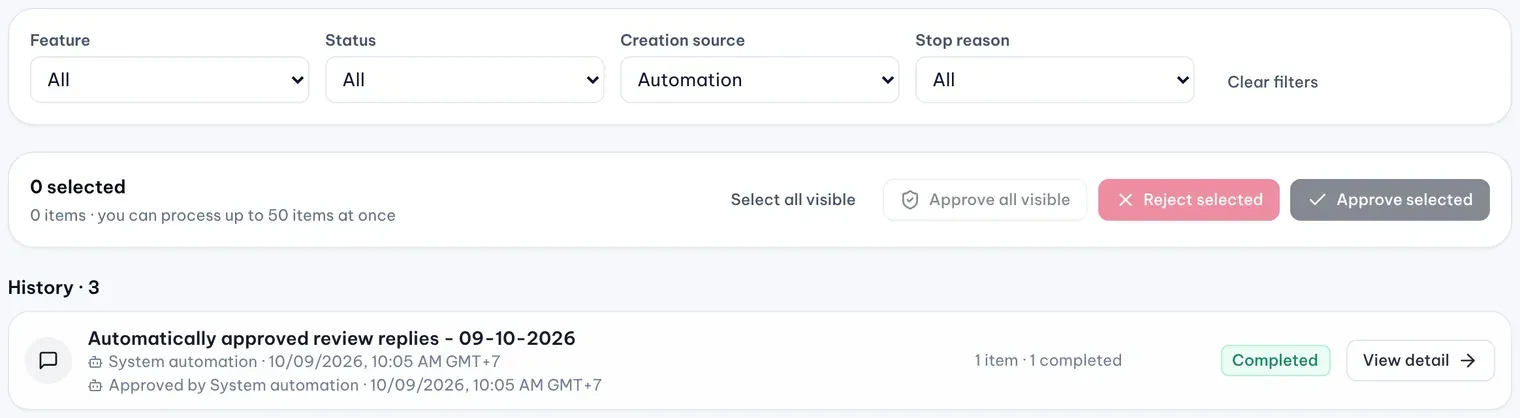
1: Creation source. 2: Approved by System automationIllustrative data -
Select View detail to open a batch and read its items, comments and rejection reasons.
Read a history row
Each row says who created the batch and when, then who decided it and when. Times follow your company’s business timezone.
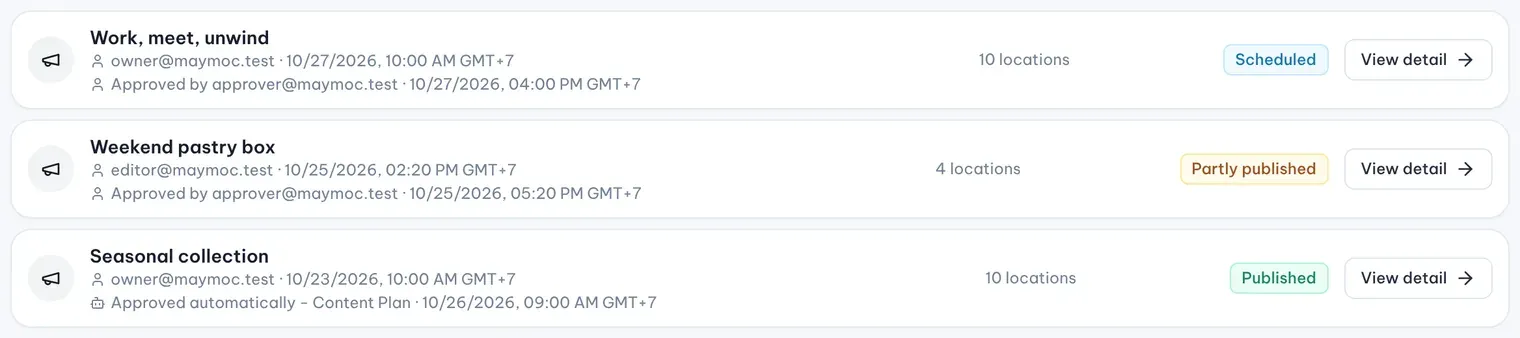
- Approved by or Rejected by: the batch was approved or rejected as a whole.
- Last decision by: the outcome is mixed or failed, so the row names the latest decision.
- System automation: MX created or approved the work on its own, for example through a rule in Settings → Automations.
- Approved automatically - Content Plan: a Content Plan post approved automatically, because an Owner or Admin turned on automatic approval for that Content Plan. It is off by default, and a person still approves a plan’s first two posts and any post that is flagged, not yet checked by the AI review, or edited too close to its time.
- Restored by Protect (Business): Protect sent a locked field’s value back to Google.
Read a batch’s status
- Needs review: something in the batch still waits for a decision.
- Approved: approved, and MX is sending it to Google.
- Approved partially: some items were approved and others rejected.
- Completed: approved and done.
- Rejected: nothing in the batch was approved.
- Failed: approved, but sending it to Google failed.
A post shows its own status instead, such as Scheduled, Published or Partly published.
View detail is grayed out on a decided location update: open the location’s page to see its change history.