
A batch’s own page shows each item in full before you decide. For review replies you can fix a reply’s wording, pull one reply out of the batch and leave a note for your team. Owners and Admins edit replies; Approvers approve and reject them as written.
Review the replies in a batch
-
In Approvals, select View detail on a review reply batch. The page counts the replies by status, by how they were written (AI-generated, Manual draft, Human-edited) and by sentiment.
-
Each card shows the review on the left and the Proposed reply on the right. Select More… to read a long text in full.
-
To change a reply’s wording, select Edit, change the text and select Save. The reply is marked Human-edited.
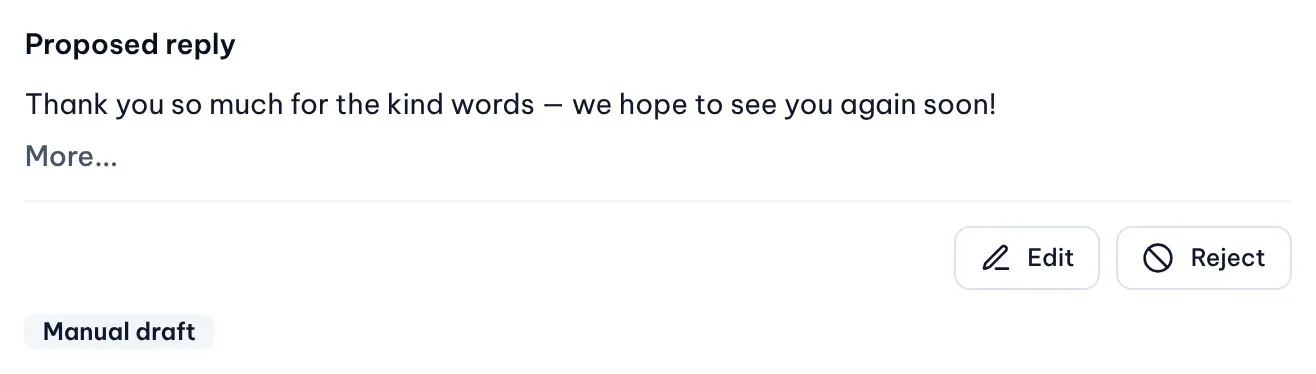
1: Edit. 2: RejectIllustrative data 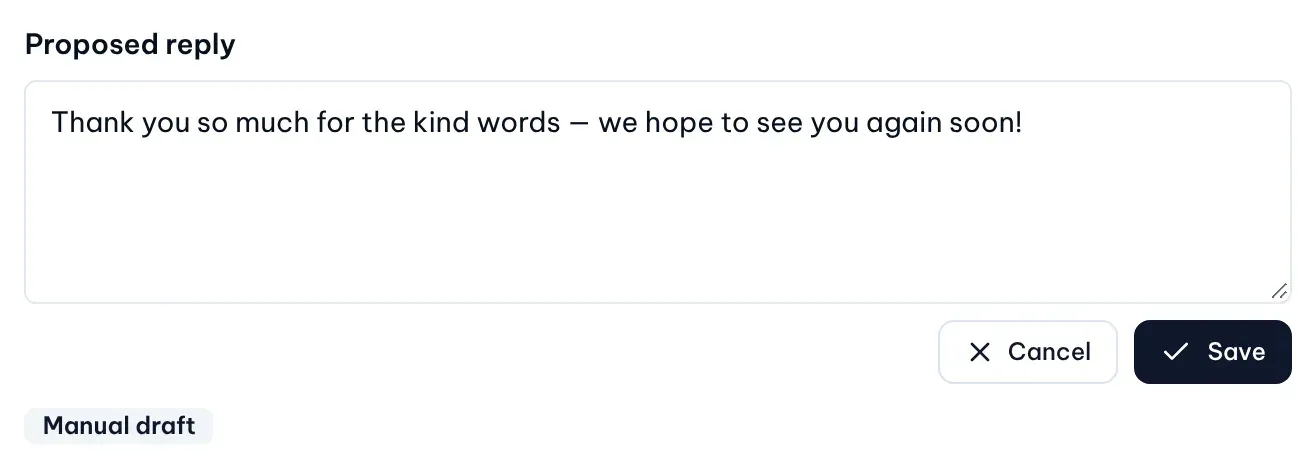
Illustrative data -
To keep one reply from being sent, select Reject on its card. The rest of the batch stays waiting.
Decide the whole batch
-
At the top of the page, type a note in Decision comment if you want one. A rejection needs one.
-
Select Approve batch to approve every reply still waiting, or Reject batch to reject them all. If you rejected a reply on its card, the approve button reads Approve partially.

Illustrative data
After the decision MX takes you back to Approvals.
Leave a comment for your team
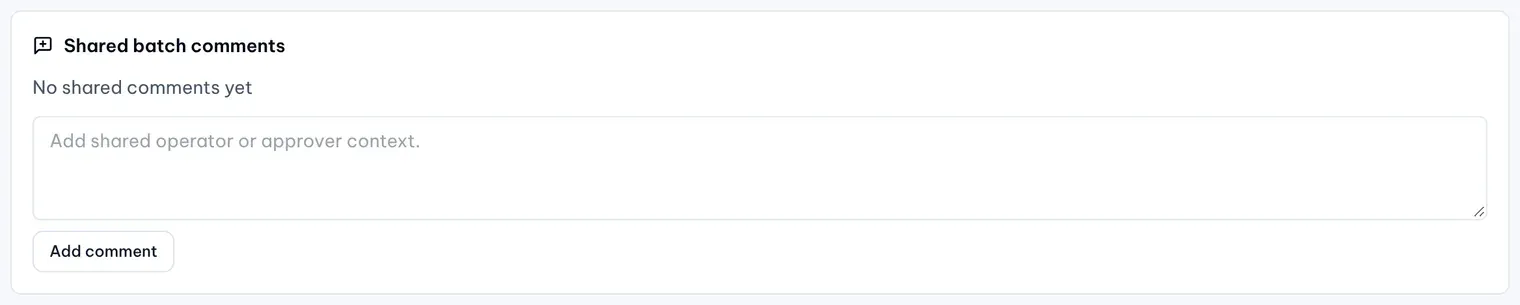
Open Shared batch comments, type your note and select Add comment. Everyone who opens the batch sees it with your email address and the time. Editors can comment too, so they can flag a reply without deciding it.
Decide a post
Each submitted post has its own page with its text, photo or video, schedule, call-to-action button and target locations, and the result of the AI policy check.
- Select Approve post to approve it.
- Select Reject post, write a Reason for the editor and select Confirm rejection. The reason is required.
- For a post from a Content Plan, Owners and Admins also see Edit post. It sends the post back to draft and opens it for editing.