
A request goes to Google only after someone approves the whole request. You send it from the third step, Execute & report.
Send the request
- Open the request in Locations → Bulk Update and go to Execute & report.
- Check Summary: the number of locations and the fields to update.
- Select Send to Approvals. The button changes to Confirm send to Approvals and shows the number of locations and fields with the warning above.
- Select Confirm send to Approvals.
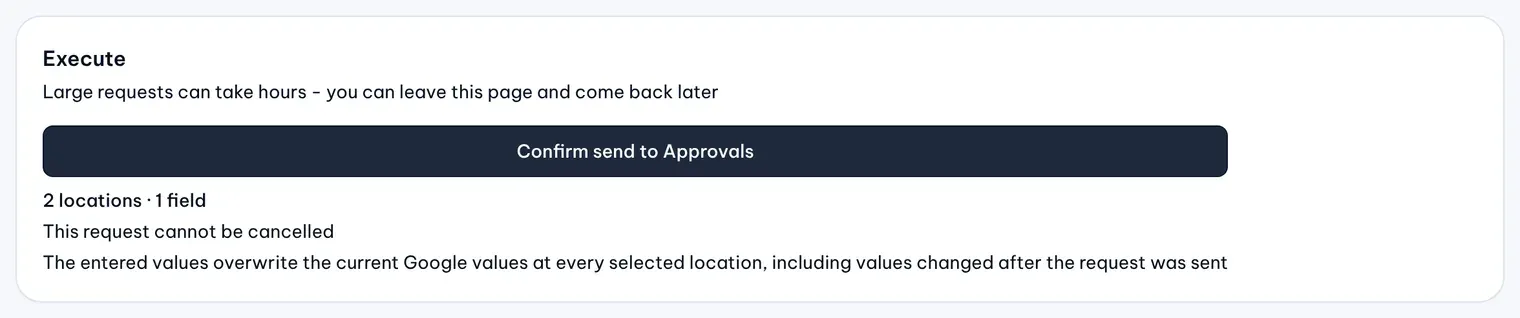
If the button is disabled, the line under it says why, for example a value that needs fixing or locations still to choose.
The request now reads “Waiting for approval in Approvals”, or “Preparing updates” first for a large request. From here it is read-only. To change values or locations, open the request on the Requests step and select Copy to new request; the copy is a new draft.
Approve or reject a request
Owners, Admins and Approvers decide Bulk Update requests in Approvals, including requests they created themselves. Editors and Viewers can’t, and neither can an Approver limited to some locations.
- Open Approvals and select the Bulk Update request.
- Check Requested values and the request’s details.
- Select Approve request or Reject request, add a note if you want, then select Confirm approval or Confirm rejection.
One decision covers the whole request; you can’t approve some locations and reject others. If the request changes a field that Protect locks, only an Owner or Admin can decide it.
Execute your own request as the Owner
Once MX has prepared the updates, Execute & report shows Execute. It works only for the Owner who created the request, and for that Owner the request reads Ready to execute. Select it, then Confirm execute, to approve and start the request; no other approval is needed. For everyone else, including other Owners, the button is disabled with “Only the request owner can execute”, and an Owner, Admin or Approver decides the request in Approvals.
When an image needs replacing
A logo or cover photo can be archived or flagged in Media after you send the request. The request then reads Needs another image and can’t be approved. Reject it, select Copy to new request, choose another image and send the copy.