
No reply reaches Google until it is approved, either by someone with approval rights or by an automatic rule. The Owner, who writes replies, approves their own reply when they send it. Replies that MX drafted and submitted on its own wait in Awaiting approval for an Owner, Admin or Approver.
Send your own reply
-
In Reviews → Inbox, open the review and check the text in the Reply draft box.
-
Select Approve & publish. The box shows Submitting… while MX records the approval.
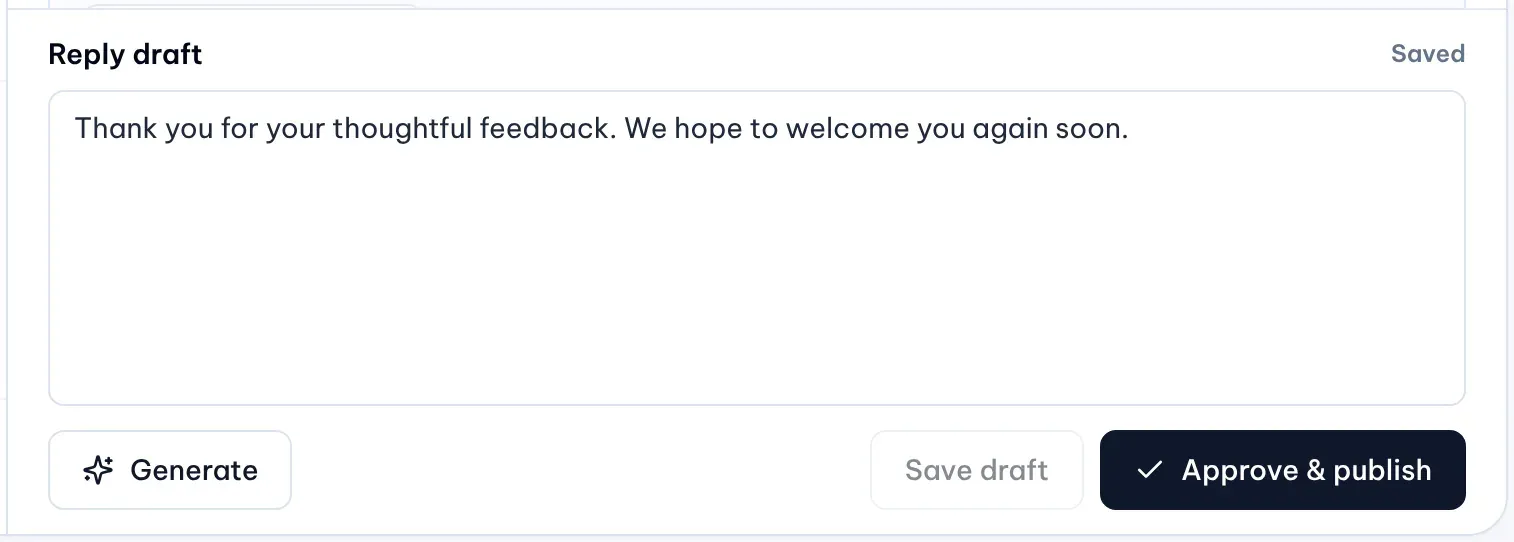
Illustrative data -
The draft locks and the review moves to the In progress tab while MX sends the reply to Google; there is no separate release step.
Approve or reject a reply awaiting approval
-
Open the Awaiting approval tab and select a review. Under the reply, the Approval review panel shows the badge Awaiting approval.
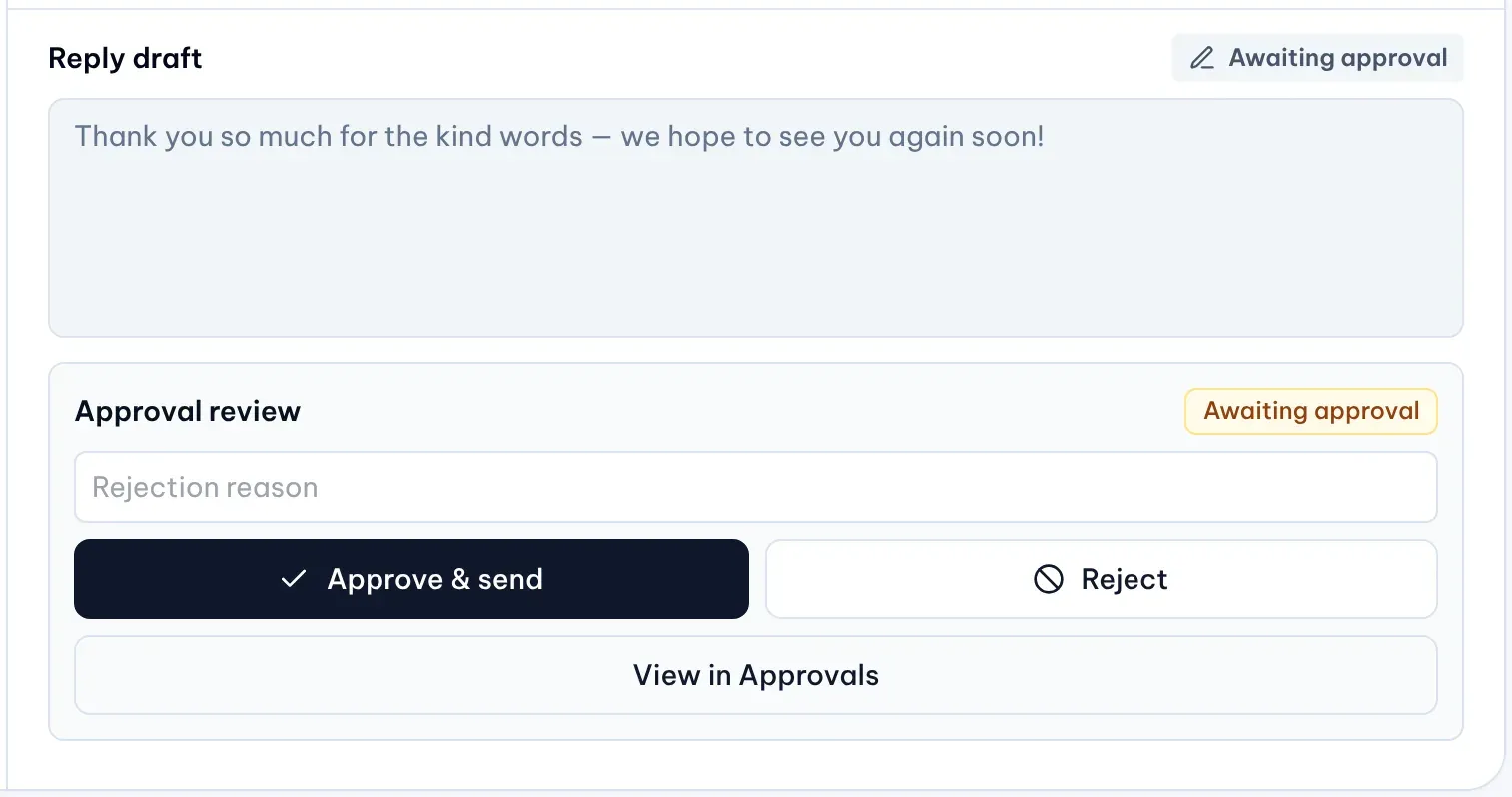
1: Approve & send. 2: Reject. 3: View in ApprovalsIllustrative data -
Read the reply. To send it as it is, select Approve & send.
-
To turn it down, type a reason in the Rejection reason field if you want one, then select Reject. A rejected reply is not sent: the review goes back to the Draft tab with its text, so the Owner can edit it and send it again.
-
To see the whole approval batch the reply belongs to, select View in Approvals.
In the Inbox the reply text can’t be edited while it waits; an Owner or Admin can edit it in Approvals. The Owner can also select Cancel submission to take it back, edit it and send it again. Editors and Viewers see the panel with Approval history is read-only for your role.
Follow the reply to Google
- In progress: approved, and MX is sending it. The reply box shows the send status, such as Queued or Processing. If Google has a brief problem, a message says MX will retry automatically.
- Replied: Google has the reply. Once MX syncs the published reply back from Google, it shows under Owner reply with its time, and the reply box is gone.
- Failed: Google didn’t take the reply. A red message under the reply box says why and what to do, for example Reconnect Google Business Profile to send this reply. The Owner can then edit the reply and select Approve & publish again.