
The Inbox lists the Google reviews of every location you can see, with the newest first. Use it to find the reviews that still need a reply and to follow the replies already on their way.
Open the Inbox
-
Select Reviews in the sidebar. The page opens on the Inbox tab; Analytics sits next to it.
-
To work on one location or a location group, pick it in the selector above the list. Leave it on All locations to see the whole company.
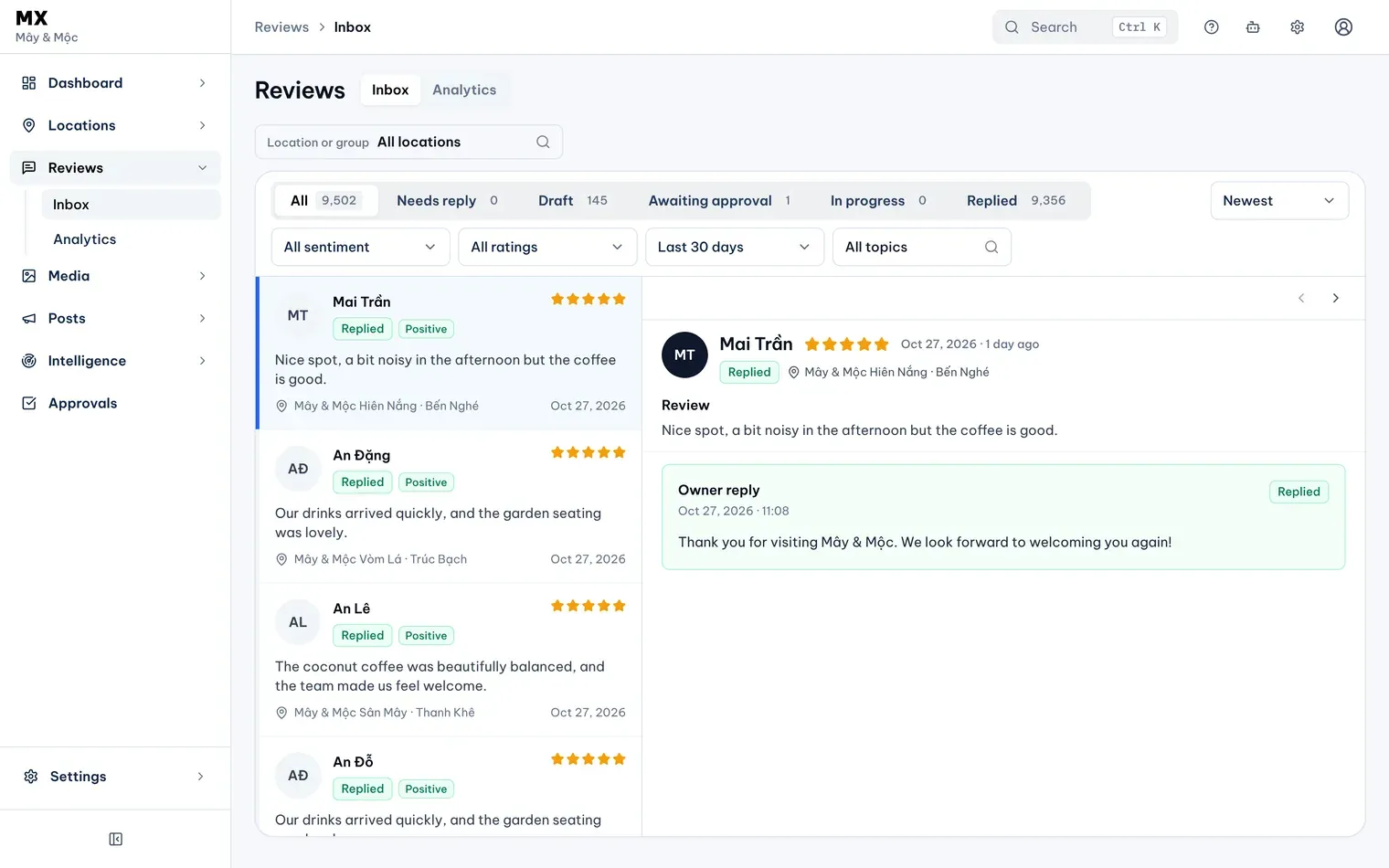
1: Inbox and Analytics tabs. 2: location or group selectorIllustrative data
Pick a status tab
The tabs above the list group reviews by where their reply stands. Each tab shows a count for the selected location or group; the date, sentiment, rating and topic filters change the list, not the counts.

| Tab | What it holds |
|---|---|
| All | Every review in the date range |
| Needs reply | No reply on Google and no draft in MX |
| Draft | A reply draft saved in MX, not yet submitted |
| Awaiting approval | A reply waiting for an approver |
| In progress | An approved reply that MX is sending to Google |
| Replied | A reply on Google, written in MX or elsewhere. A send that failed also lands here, marked Failed |
Narrow the list
Use any of these filters and the sort, alone or together:

- Choose Positive sentiment, Neutral sentiment or Negative sentiment in the sentiment filter. Sentiment comes from the AI analysis of each review, or from its star rating when it has no AI analysis.
- Choose Low rating (1–3 stars) in the rating filter to see only low ratings.
- Pick a date range in the date filter, from Last 7 days to All dates. The Inbox starts on the last 30 days.
- To see the reviews that mention one subject, open All topics, search for a topic and pick it. Each topic shows how many reviews mention it.
- Use the sort control to switch between Newest and Oldest.
On a phone the filters fold away behind the Filters button, which shows how many filters are on. While a topic filter is on, the tabs hide their counts.
If nothing matches, the list says so and suggests which filter to clear. When you scroll to the end of a long list, select Load more reviews.
Open a review
Select a review in the list to read it on the right. On a phone or a narrow window, the review opens as its own screen; use the back arrow to return to the list, or the previous and next arrows to move through it.