
Review Analytics adds up the AI analysis of the reviews in the scope you choose.
Set the scope
-
Open Reviews → Analytics, or the Analytics tab next to Inbox.
-
Pick the whole company, a location group or one location, and a timeframe from 7D to 12M. Analytics starts on the last 30 days.
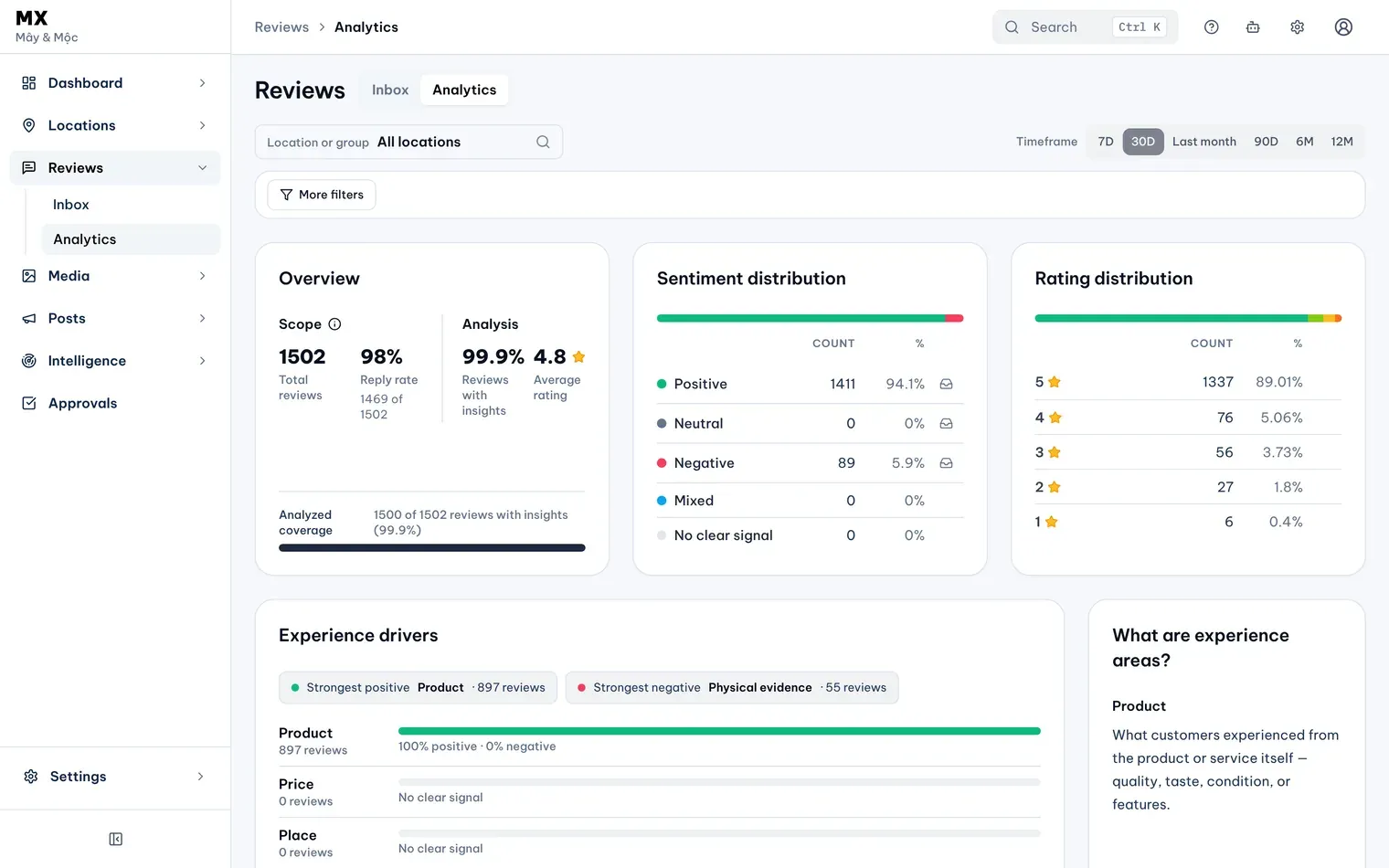
1: scope and timeframe. 2: More filtersIllustrative data -
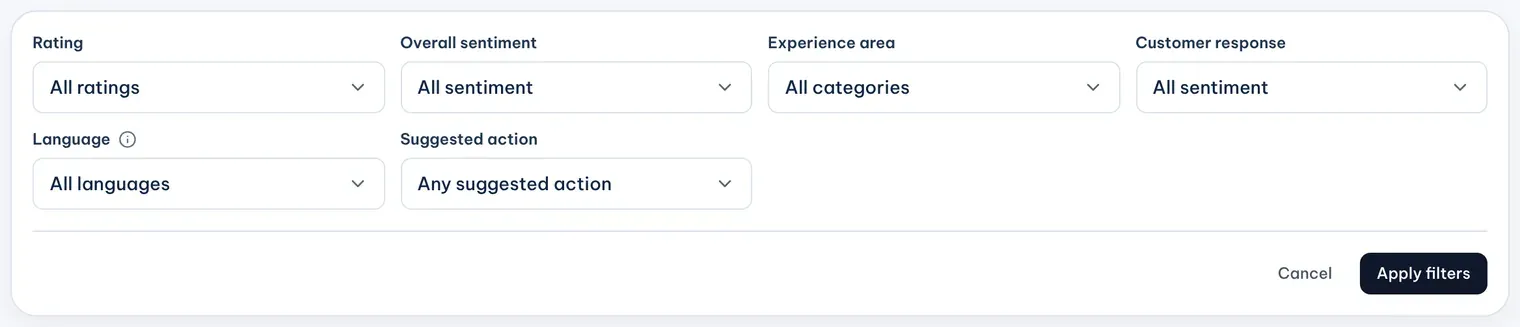
To narrow the analysis, select More filters, set the filters you need (the picture shows them all), then select Apply filters. Each filter shows as a chip you can remove; Reset clears them all.
Illustrative data
The scope, timeframe, sentiment and topic carry over when you switch between Inbox and Analytics; the Inbox’s All dates becomes the last 30 days here.
Read the cards
- Overview: total reviews and reply rate for the scope. For the filtered set, it adds the share of reviews with insights and the average rating. Analyzed coverage shows how many reviews MX has analysed so far; the sentiment, topic and 7Ps figures count only those.
- Sentiment distribution: how many analysed reviews read positive, neutral, negative, mixed or with no clear signal. Select the Inbox icon at the end of the positive, neutral or negative row to open those reviews in the Inbox.
- Rating distribution: how many reviews gave each star rating.
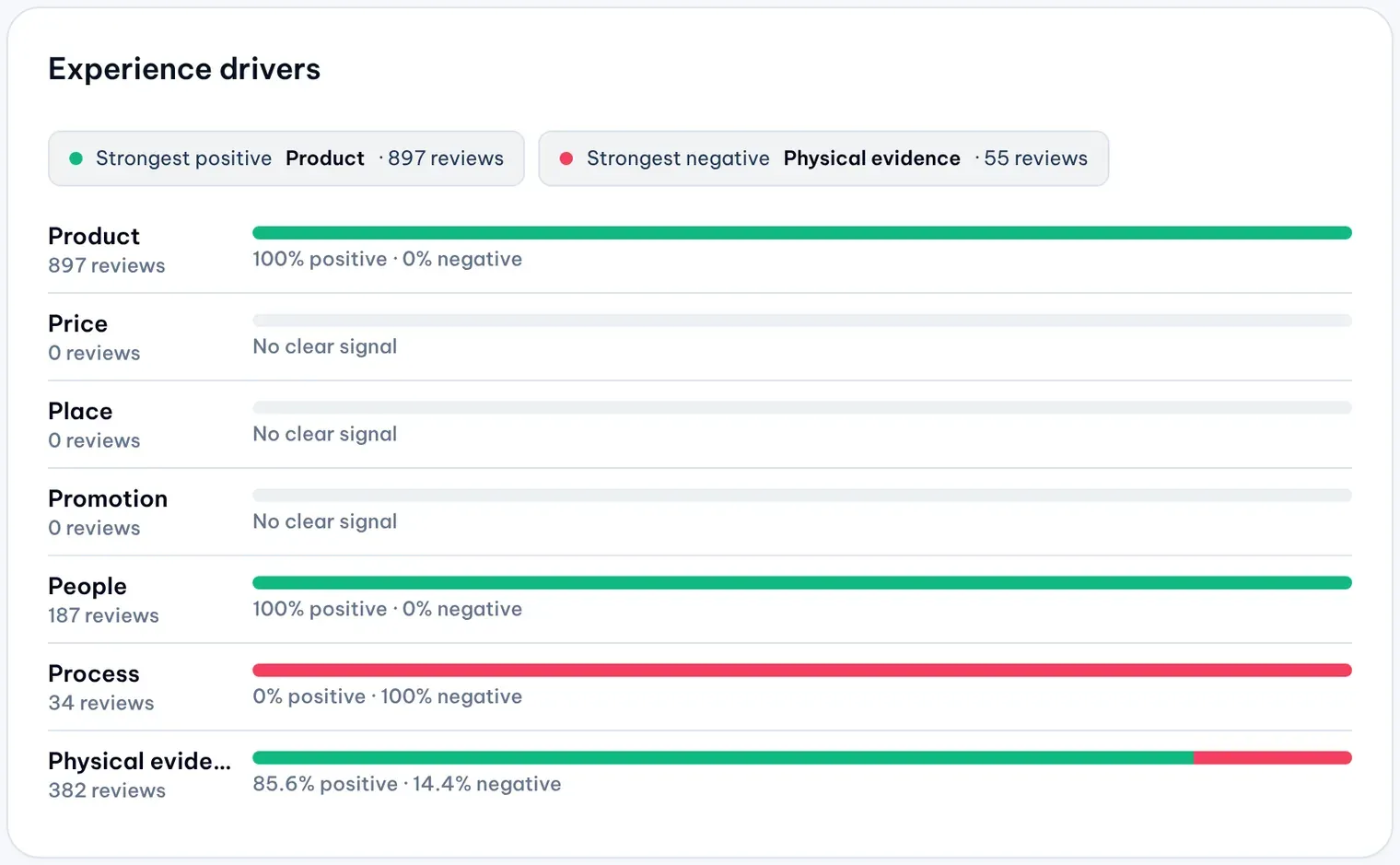
- Experience drivers: one bar per 7Ps area (product, price, place, promotion, people, process and physical evidence) showing how positive or negative customers were about it, with the Strongest positive and Strongest negative areas called out. The card next to it explains each area.
- Top topics: the subjects customers mention most, with how many reviews mention each.
- What to consider next: the actions MX suggests most often, each with its priority, its 7Ps areas and how many reviews led to it.
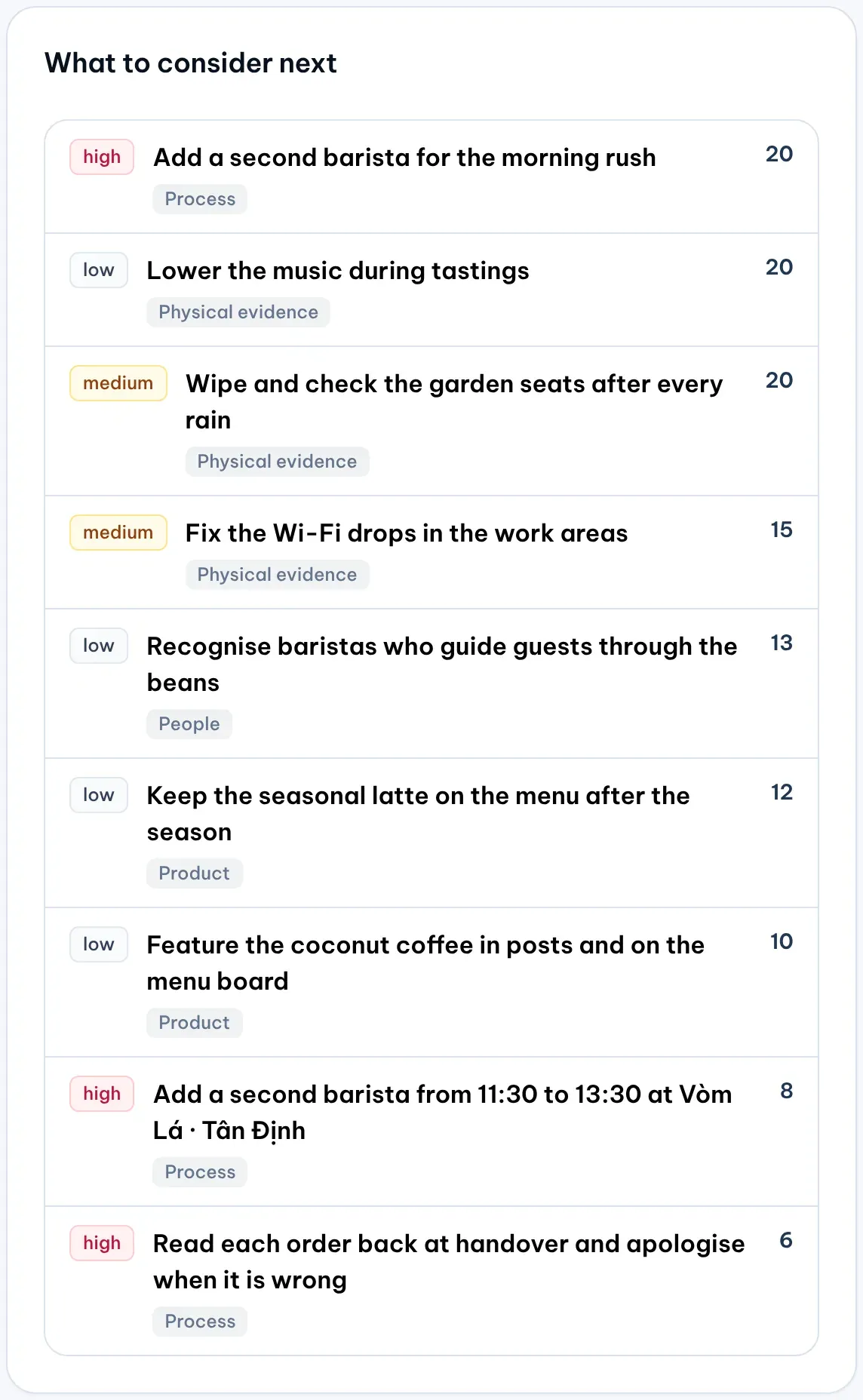
MX only suggests these; it changes nothing at your locations. When the top suggestion maps to a profile field you can change across locations, it carries an Update in bulk link to Bulk Update for members who can use it.
When a card is empty
A card with nothing to show for the current scope says so. Widen the timeframe or remove a filter. If the scope has no reviews at all, the page says No reviews in this selection; if it has reviews but none analysed yet, it says No analyzed reviews yet. About Review Analytics, at the end of every Analytics page, answers common questions about sentiment, Experience drivers, topics and suggested actions.