
Every review without a reply on Google has a reply box under it. You can type a reply, or let AI write a first draft and edit it.
Write a reply yourself
-
In Reviews → Inbox, open a review from the Needs reply tab.
-
Type your reply in the Reply draft box at the bottom of the review. A reply can be up to 4,000 characters.
-
Stop typing for a moment and MX saves the draft on its own; the box shows Saving…, then Saved. To save straight away, select Save draft.
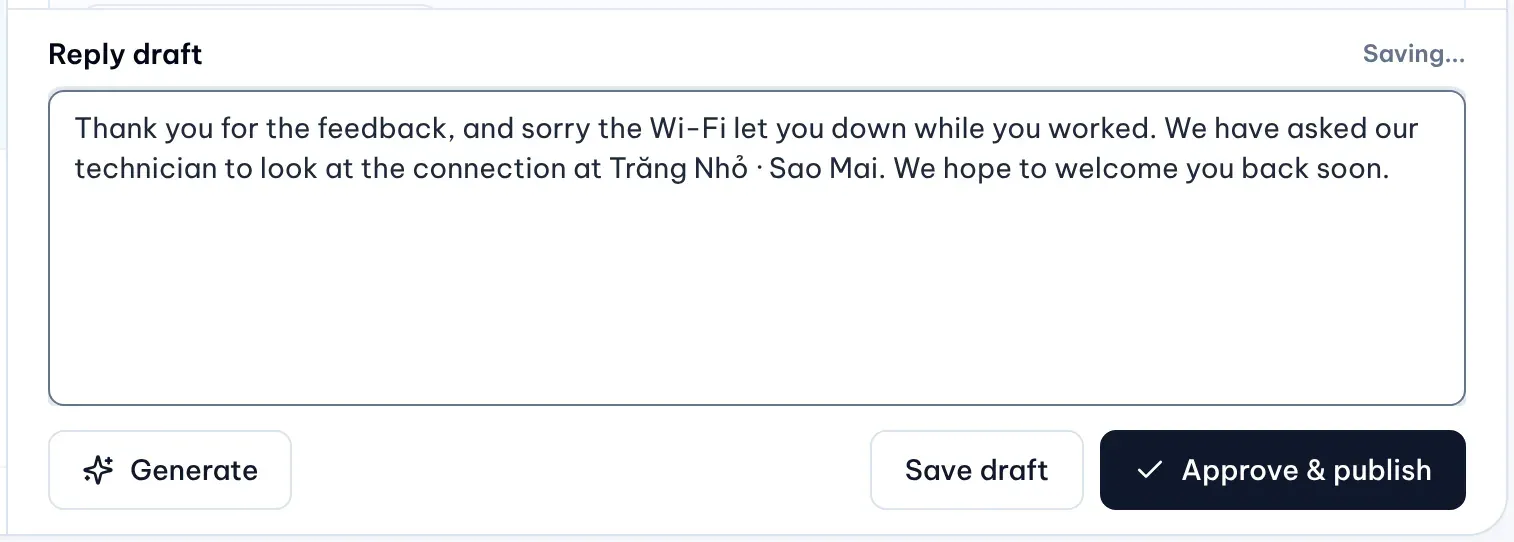
1: Generate. 2: Save draft, active once you change the textIllustrative data
A saved draft moves the review to the Draft tab. You can come back to it later from there.
Start from an AI draft
-
Select AI Reply in the toolbar above the list to open AI Reply Settings. MX remembers your settings in this browser and saves them to your account the next time you generate a draft. Set these options:
- Language 1 and Language 2: English, Vietnamese or none.
- Language 3: the reviewer’s own language when the review is in neither English nor Vietnamese, or none.
- Tone: warm or professional. Length: short or long.
- Include reviewer name, Include business name (with the name to use) and Include signature (with your signature).
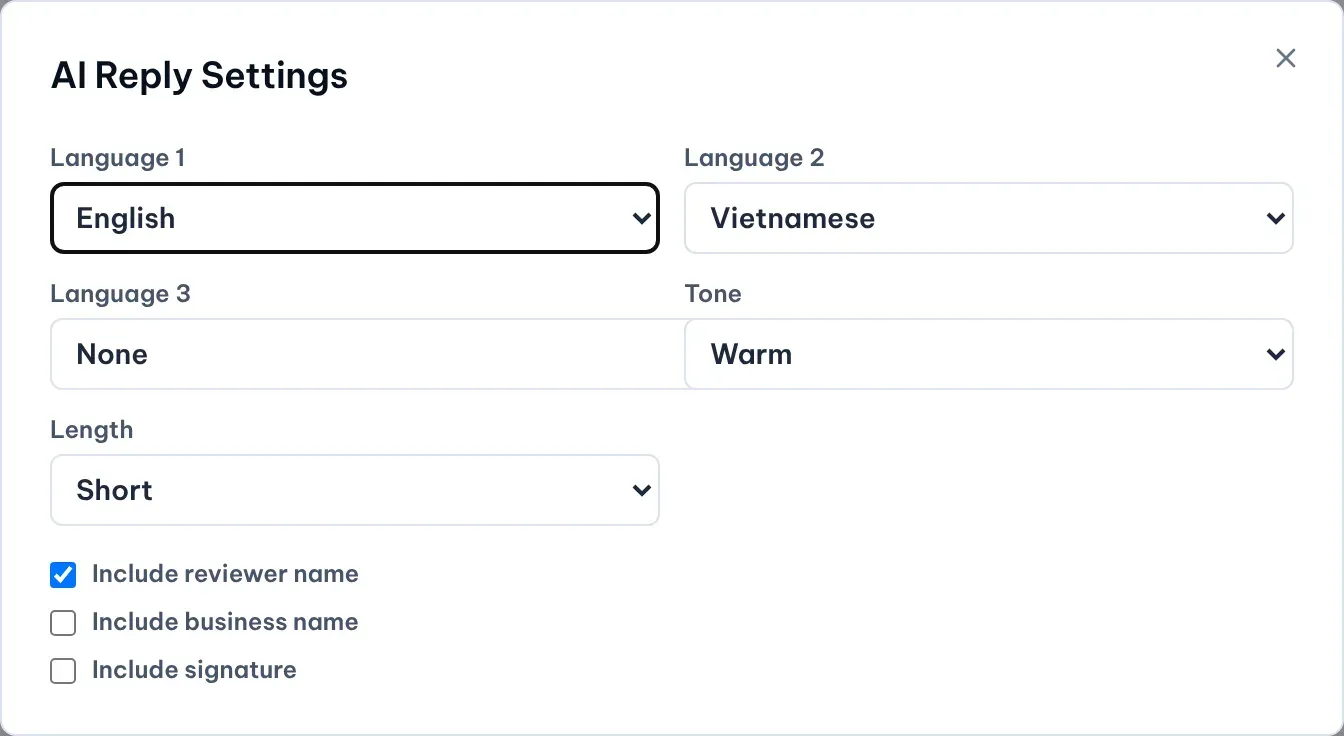
Illustrative data -
Close the settings and open the review you want to answer.
-
Select Generate under the reply box. On a narrow screen it shows only its sparkle icon. The box shows Generating…, then AI draft saved.
-
Read the draft and edit it like any other text. Your edits are saved the same way.
When you choose more than one language, the draft holds one reply per language. Generate replaces whatever is in the box, so select it before you start editing.
AI drafts may be declined when they contain unsupported content. You then see AI draft failed: select Generate again or write the reply yourself. Review every draft carefully, especially replies to sensitive complaints.