
MX can write an AI draft for each new review and decide what happens to it next: keep it as a draft, submit it for approval or approve and send it. The rules live in Settings → Automations and apply to every location in the company. An Owner or Admin changes them; other roles can read them.
Choose the reply rules
-
Open Settings → Automations. The Applied rules summary shows the rules in effect now, or Not set up.
-
Under Automation rules, pick a Preset. The built-in ones are Full automation, Always require approval and Auto reply only; presets your team saved appear under Custom.
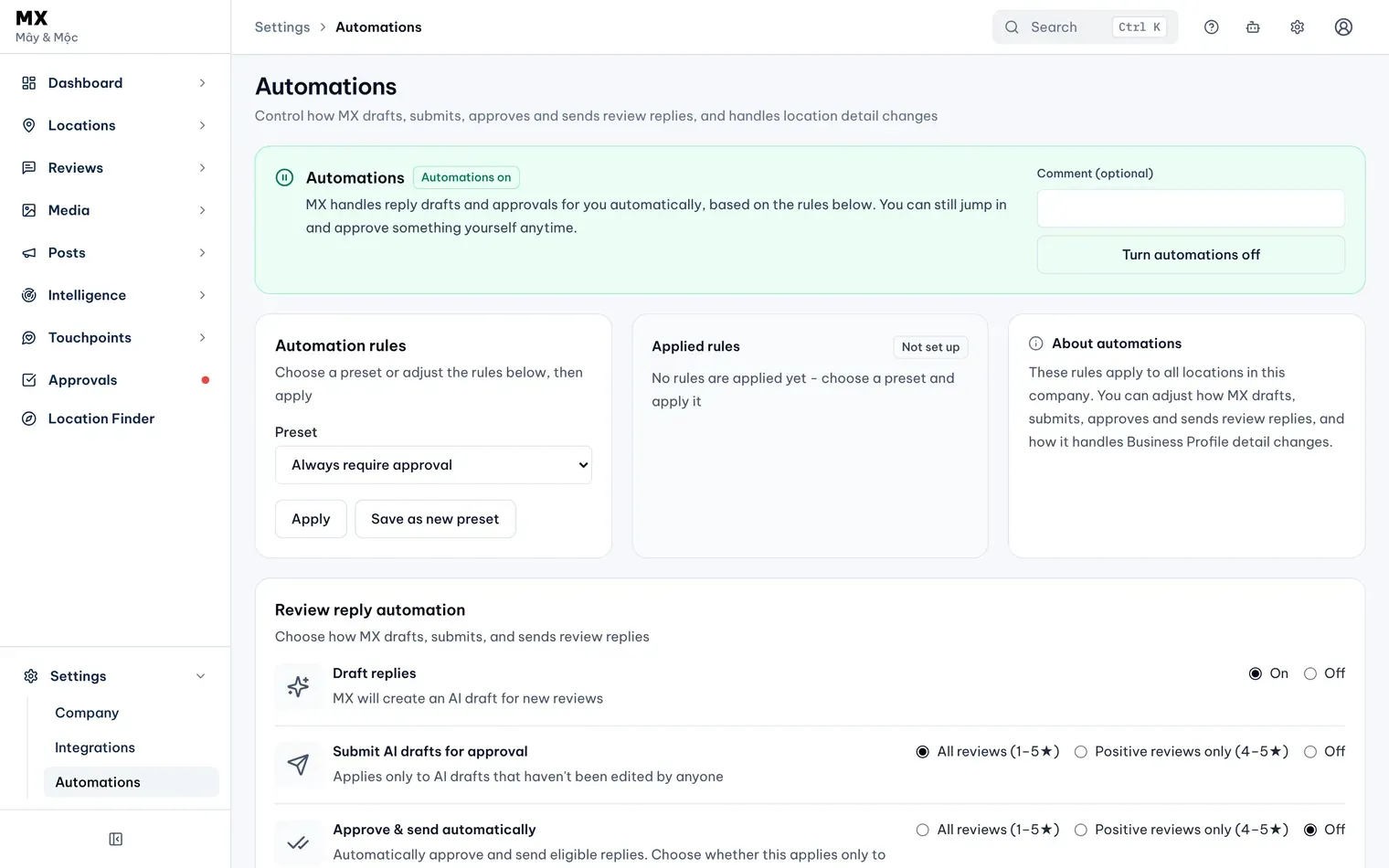
1: Preset. 2: Applied rulesIllustrative data -
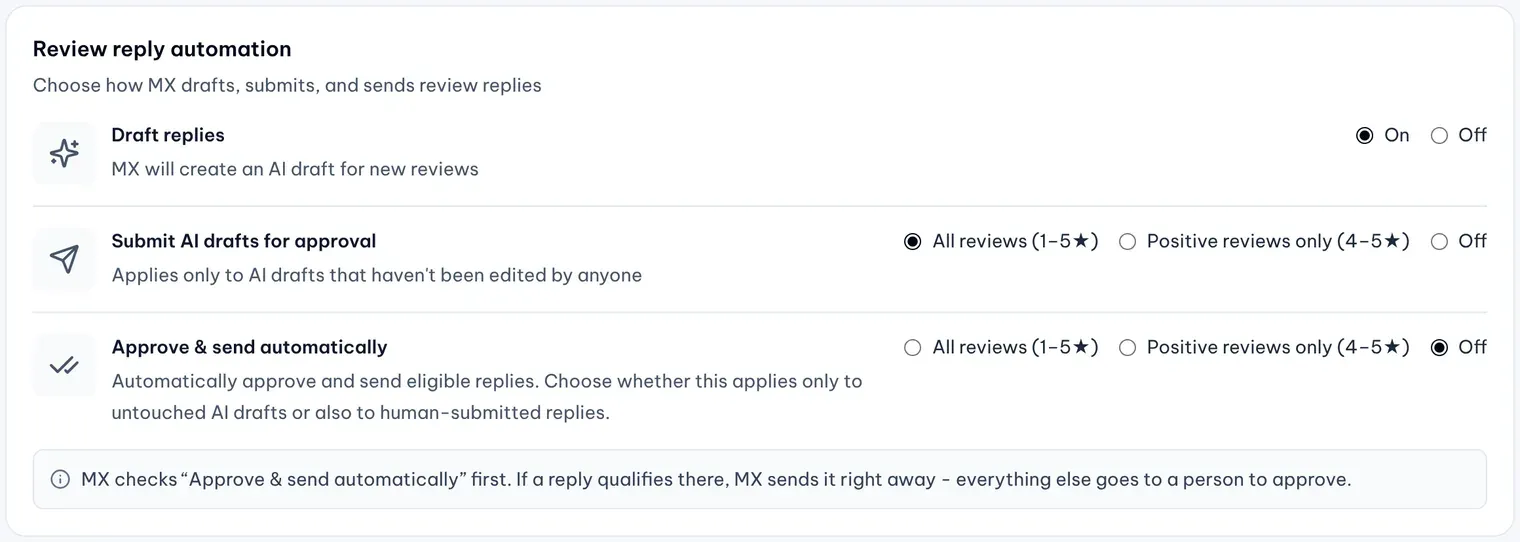
Adjust the rows under Review reply automation if you need to:
- Draft replies: on or off. When it’s on, MX creates an AI draft for each new review that qualifies.
- Submit AI drafts for approval: all reviews (1–5★), positive reviews only (4–5★) or off. This only covers AI drafts nobody has edited.
- Approve & send automatically: all reviews, positive reviews only or off. When it’s on, Reply source sets whether it covers only untouched AI drafts or also replies people submit.
Illustrative data -
Check the Changes to apply list, then select Apply. To reuse this mix later, select Save as new preset, name it and save it.
MX checks Approve & send automatically first. A reply that qualifies there is sent right away; everything else waits for a person.
Find automatic replies in the Inbox
- Draft replies on, nothing else: AI drafts wait in the Draft tab for the Owner to edit and send.
- Submit AI drafts for approval: those drafts wait in Awaiting approval for an Owner, Admin or Approver. In Approvals they sit in batches of their own, apart from replies people submitted.
- Approve & send automatically: those replies go straight to In progress, then Replied.
MX drafts only for reviews with no reply on Google, no draft and no reply awaiting approval. It never overwrites a draft someone wrote or edited.
Pause automations
-
In Settings → Automations, find the Automations card at the top. Its badge reads Automations on or Automations off.
-
To record why, type it in Comment (optional); the card then shows it as the reason.
-
Select Turn automations off to pause. MX stops drafting and approving anything new on its own; work already in progress finishes.

Illustrative data -
Select Turn automations on to resume.
While automations are off, you can still approve and send replies yourself, and they go out right away. Location change rules and the automation history are covered in the Settings and roles topic.