GuideAccess & Approval
Approve review replies before they publish
Make sure every review reply is checked before it reaches Google: who approves, what goes to the queue and how to work through it in MX
Table of contents

The problem
A reply to a Google review is public and speaks for the whole business. One reply with the wrong tone, a promise the location cannot keep or a detail that should stay private can do more harm than the review itself. An owner or manager wants a second pair of eyes on every reply, but cannot write or check each one personally.
Doing it by hand
Without an approval step, drafts travel by chat or email, a manager answers when they have time, and someone pastes the agreed text into Google. It is hard to tell which drafts are still waiting, which were changed and who said yes. AI drafts make the volume larger, not smaller, because each one still needs a person to read it.
What changes with Approvals
In MX a submitted reply does not go straight to Google. It waits in Approvals until an owner, admin or approver accepts or rejects it. The approver sees the original review next to the proposed reply, can approve several at once, and every decision is recorded with the person and the date.
What you get
- Nothing public without a check. Replies reach Google only after someone with approval rights says yes, or after an automation rule an owner or admin turned on on purpose.
- One queue for the team. Review replies, location updates and Bulk Update requests wait in the same place.
- A record of decisions. Each item shows who created it and who approved or rejected it, and when.
How it works in MX
Step 1: Decide who approves
Every member has one role for the whole company: owner, admin, approver, editor or viewer. Owners, admins and approvers can approve or reject replies. Only owners write, generate and submit review replies, and owners and admins can edit a reply that is waiting for approval. Give the approver role to the people who should sign off without writing replies themselves.
Step 2: Choose what goes to the queue
Owners and admins set this in Settings → Automations, under Review reply automation. The rules apply to every location in the company.
- Draft replies lets MX create an AI draft for new reviews.
- Submit AI drafts for approval sends those drafts to Approvals for all reviews (1–5★), positive reviews only (4–5★), or not at all.
- Approve & send automatically approves replies without a person, for the same star choices, either for untouched AI drafts only or for AI drafts and human submissions.
A reply that no automatic rule covers waits for a person in Approvals. The presets Full automation, Always require approval and Auto reply only set the three switches in one step.
Step 3: Work the queue
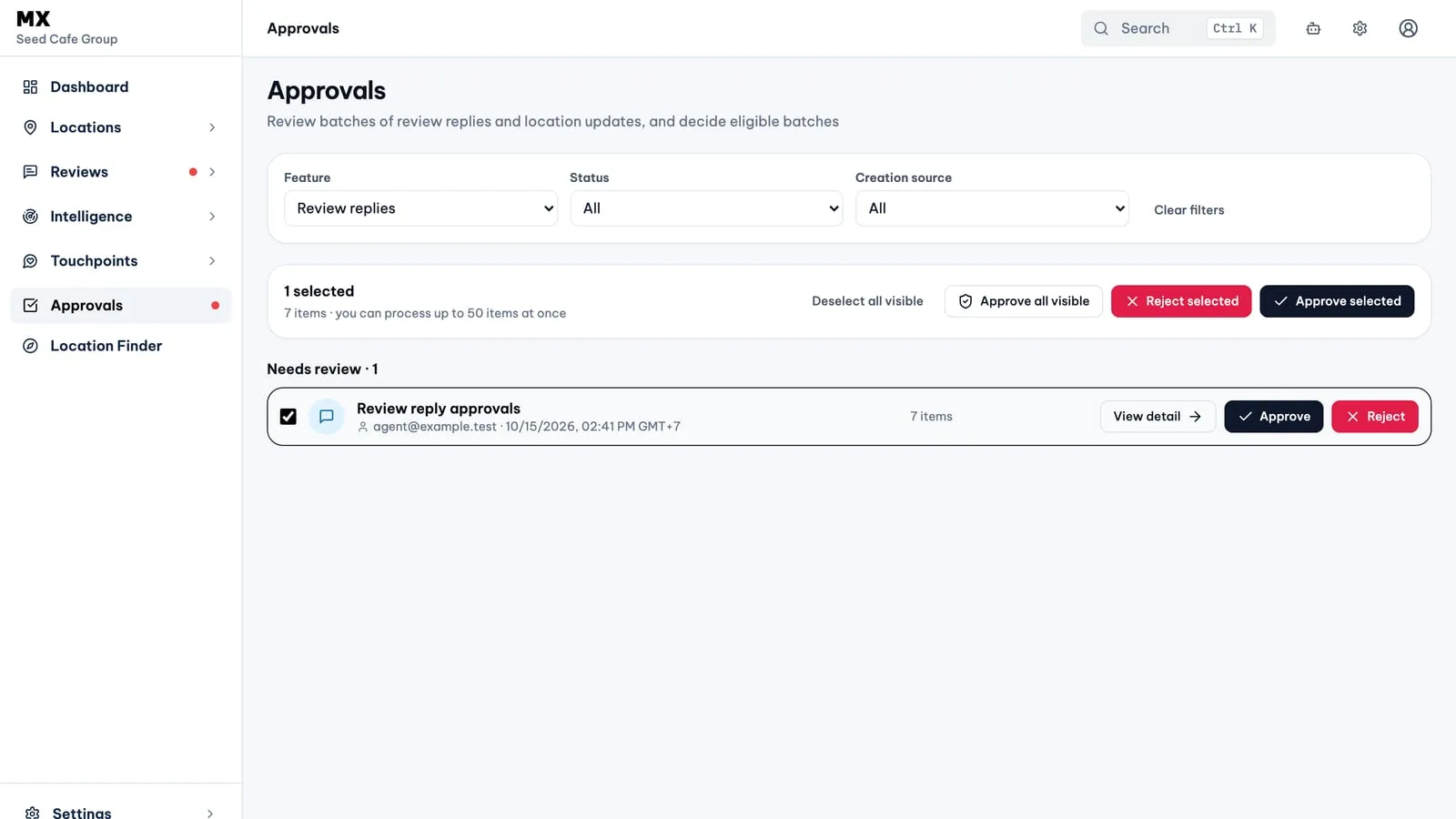
Open Approvals in the sidebar. The list has a Needs review section and a History section. Filter by Feature (Review replies, Location updates or Media uploads), by Status and by Creation source (Manual or Automation).
Open an item with View detail to read the review, its rating and location next to the proposed reply, marked AI-drafted or Manual draft. Approve or reject from the card or the detail. To decide several replies at once, select them and choose Approve selected or Reject selected.
Step 4: What happens next
An approved reply moves to In progress in the Review Inbox while MX hands it to Google, and to Replied once it is on the profile. A rejected reply, with the reason you give, goes back to Draft in the Review Inbox. In History each item shows who decided it and when.
Current limits
- Approval rules apply to the whole company; there is no setting that requires approval for some locations only.
- Roles apply to the whole company; an approver cannot be limited to certain locations or groups.
- Approvals has no location or group filter.
- Automatic rules choose reviews by star rating only (all or 4–5★), not by topic.
- There is no single timeline that follows one reply from draft to publication.
- Bulk Update requests are approved one at a time, not in a multi-select.