
The Google Business Profile panel in Settings → Integrations shows the connection’s status, such as Connected, Reconnect required or Disconnected. Owners and Admins reconnect and disconnect it there. Other roles don’t see which Google account is connected.
Reconnect Google
Reconnect when the panel reads Reconnect required, which means Google stopped accepting MX’s access, or when you want to refresh that access.
-
Open Settings → Integrations and select Reconnect on the Google Business Profile panel.
-
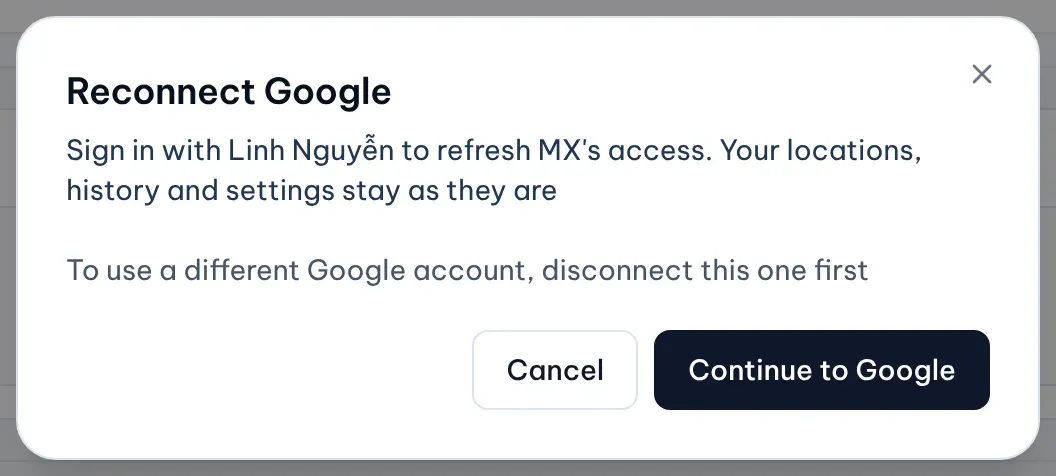
Read the dialog and select Continue to Google.
Illustrative data -
Sign in with the same Google account. Your locations, history and settings stay as they are.
Disconnect Google
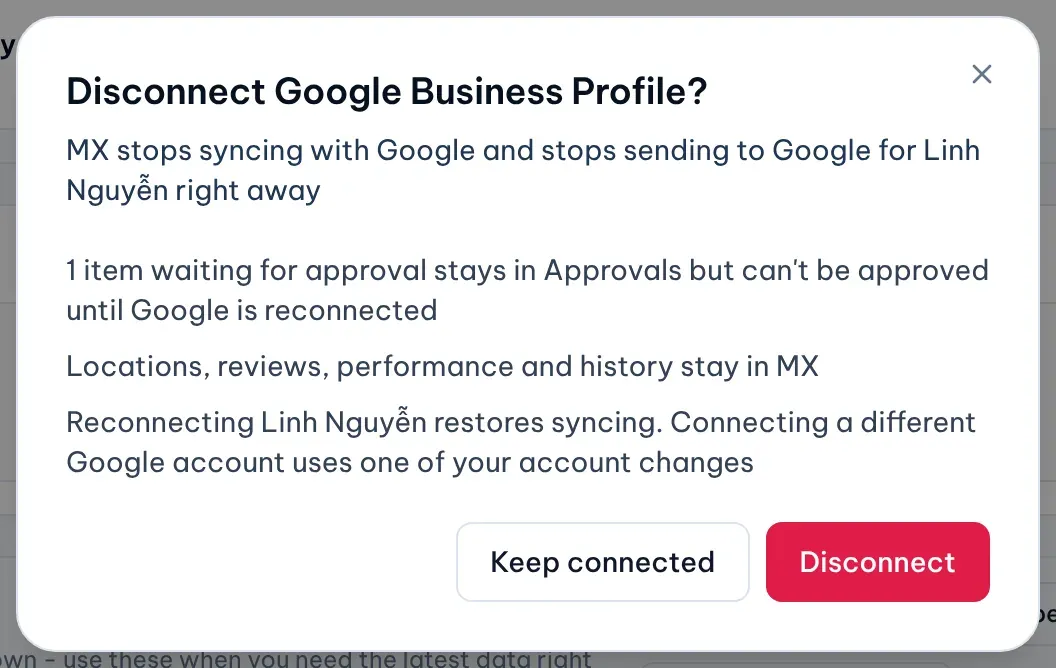
Disconnecting stops MX from syncing with Google and from sending anything to Google, right away. Your locations, reviews, performance and history stay readable in MX.
-
On the Google Business Profile panel, select Disconnect.
-
The dialog lists what will change for your company, for example approved replies and changes that will be canceled, posts that will stop, and items in Approvals that can’t be approved until you reconnect.
Illustrative data -
Select Disconnect to go ahead, or Keep connected to close the dialog.
MX also asks Google to remove its access. If the panel then shows a Google Account permissions link, open it to remove MX from your Google account yourself.
To connect again, select Connect on the panel and sign in with the same account. Your locations come back without choosing them again.
Switch to a different Google account
Only an Owner can connect a different Google account, and only after disconnecting the current one.
- After Connect, the dialog says how many account changes are left. A company can change accounts at most once a day and three times in 12 months. Reconnecting the same account doesn’t count as a change.
- Locations the new account can manage keep their history and settings. Locations it can’t manage are paused and stop counting toward your plan.