
MX reads your locations, reviews and performance from Google Business Profile. You connect one Google account per company, then choose which of its locations MX manages.
Connect your Google account
-
Open Settings → Integrations. The Overview tab shows the Google Business Profile panel.
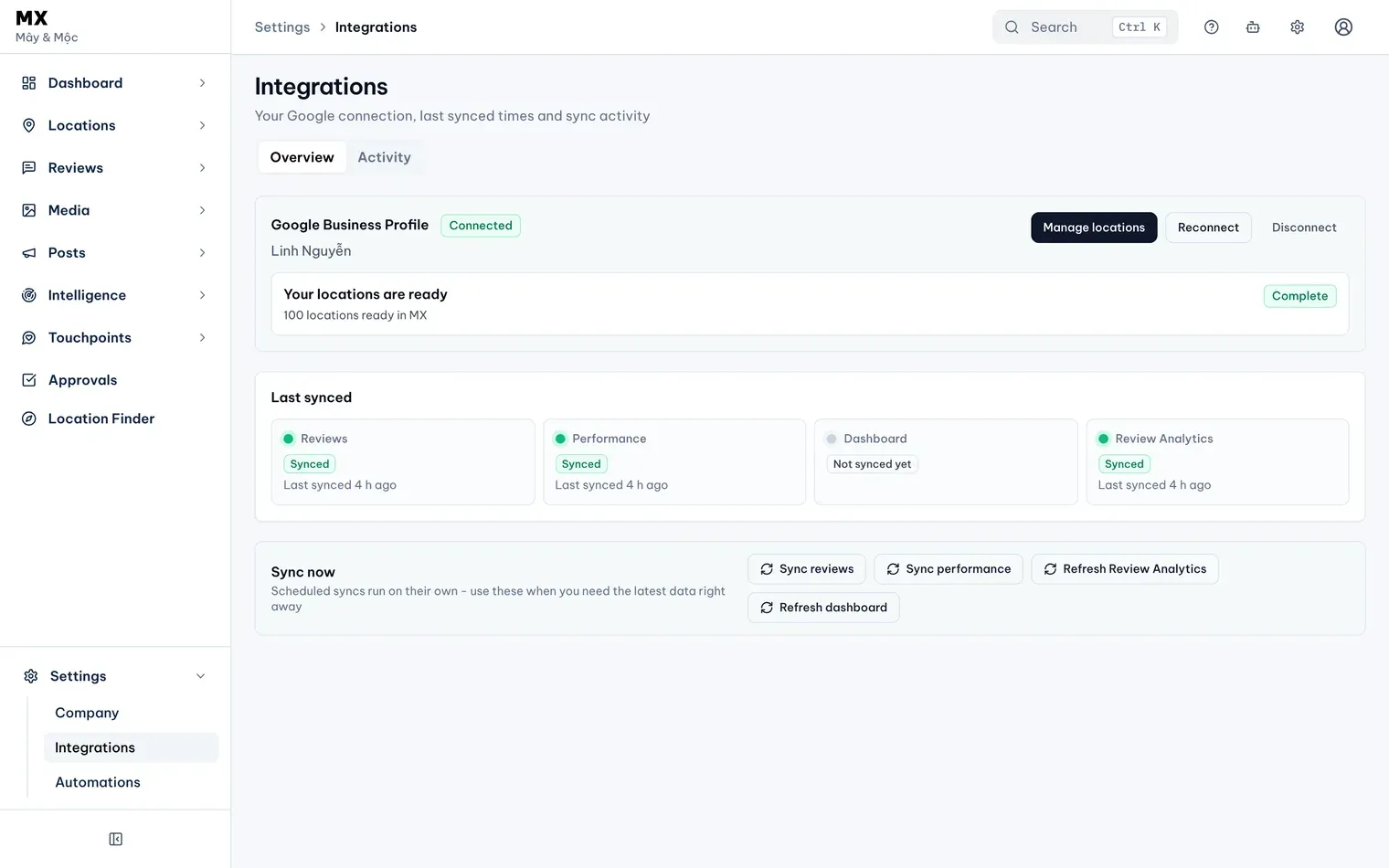
1: the Google Business Profile panelIllustrative data -
Select Connect. MX sends you to Google. If MX asks first, select Continue to Google.
-
Sign in with the Google account that manages your Business Profiles. Review the requested permissions, then continue to connect your Business Profiles.
-
Back in MX, the panel shows Setting up your locations while MX finds the locations in that account.
Choose the locations to add
When MX has found your locations, the panel shows Your Google locations are found and how many locations are ready to add.
- Select Add locations. The list of locations in your Google account opens.
- Tick the locations you want in MX. To put them in a location group at the same time, pick one in Add to group.
- Select Add N to MX, where N is the number you ticked. To add a single location, use Add to MX on its row.
To add more locations later, open Manage locations in the same panel. At the top it counts the locations Added to MX, Available to add and Discovered in your Google account. In the company below, every location is already added, so none is available to add.
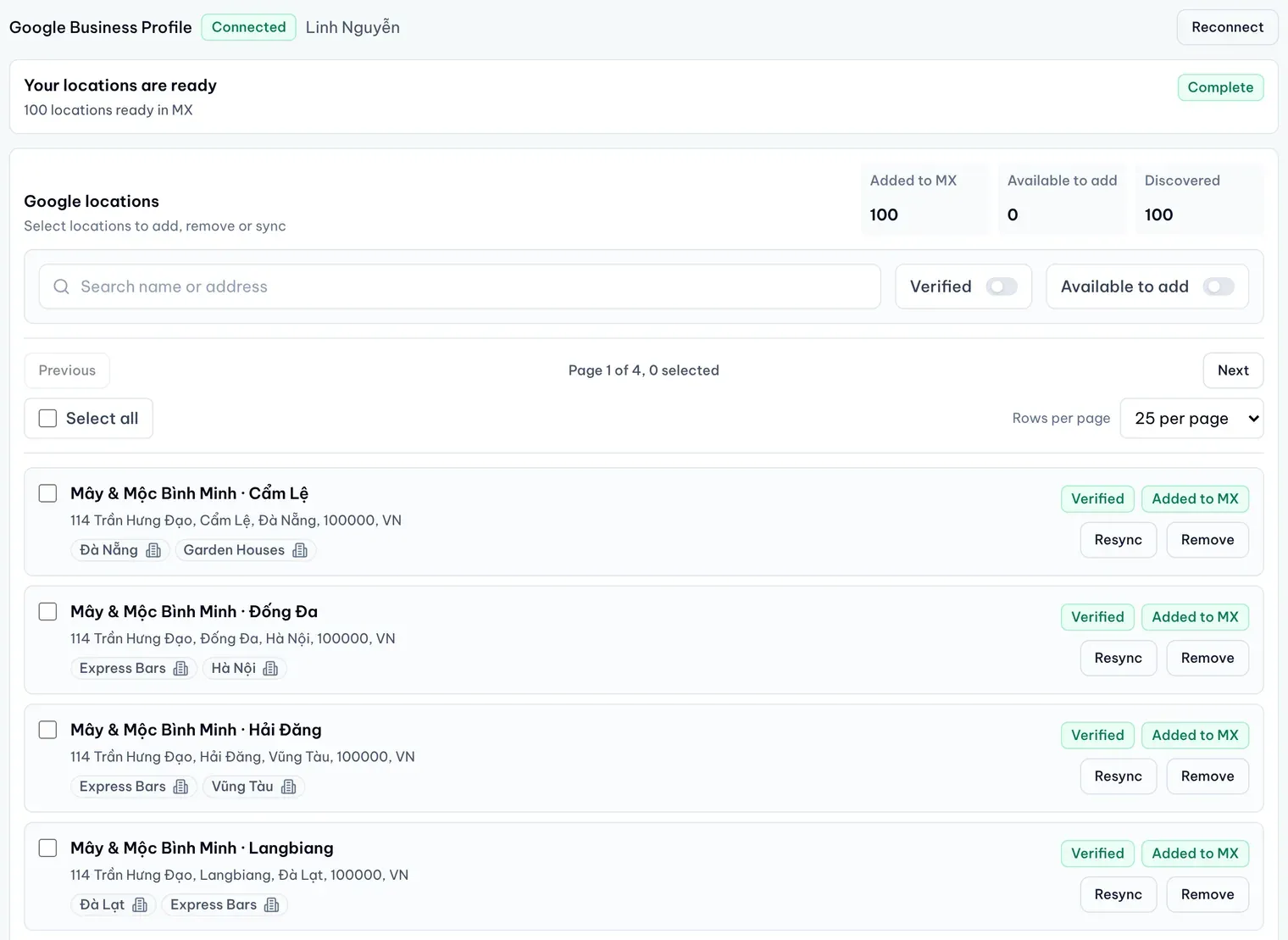
What the first sync does
Adding a location starts its first sync. For each location, MX:
- imports the last 90 days of reviews;
- imports the last 90 days of performance, such as views and customer actions;
- reads the location’s profile details from Google.
While it runs, the panel shows Setting up your locations with the steps done so far. When it finishes, it shows Your locations are ready and how many locations are ready in MX. On the Dashboard, a location still importing reads “Importing”, never 0.

After the first sync, MX keeps your data up to date on a schedule. The Last synced tiles on the Overview tab show when reviews, performance, the Dashboard and Review Analytics last synced.
Who can do this
Only Owners and Admins can connect Google and choose locations. Other roles see whether Google is connected and when data last synced, without the Google account’s name or email. Members limited to some locations see only when data last synced.