
You sign in to MX with an email address and a password. MX opens the Dashboard after you sign in.
Sign in
-
Go to
mx.maplovin.com/login. -
Under Sign in to MX, enter your Email address and Password.
-
Select Sign in.
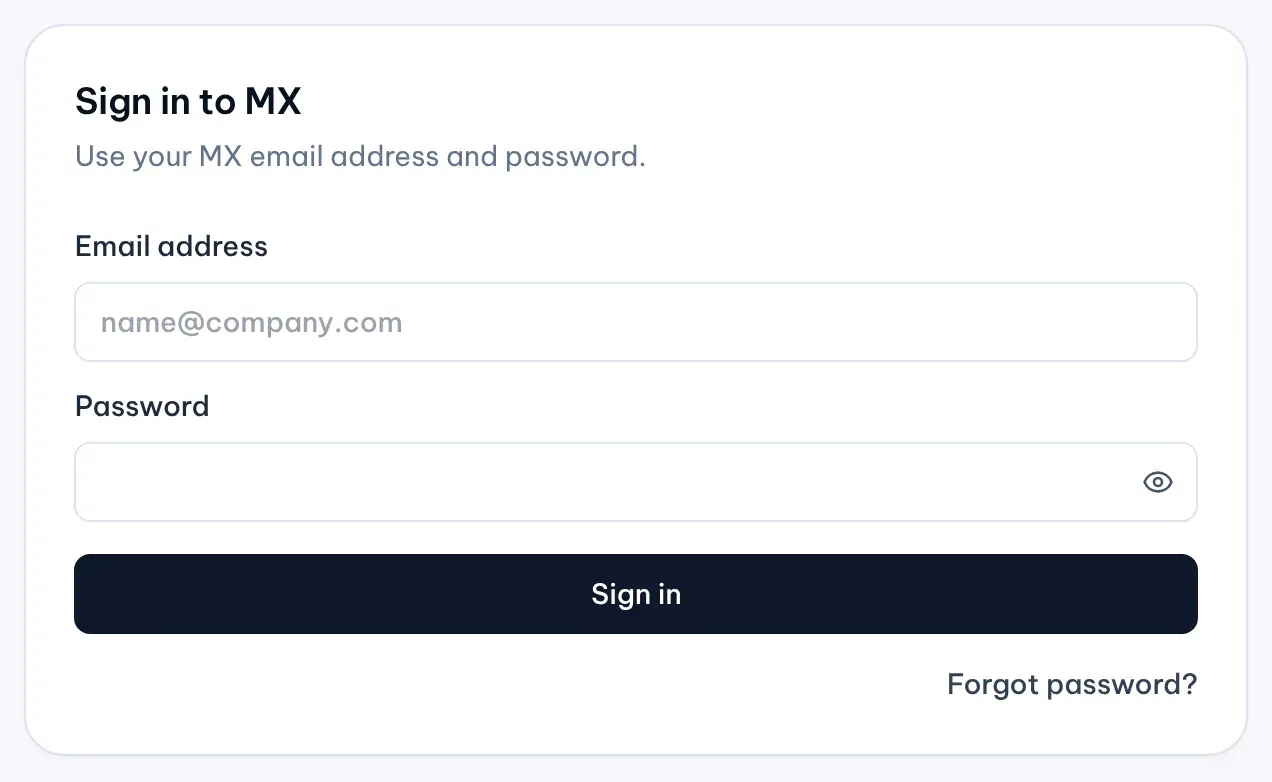
1: Forgot password?Illustrative data
If MX can’t sign you in, it says “We couldn’t sign you in”. Check the email address and password, then try again.
Join from an invitation
When an Owner or Admin invites you, MX sends an email with a link.
- Open the link in the invitation email.
- On Choose a new password, enter a New password of at least 8 characters.
- Select Update password, then sign in with your email address and the new password.
Reset a forgotten password
-
On the sign-in page, select Forgot password?.
-
Enter the email address you use for MX and select Send reset link.
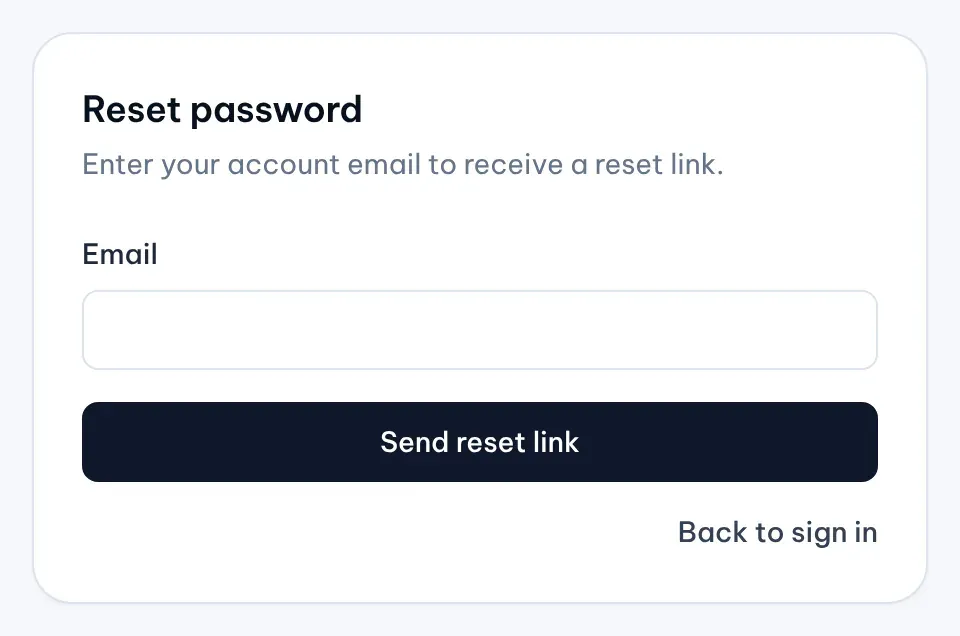
1: Send reset linkIllustrative data -
Open the reset link in the email MX sends you.
-
On Choose a new password, enter a New password of at least 8 characters and select Update password.
-
Sign in with your new password.
For your privacy, MX gives the same answer whether or not an account exists for the email address you entered. If MX says “Password was not updated”, select Request a new link on the same page and start again.
Change your password while signed in
-
Select the account menu, the person icon at the right end of the top bar. On a phone, select the menu button instead.
-
Select Reset password.
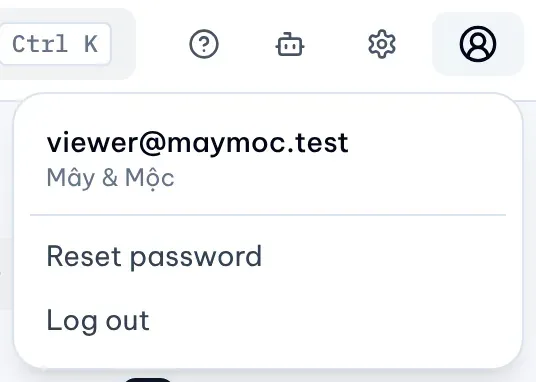
1: Reset passwordIllustrative data -
Enter the new password in New password and Confirm new password, then select Update password.
You stay signed in after this change.