
MX syncs your Google Business Profile data on a schedule. Settings → Integrations shows when each kind of data last synced, lets you fetch the latest data without waiting, and lists recent sync runs. Every role can open it.
Check when data last synced
Open Settings → Integrations. On the Overview tab, the Last synced card has a tile for Reviews, Performance, Dashboard and Review Analytics.

Each tile reads:
- Synced: the time of the last sync.
- Didn’t finish: the last sync stopped before the end. The tile still shows the last successful time, if there is one.
- Not synced yet: nothing has synced for it so far.
- Unavailable: MX couldn’t read the status right now.
The tiles say when data last synced, not how recent Google’s numbers are. Google reports performance with a delay of about four days.
Sync now
The scheduled syncs run on their own. When you need the latest data right away:
-
On the Overview tab, find Sync now.
-
Select Sync reviews, Sync performance, Refresh Review Analytics or Refresh dashboard.

Illustrative data -
The button reads Queueing…, then Updating… while the sync runs. The tile updates when it finishes.
Sync now is for members who see every location. A member limited to some locations sees only the Last synced tiles.
Follow a sync run
-
Open the Activity tab. Recent sync activity lists each sync that you or MX started, with its status and how long ago it finished.
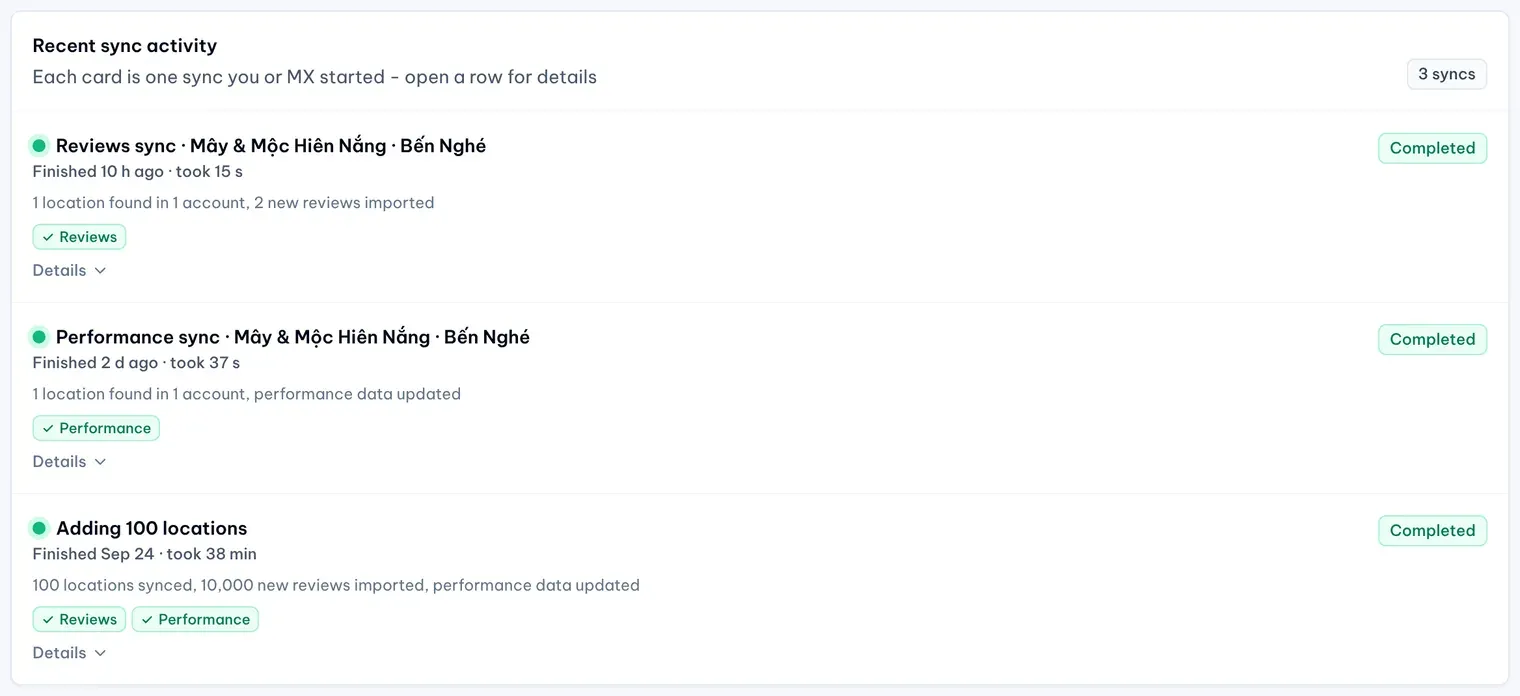
Illustrative data -
When something needs attention, select Needs attention at the top of the list to see only those syncs. Their cards say what went wrong and what to do.
-
Select Details on a card to see its parts, or select its name to open the run’s own page with what it imported and its times.
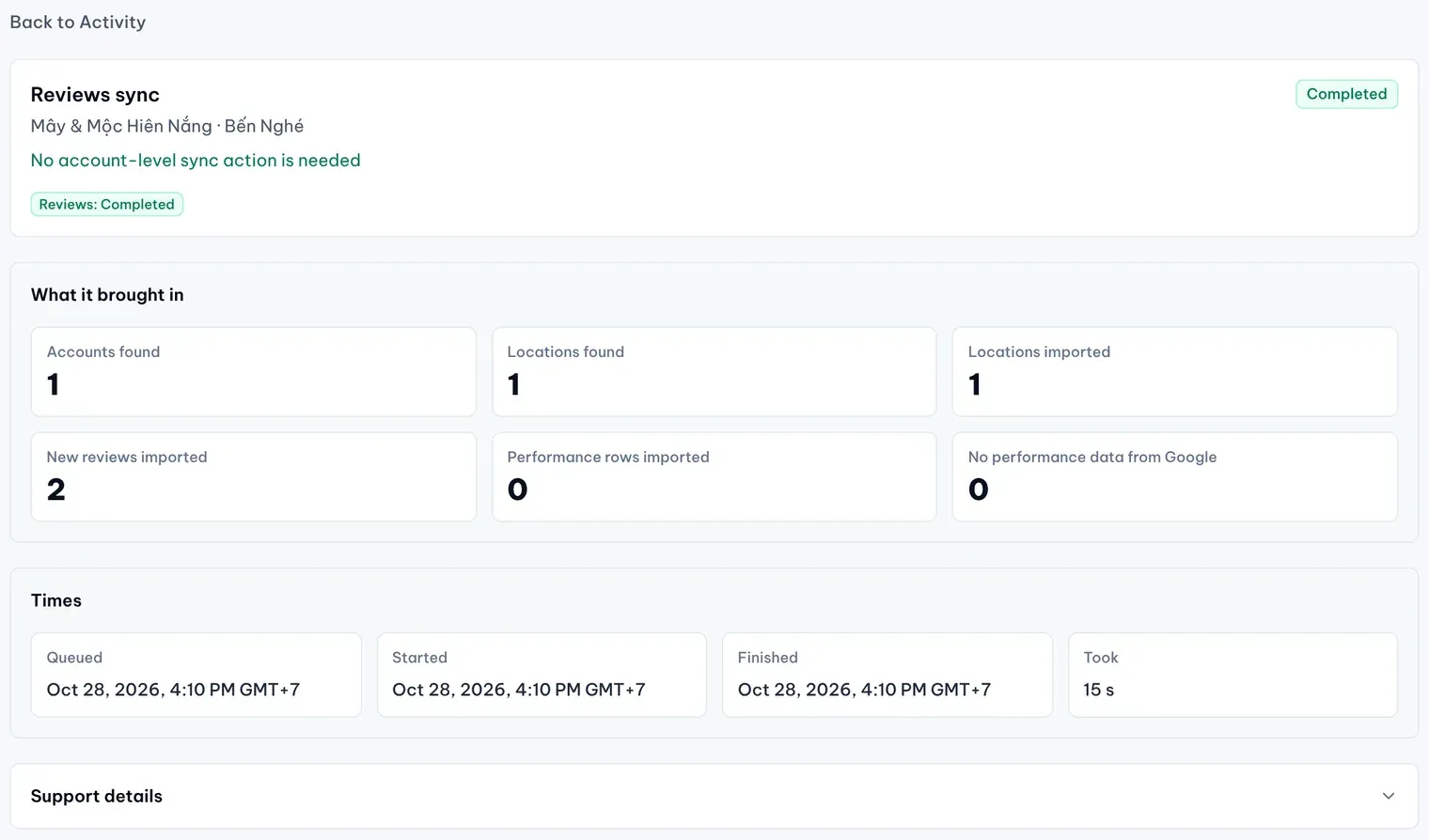
1: What it brought in. 2: Support detailsIllustrative data -
If MapLovin support asks for details, open Support details on the run’s page and select Copy for support. Paste the copied text into your message.
Members who see every location can also Cancel or Retry a run on the Activity tab when MX offers it. A member limited to some locations sees only the runs that touch their locations.