
Media → Library holds the photos and videos your company uses in posts. You upload a file once and pick it from the library whenever you write a post. Every member can browse the library; Owners, Admins and Editors upload and archive.
Uploading puts nothing on Google. A file reaches a location only when you attach it to a post, or set a logo or cover photo with Bulk Update.
Upload photos and videos
-
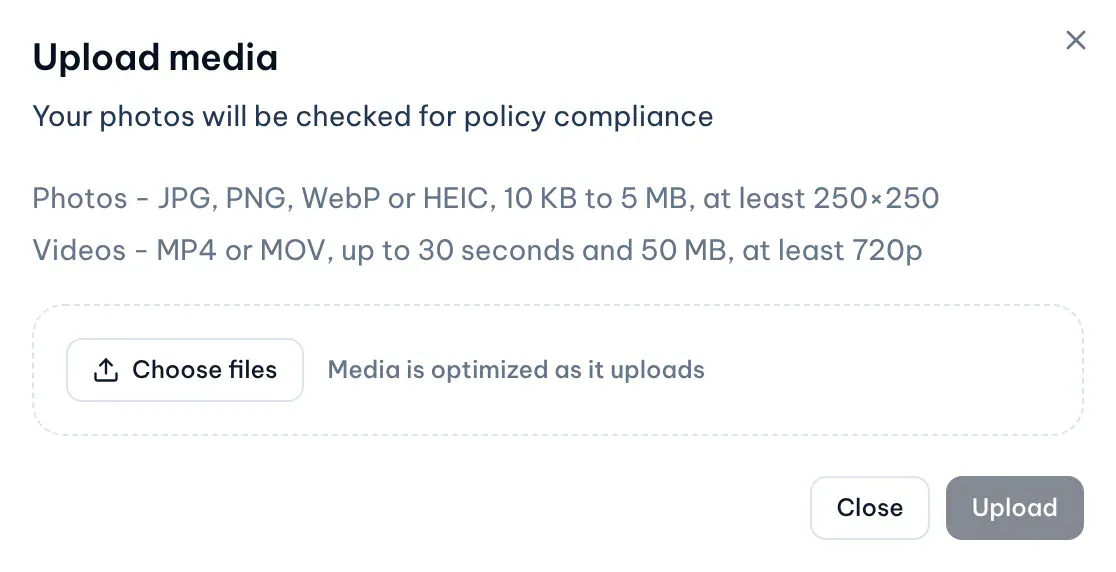
Open Media → Library and select Upload.

Illustrative data -
Select Choose files, or drop files on the dashed area. You can pick several at once.
Illustrative data -
Check each file in the list. MX shrinks and compresses photos on your device and shows each size before and after. If a file shows Can’t upload with the rule it breaks, remove it with the cross on its row.
-
Select Upload (or Upload 3 files for several). Files upload one at a time and show Uploaded when they are done.
The dialog lists the rules Google sets for Business Profile media:
- Photos: JPG, PNG, WebP or HEIC, 10 KB to 5 MB, at least 250×250 pixels. MX converts WebP and HEIC before upload, so the library stores JPG and PNG.
- Videos: MP4 or MOV, up to 30 seconds and 50 MB, at least 720p. Videos are not converted.
Find media in the library
The library lists the newest files first, 40 at a time; select Load more media to see more. Narrow it with the filters above the grid:
- Type: All media, Photos or Videos.
- Category: Any category, Library media, All brand assets, or one Brand Assets category such as Logo.
- Policy: the result of the AI policy check, such as Passed or Flagged. See Read the AI policy check.
Select a photo or video to open its details: format, size, dimensions, length for a video, when it was uploaded and by whom. A video plays in the details panel and has a download link.
Archive a file
Archiving removes the file from your library immediately. It cannot be undone, and the space remains counted for 30 days.
- Open the file from the library.
- Select Archive, then Confirm archive.
Archiving doesn’t remove the photo from Google or from posts already published. To use the file again, upload it again. Logos, cover photos and other brand photos are archived by Owners and Admins only.
Check your storage
The Storage bar at the top of the library shows how much of your plan’s storage is used, split into Brand assets and Media, and how much is Available. On the Business plan the library holds 1 GB in total; the space is not reset each month. Owners and Admins can open Usage by uploader to see who uses the most.
