
Media → Brand Assets keeps your logo, cover photo and brand photos sorted by the photo categories Google uses. Every member can see it; Owners and Admins upload and remove brand photos. Brand Assets never changes a location by itself: a logo or cover photo reaches your locations through a Bulk Update request that someone approves.
Upload to a category
The page lists Google’s ten categories under Recommended photo types: Logo, Cover photo, Exterior, Interior, Product, At work, Food and drink, Common area, Rooms and Team. Each row says what the category is for, which businesses it usually suits, and how many photos you have against Google’s recommendation, such as 1 of 1 or 2 of 3. The recommendations are guidance only.
-
Open Media → Brand Assets.
-
On the category’s row, select Upload.
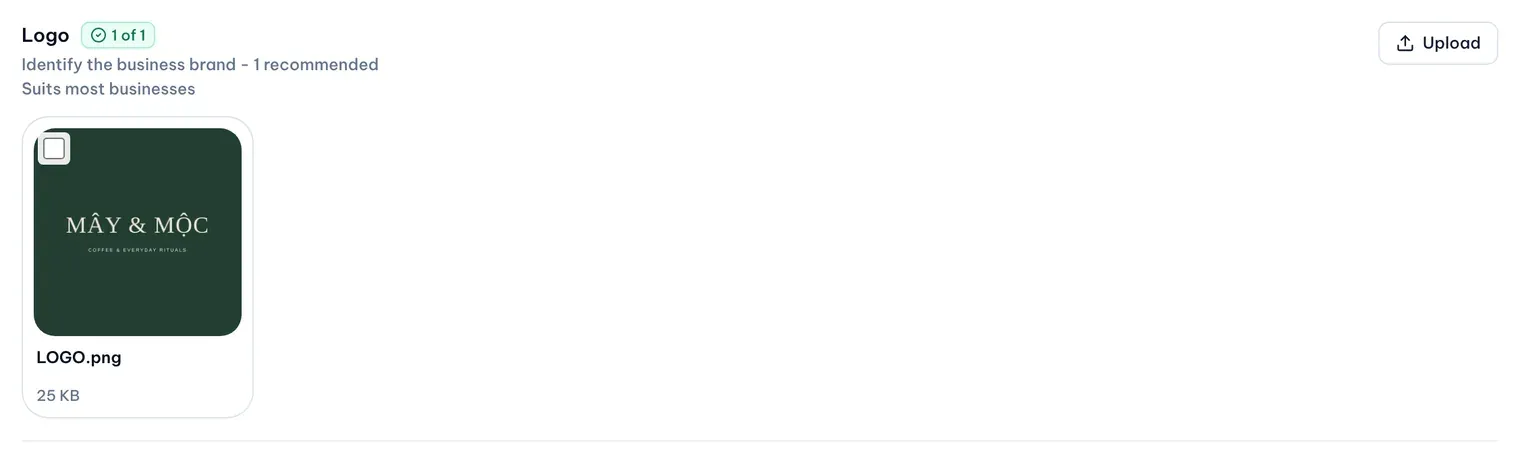
1: Recommendation status. 2: UploadIllustrative data -
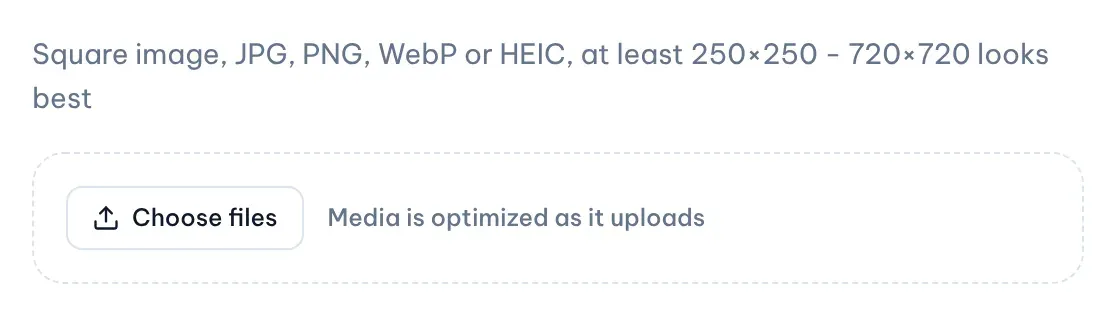
Select Choose files or drop photos on the dashed area. Brand Assets takes photos only, with the same rules as the library.
- Logo: must be square, at least 250×250 pixels; 720×720 looks best.
- Cover photo: a landscape photo; 16:9 looks best.
Illustrative data -
Select Upload.
A category can hold several photos, for example a logo for each of your brands. Each row shows its four newest photos; the View all … in the library link opens the rest. The category is fixed at upload: to use a library photo as a brand photo, upload it again here.
To remove a brand photo, select it, then Remove and Confirm remove. It leaves Brand Assets and the library, and its storage frees up after 30 days. Removing it doesn’t change any location on Google.
Put a logo and cover photo on your locations
Any Owner, Admin, Approver or Editor who has access to every location can create Bulk Update requests and start one from Brand Assets:
-
Tick the photo you want on the Logo row, the Cover photo row, or both. You can also use Choose logo or Choose cover photo to pick from every photo in the category.
-
Select Create Bulk Update request.

Illustrative data -
Bulk Update opens a new request with the photos already chosen. Choose the locations there and send the request to Approvals.
The Storage bar in Media → Library also tells you whether a logo and a cover photo are ready, for example Logo and cover photo ready or Logo missing.