
Every post waits in Approvals for a decision, and nothing reaches Google before that. A post made in Posts is always approved by an Owner, Admin or Approver, never automatically, whatever your Automations settings say; only a Content Plan with automatic approval turned on can approve its own posts.
Send the post
- In the post editor, select Send to Approvals. MX saves the draft first.
- If a field shows a message, such as Add a photo or video or Choose at least one location or a group, fix it and select Send to Approvals again.
MX then runs an AI policy check on the text and media against rules taken from Google’s local post content policy, such as misleading claims, offensive language, contact details in the text or off-topic content. If it finds nothing, the post goes to Approvals and its status becomes Awaiting approval.
The policy check is advice for your team, not a guarantee that Google accepts the post. If it couldn’t run, the post shows Not policy checked and approvers review it as usual.
If the policy check flags the post
The post stays a draft and a Policy check panel shows Policy flag with each reason. You have two choices:
- Edit the post and select Send to Approvals again. The new text is checked again.
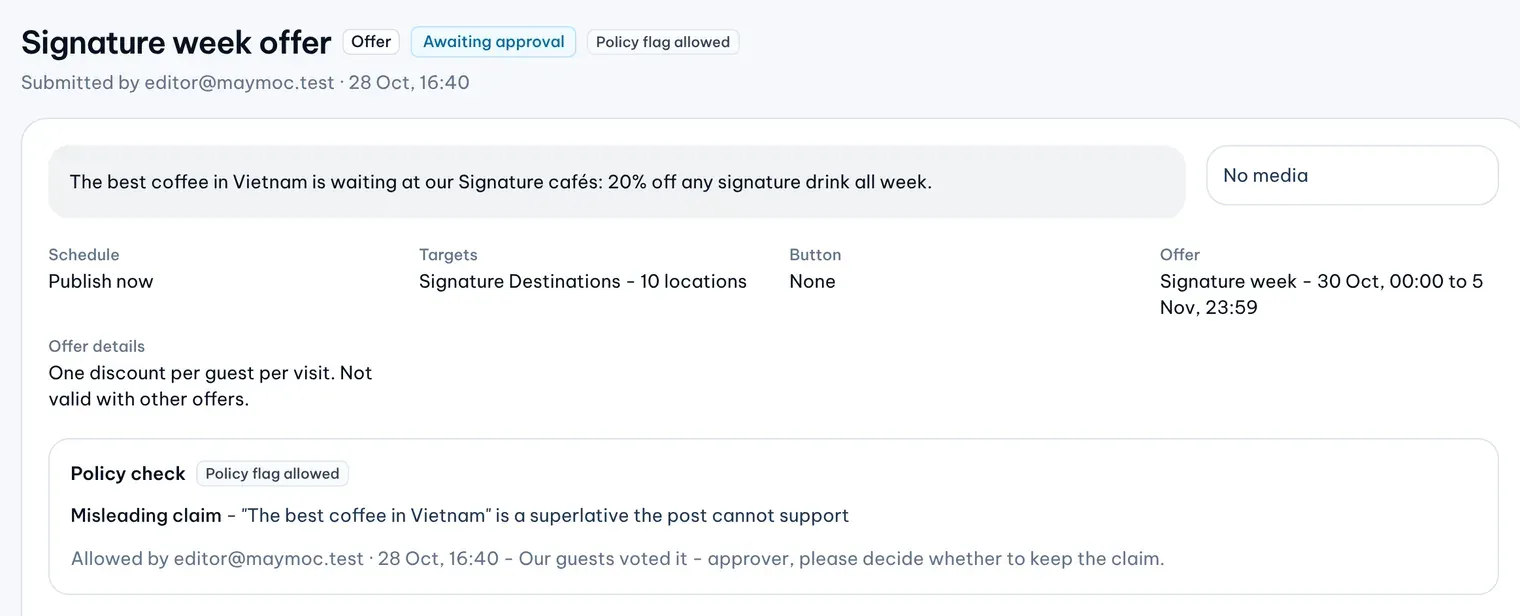
- If the post is fine as it is, add a Note for approvers (optional) and select Allow and send to Approvals. Approvers see the flag, its reasons, who allowed it and your note.
Owners, Admins and Editors can allow a flagged post.
Approve or reject a post
- Open Approvals. Posts waiting for a decision are listed with the other requests; filter by the Posts feature to see only them.
- Select View detail on the post. The page shows the text, the media, the button, the event or offer details, the policy check and every location the post goes to.
- Select Approve post to publish it.
- To send it back, select Reject post, write a Reason for the editor, then select Confirm rejection.
MX then publishes an approved post to each of its locations; with many locations this can take a little while, and a scheduled post waits for its time. A rejected post goes back to Draft: a writer can change it and send it again, and the rejected version stays in Approvals history with your reason. Owners and Admins can approve a post they wrote. Editors and Viewers can open the page but can’t decide.
Cancel a post
Owners, Admins and Editors can stop a post before it starts publishing: open it in Posts, select Cancel post, then Confirm cancel. It works while the post is Draft, Awaiting approval, Approved or Scheduled. Once publishing has started, a post can’t be cancelled.