
GuideLocations
Google posts - one update for every location, approved before it goes live
Stop copying the same post onto each Google profile: write it once in MX, get it approved and publish it to every location on a schedule
Table of contents
The problem
Google posts are the short updates, events and offers shown on a business’s profile in Search and Maps. A chain usually wants the same news on every branch, but each Google Business Profile takes its posts separately, so one piece of news turns into as many copies as you have locations.
Doing it by hand
Someone opens each profile, pastes the text, uploads the photo again and sets the button and dates, then moves to the next. If a manager checks the wording first, the draft travels by chat and is pasted again. It is easy to miss a branch, and nobody can see in one place which profiles show the post.
What changes with Posts
With Posts in MX you write the post once, attach a photo from your Media library and choose the locations or a location group. After approval, MX publishes it to every chosen profile, now or at the time you set, and shows the result for each location on one page.
What you get
- One post, every branch. The same text, photo, button and dates reach each chosen location.
- A check before anything goes live. Every post waits for an approver; posts are never approved automatically.
- A clear record. Each post shows which locations published and which failed, with a link to each live post.
How it works in MX
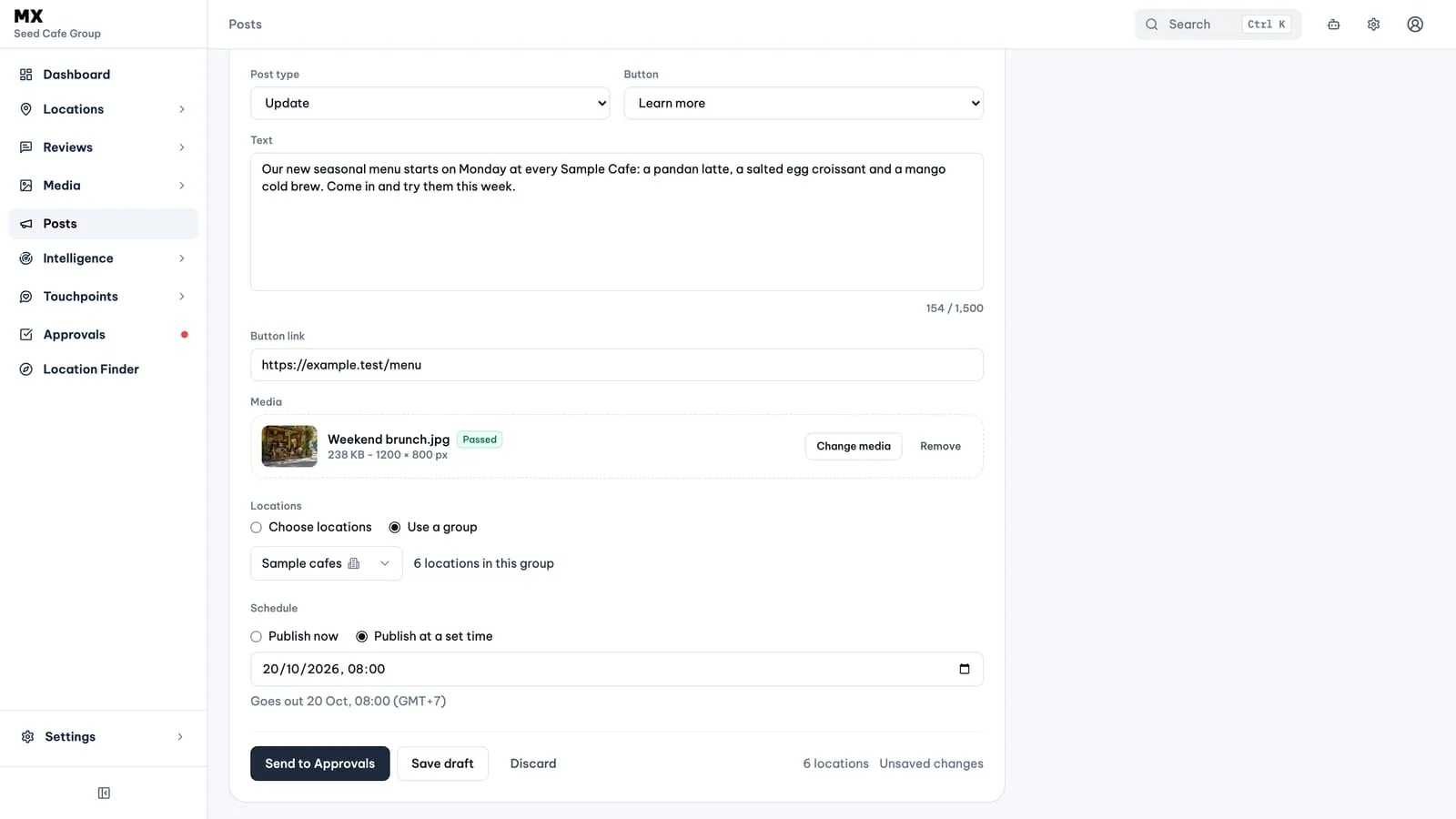
Open Posts in the sidebar and choose New post. The draft saves as you write.
- Choose the post type. Update, Event or Offer. Events and offers need a title and dates; an offer can add a coupon code, a redeem link and terms.
- Write the text. Up to 1,500 characters. Draft with AI can write or rewrite it for you to edit.
- Add a button. For updates and events, pick Book, Order online, Buy, Learn more or Sign up with a link, or Call now, which dials each location’s own phone number.
- Choose media. Pick one photo or video from the Media library that meets Google’s rules for the post type.
- Pick the locations. Tick locations in the list or use a location group. A group becomes its current locations when you send the post.
- Set the schedule. Publish now, or Publish at a set time in the company timezone.
- Send to Approvals. An AI policy check reviews the post against Google’s content rules. If it flags something, you see why and can edit the post or choose Allow and send to Approvals.
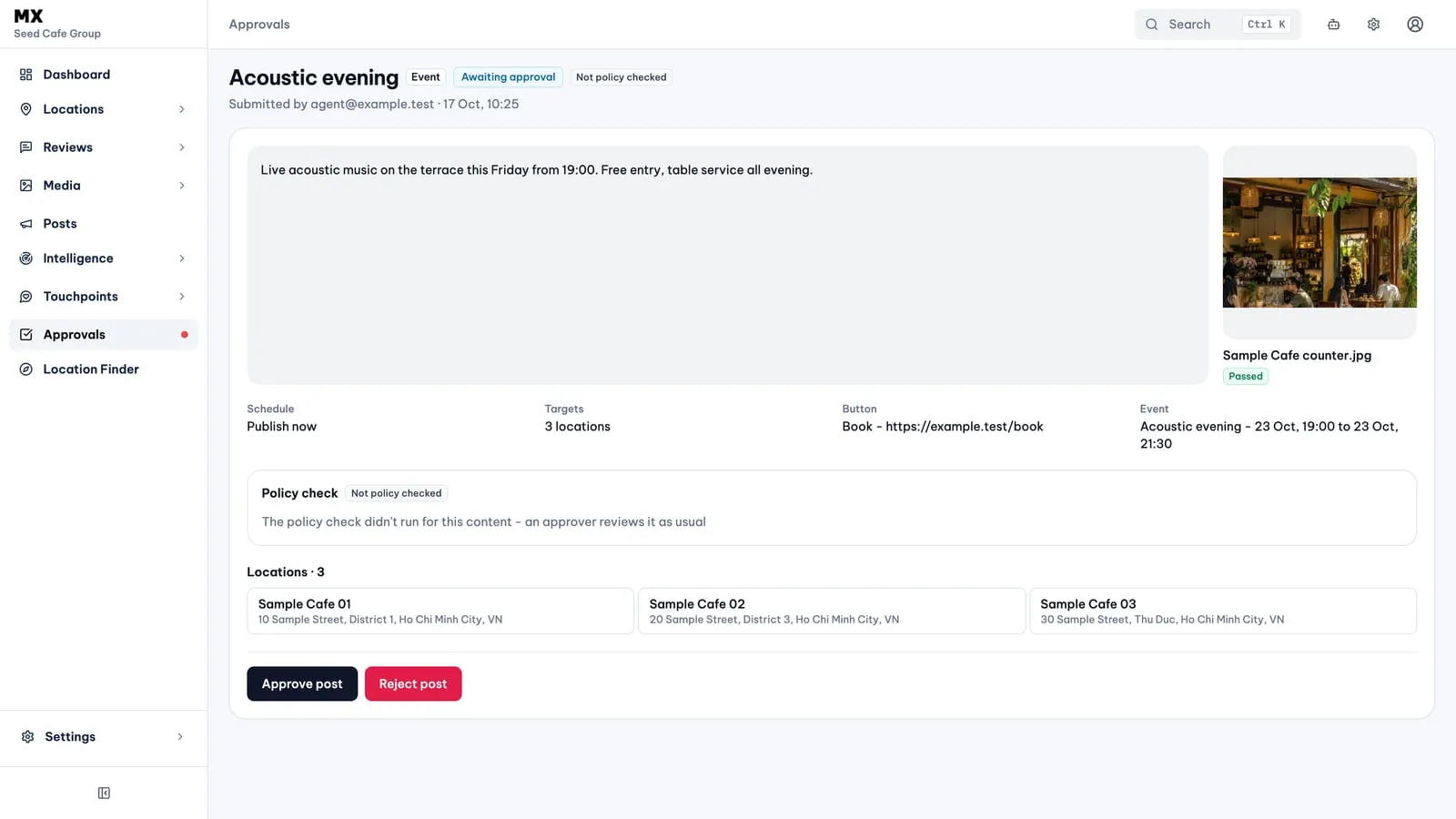
An approver opens the post in Approvals and chooses Approve post or Reject post with a reason; a rejected post goes back to draft. Until publishing starts, an owner, admin or editor can still cancel it.
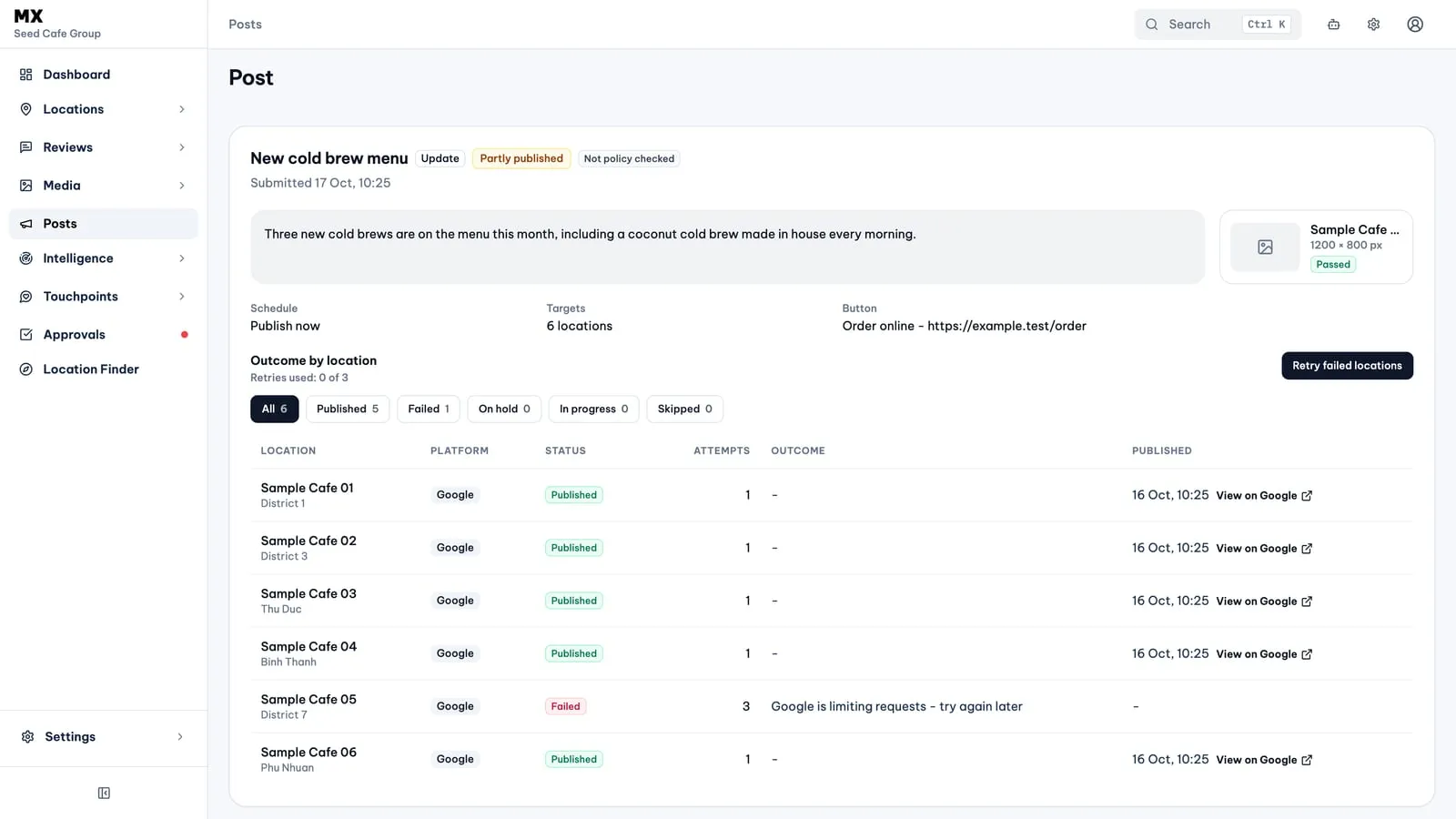
The post page then lists every location with its status and a View on Google link. If some fail, Retry failed locations tries again, up to three times per post.
Who can use it
Posts needs the Pro or Business plan. Owners, admins and editors write, send, cancel and retry posts. Owners, admins and approvers approve or reject them. Everyone else in the company can read posts and their results.
Current limits
- Posts are published to Google Business Profile only.
- One photo or video per post. Updates and events need one; offers take a photo or none.
- A post that Google has published cannot be edited or deleted from MX.
- There are no recurring posts, templates or post performance figures.
- Publishing to Google is switched on company by company. Until it is on for yours, approved posts wait as On hold.