GuideLocations
Media and Brand Assets - keep every location's photos and logo in one place
Stop hunting for the right logo and photos for each Google profile: keep them in one checked library and send the logo and cover to many locations
Table of contents
The problem
With many locations, the current logo, the cover photo and good shots of each shopfront end up scattered across phones, shared drives and chat threads. Some Google profiles still show an old logo after a rebrand, and nobody is sure which file is the approved one.
Doing it by hand
Someone collects photos from each branch, checks each file against Google’s size and format rules and uploads it profile by profile. A new logo means repeating that upload for every location and hoping none were missed.
What changes with Media
Media gives your company one library in MX for photos and videos, with Brand Assets for the logo, the cover photo and the photo types Google recommends. Every file is checked against Google’s rules before it uploads, and one Bulk Update request sends a new logo or cover to the locations you choose, after approval.
What you get
- One approved source. Everyone works from the same files, each showing who uploaded it and when.
- Files that meet Google’s rules. A file that breaks a rule is stopped before it uploads, with the rule named.
- A new logo everywhere in one request. Choose the locations once, approve once, and see a result for every location.
How it works in MX
- Upload to the library. Open Media → Library and choose Upload. MX resizes large photos on your device and converts WebP and HEIC to JPEG.
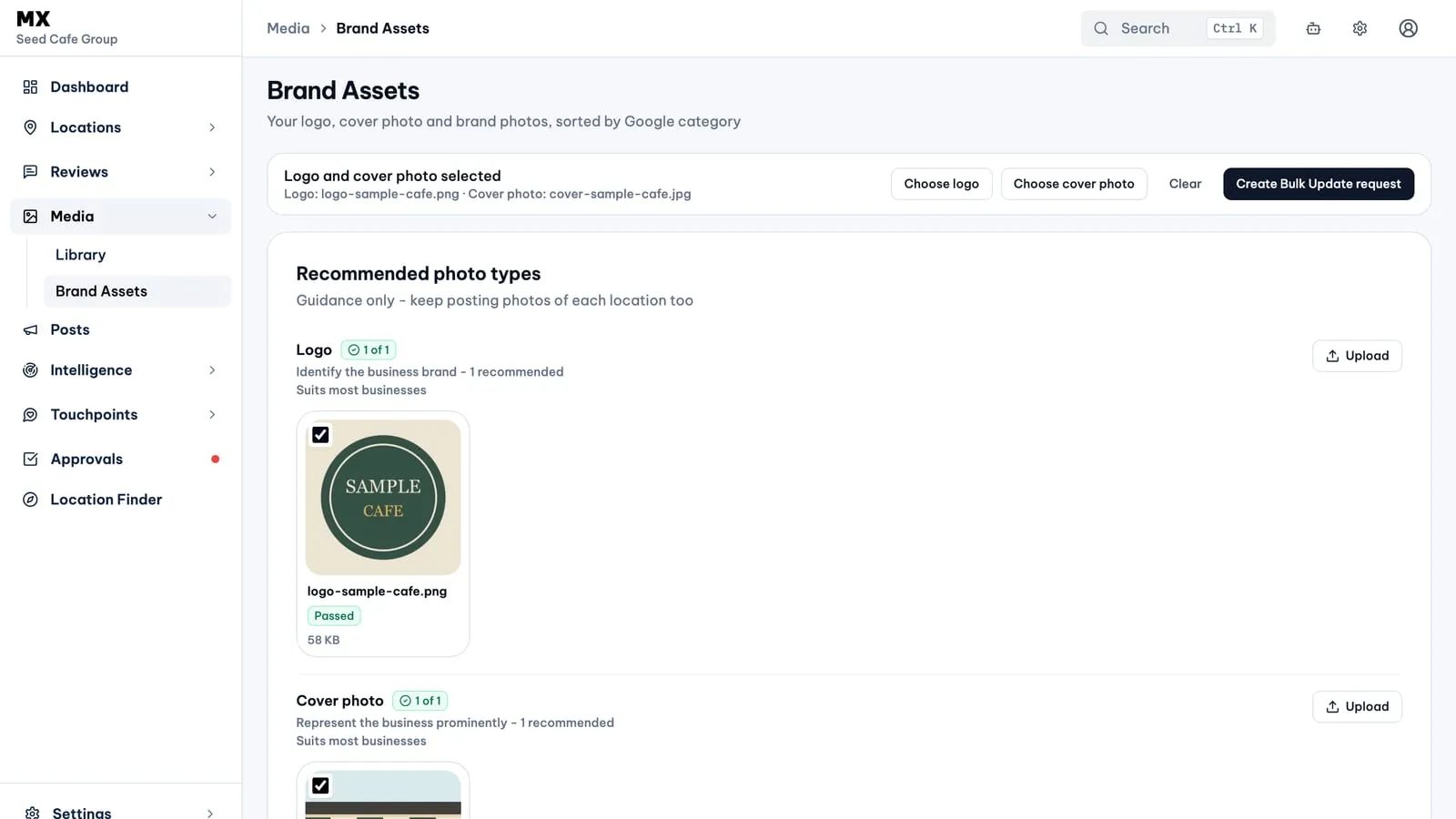
- Sort brand photos. In Media → Brand Assets, upload into a category: Logo, Cover photo, Exterior, Interior, Product, At work, Food and drink, Common area, Rooms or Team. A checklist compares each category with Google’s guidance, for example “2 of 3” Exterior photos.
- Check the policy result. On Pro and Business, MX checks new photos once a day against Google’s photo policy and marks them Passed or Flagged. A flagged photo is left out of the post picker until someone allows it.
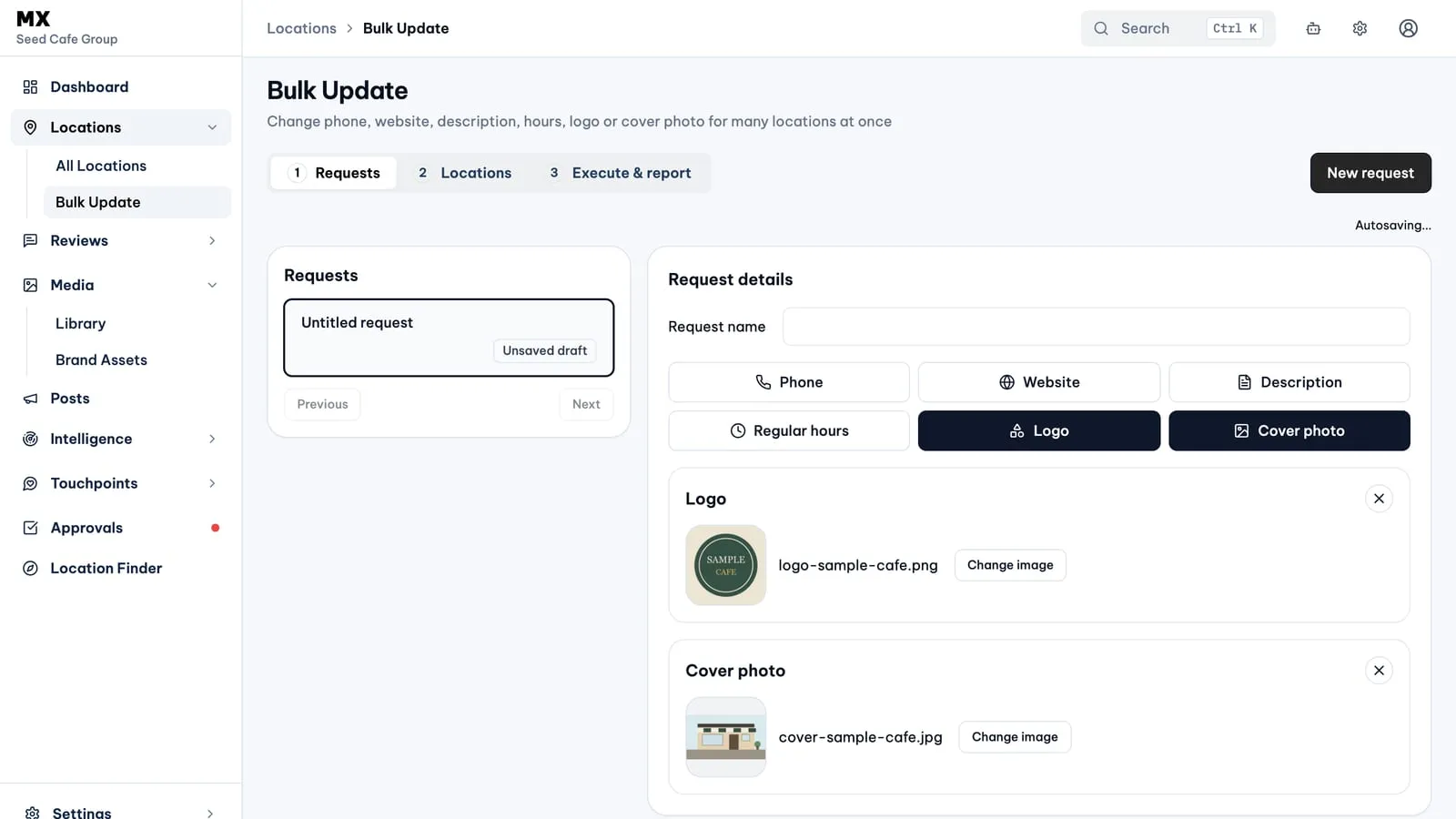
- Send the logo and cover. Select a logo and a cover photo in Brand Assets and choose Create Bulk Update request. Bulk Update opens with both images filled in; pick the locations and send the request to Approvals, where it is listed under location updates.
- Approve. Logo and cover changes always need a manual decision, and the approver sees a thumbnail of each image. Once approved, they are sent even if someone archives them in Media later.
- See the result. Each location gets a result, such as Updated, Partial or Failed. Updated means Google accepted the new photo; Google still reviews it before it shows on the profile.
Who can use it
Every member can view Media. Owners, admins and editors upload and archive library files; only owners and admins upload or remove brand assets. Photos are on every plan, with 50 MB of storage on Free; Pro adds video, the policy check and 500 MB; Business has 1 GB. Sending a logo or cover uses Bulk Update, which is on the Business plan.
Current limits
- Photos belong to the company, not to a location, and MX does not record which location uses which photo.
- Only the logo and cover photo can be sent to Google; the other categories help you organise your photos.
- One logo and one cover per request, the same for every selected location.
- MX adds the new logo or cover on Google and does not remove older photos.
- Videos (Pro and Business) are MP4 or MOV, up to 30 seconds and 50 MB. Photos are 10 KB to 5 MB and at least 250×250 pixels; logos must be square.
- Archiving cannot be undone, and archived files are deleted after 30 days.