
MX uses AI to check each library photo against rules from Google’s Business Profile photo policy. It looks for photos that are off-topic for the business, stock images or screenshots, covered in text or promotional overlays, showing prohibited content, or not matching the business category. The check is advice for your team. It is not a guarantee that Google accepts the photo, and Google still reviews every post itself.
Photos are checked regularly, so a new photo waits a while for its check. Videos and logos are not checked.
See the result for a photo
-
Open Media → Library and select a photo. Its details show a Policy check section.
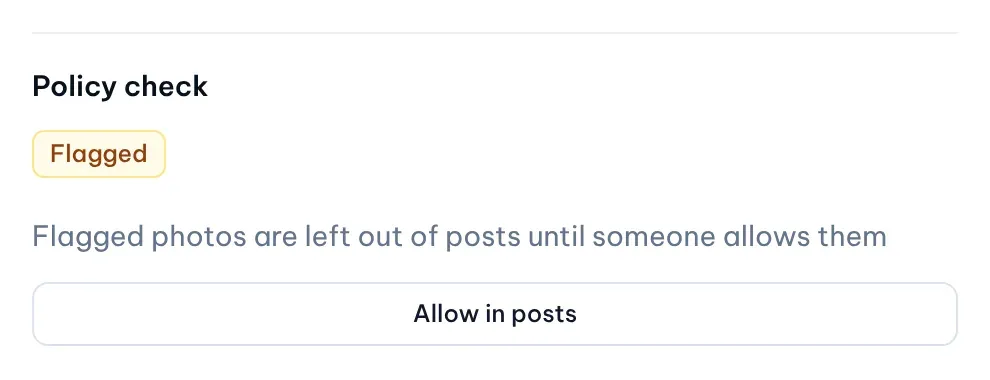
1: Allow in postsIllustrative data -
Read the badge:
- Queued for check: the photo is waiting for its check.
- Passed: MX’s AI check found no potential policy issues. Google still makes its own decision.
- Flagged: the check found a possible problem. The reasons are listed under the badge.
- Allowed: the photo was flagged, and someone on your team allowed it in posts.
- Check failed: the last check didn’t finish; MX checks the photo again later.
To list photos by result, use the Policy filter above the library: Passed, Flagged, Allowed or Queued for check.
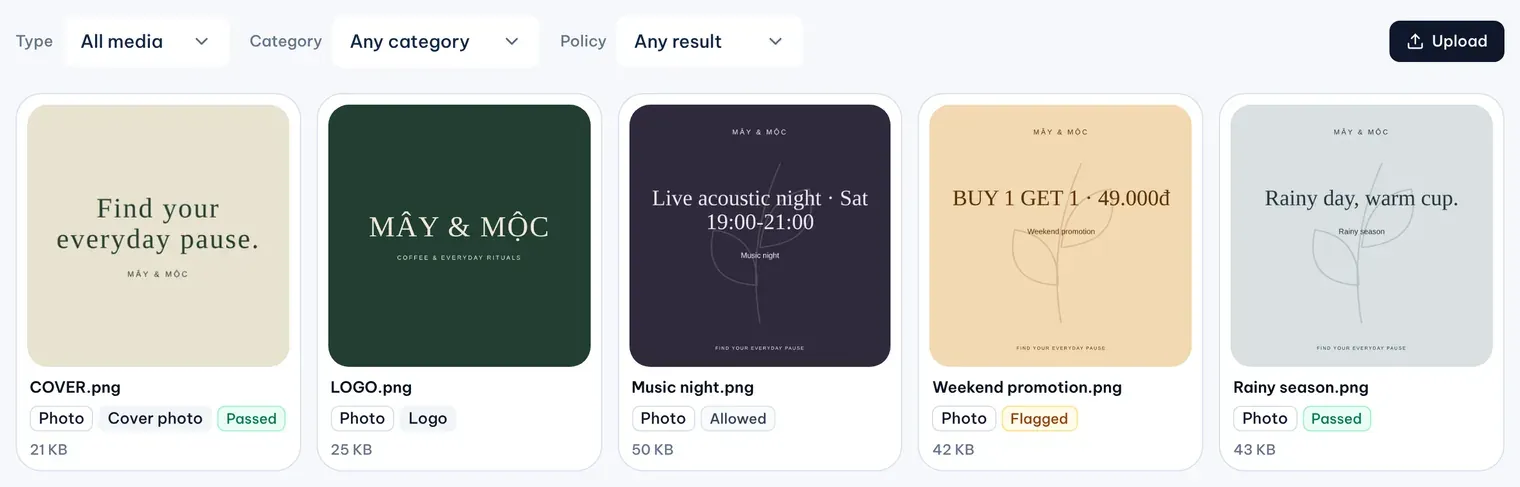
Allow a flagged photo in posts
A flagged photo stays in the library, but the post editor leaves it out: it is hidden from the media picker until you turn on Show flagged, and it can’t be attached until someone allows it.
- Open the flagged photo and read the reasons.
- If the photo is fine to use, select Allow in posts, then Confirm allow.
The badge changes to Allowed and the check result stays on record. Owners, Admins and Editors can allow library photos; only Owners and Admins can allow a brand photo. If the photo isn’t right for Google, archive it instead.