
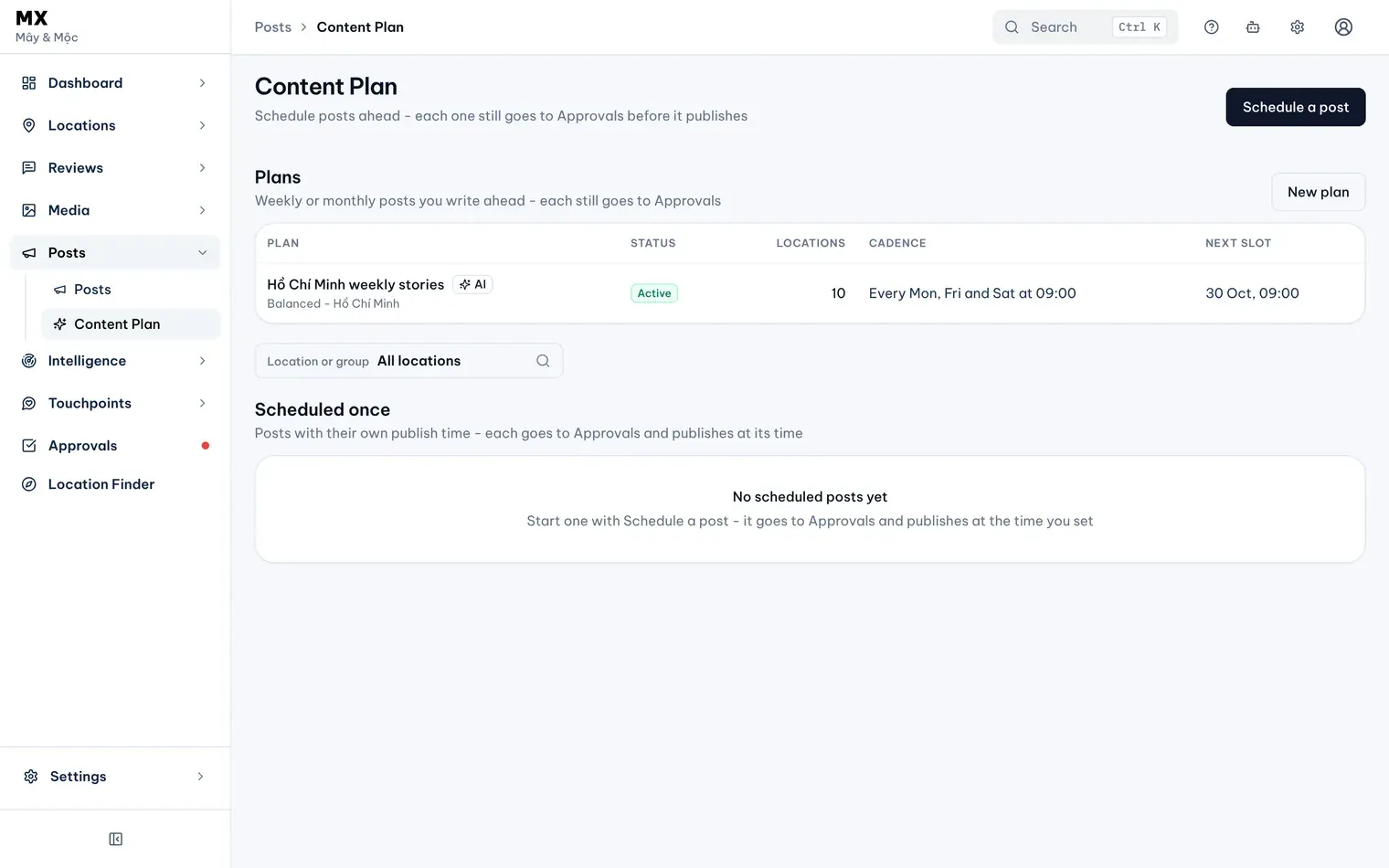
Posts → Content Plan is where you plan posts ahead. For one post at a set time, use Schedule a post; for posts that repeat every week or month, set up a plan (see Set up a content plan). A scheduled post still goes through Approvals before it publishes.
Schedule the post
-
Open Posts → Content Plan and select Schedule a post.
-
Write the post as in Posts: type, text, button, media and locations. See Create a post for your locations.
-
Under Schedule, choose the date and time it goes out. Times use the company timezone, shown under the field, whatever timezone your computer is in. MX then shows when the post goes out.

Illustrative data -
Select Send to Approvals.
MX saves the draft only once it has a time: until then the status reads Not saved - choose a time. The time can’t be too close to now and must be within the next year; MX tells you if it is too soon.
Scheduled posts can also use the merge fields {location_name} and {city}, which MX fills in for each location. See Personalize plan posts.
Pick a day with no other scheduled post
A location can have only one scheduled post on a day, across plans and single scheduled posts. If a chosen location already has one that day, MX says A chosen location already has a post that day - choose another day or remove it. Posts you publish straight away from Posts are not limited by this.
After you send it
- An Owner, Admin or Approver approves the post in Approvals. Its status becomes Scheduled.
- At the time you set, MX publishes it to each location. If someone approves it after that time, it publishes straight away.
- The post is listed under Scheduled once on the Content Plan page and in Posts.