
You edit one location at a time on its page. MX doesn’t write your edit to Google straight away: each changed field becomes a change that needs approval first. To change the same phone, website, description or hours at many locations, use Bulk Update instead.
Change a field
- Open Locations → All Locations and select the location’s name.
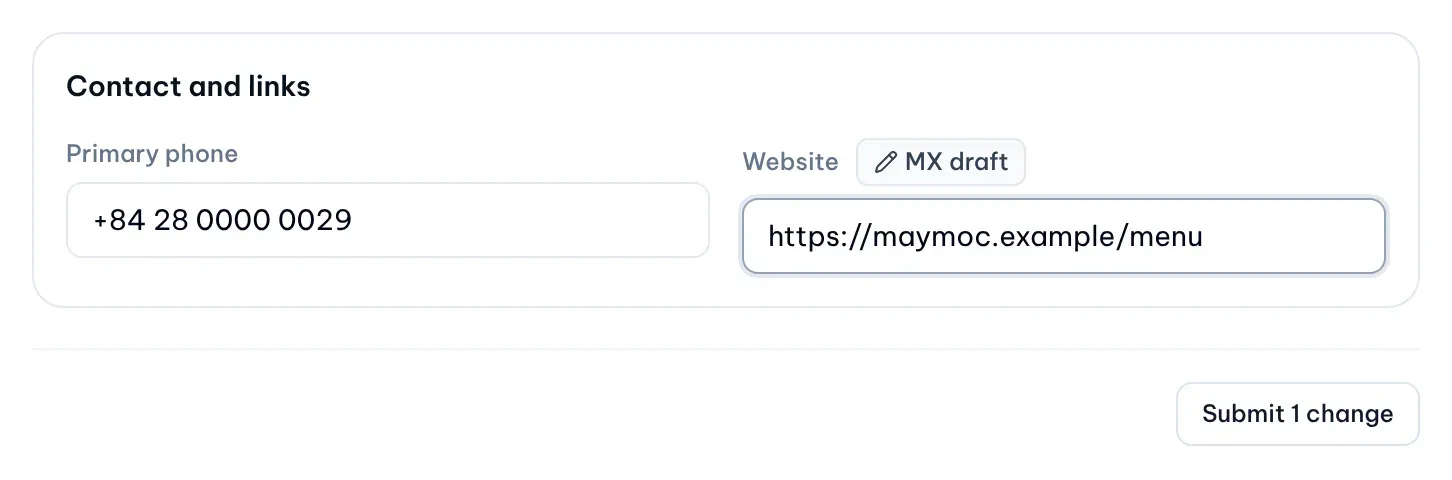
- In MX location details, change what you need. A field you change shows MX draft.
- Core information: Business name and Store code.
- Address: Street address, City / locality, State / province, Postal code and Country code.
- Description: up to 750 characters, with no website links.
- Hours: one box per day, with 24-hour ranges such as 09:00-17:30, separated by commas. Leave a day empty to mark it closed.
- Contact and links: Primary phone and Website (starting with http:// or https://).
- Select Submit 1 change. The button counts the fields you changed, for example Submit 3 changes.
Right after you submit, Submitted changes appears under the form, one row per field with its status. While a change there shows Awaiting approval, you can withdraw it with Cancel. The list stays only until you reload the page; after that, follow the change in Location change activity or in Approvals.
Resolve a difference with Google
When a field differs from Google, its row in MX and stored Google snapshot offers four actions. Choose one, then submit as above.
- Send MX to Google: send the MX value to Google.
- Use Google: take Google’s value into MX instead. Nothing is sent to Google.
- Edit: type a new value in the form and send that.
- Ignore: leave the difference as it is. Nothing changes in MX or on Google, and no approval is needed.
A field marked Google: Pending has no actions until Google finishes its own review.
Why changes go to Approvals
Customers see a location’s Google profile, so MX sends a change to Google only after it is approved. Each submitted change waits in Approvals, unless an automation your company set up in Settings → Automations approves it; automations approve only low-risk changes made by your team.
- Owners, Admins and Approvers decide changes in Approvals. If you’re one of them, Approve and Reject also appear next to your change under Submitted changes.
- If Protect locks the field, only an Owner or Admin can decide the change. See Approve MX changes to locked fields.
After approval
MX sends the approved value to Google. The change moves from Approved to Applying to Applied, or to Failed if Google refuses it. Google can still review an edit before it shows, so the field may read Google: Pending for a while. Location change activity at the bottom of the page keeps the history.