
Locations → All Locations lists every location added to your company in MX, with its views, customer actions and rating for the last 30 days. Every role can open it.
Narrow the list
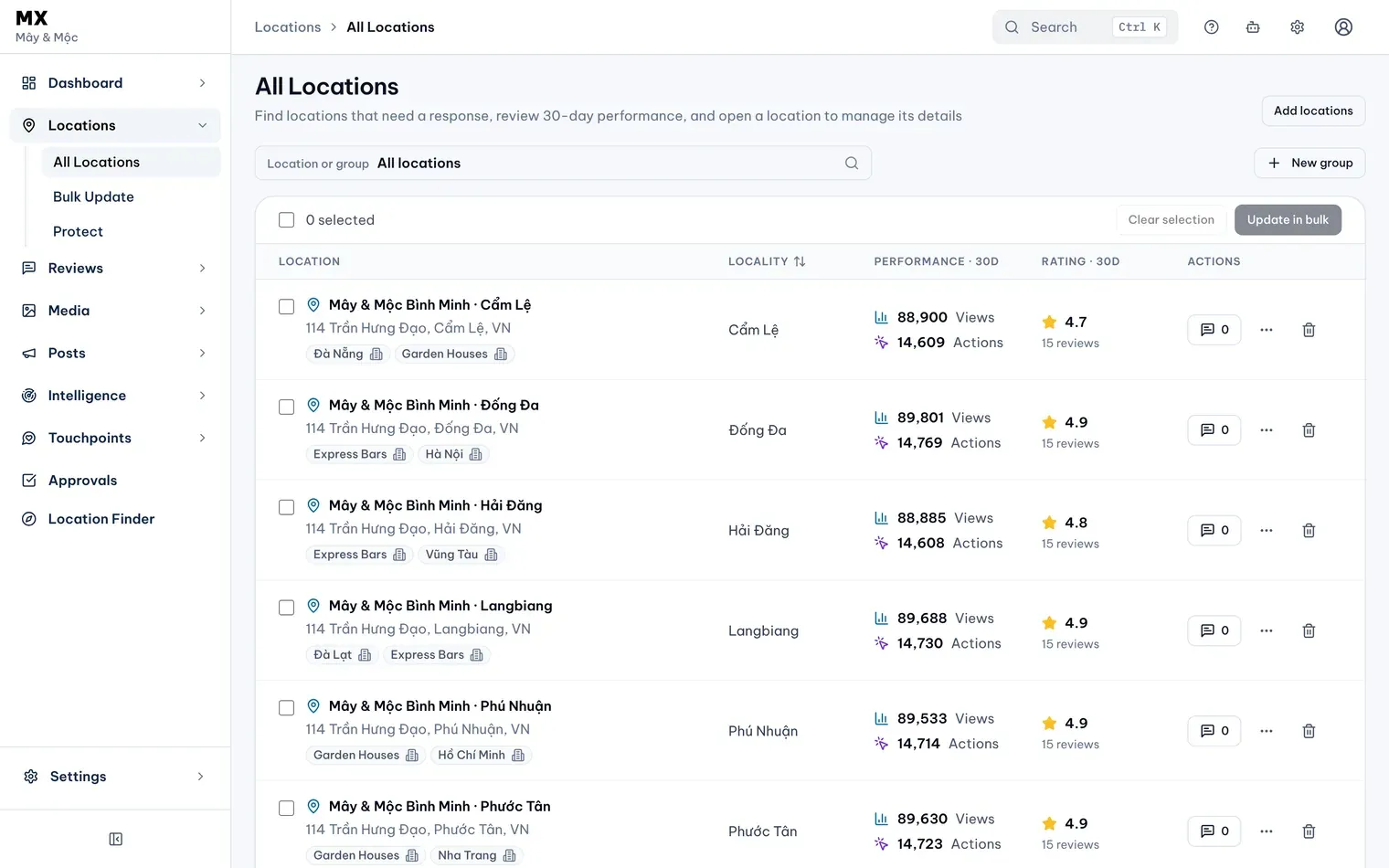
- Open Locations → All Locations.
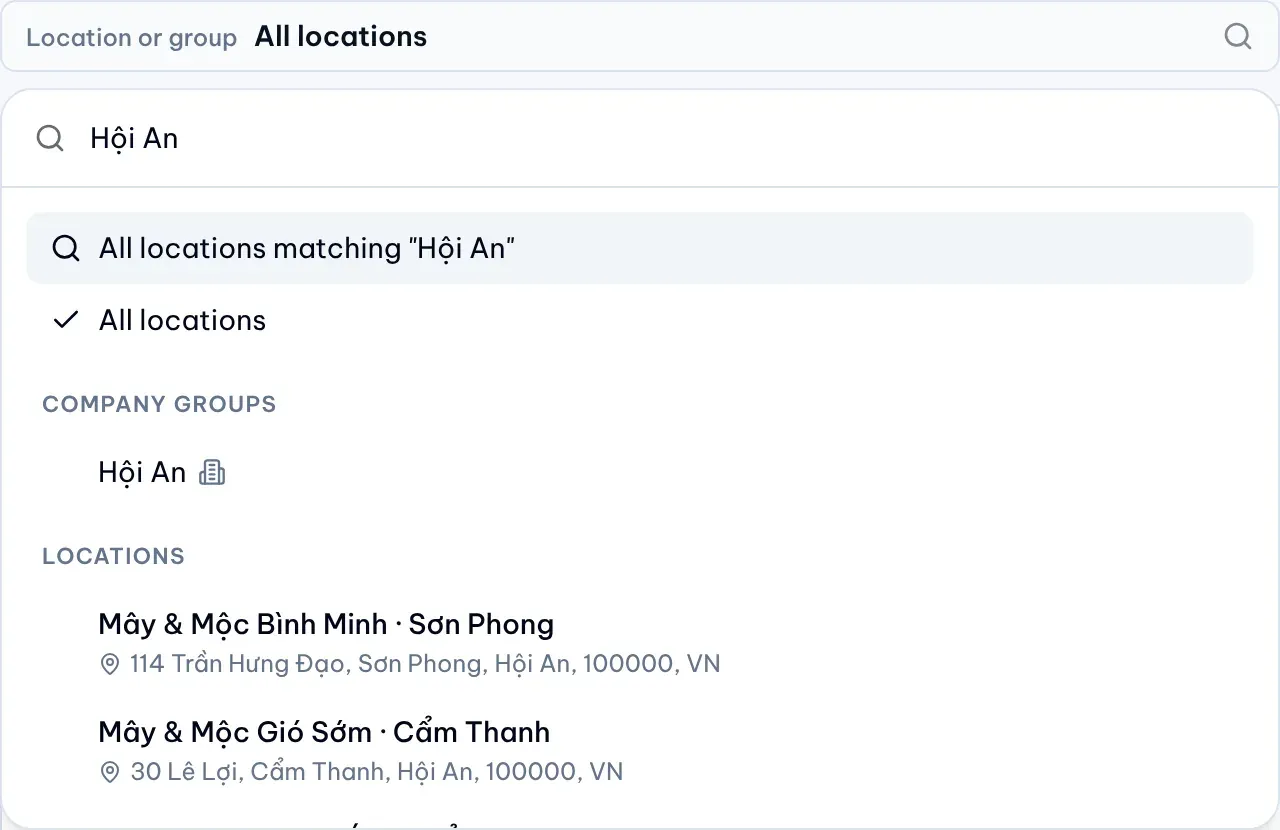
- Open the location picker at the top of the list.
- Do one of these:
- Type part of a name or address and choose All locations matching your text to list every match across all locations.
- Pick a group under Company groups or My groups.
- Pick one location.
- To see every location again, choose All locations in the picker.
The location or group you pick stays selected when you move to the Dashboard, Reviews or Approvals.
Sort by locality
The list is sorted by name. Select the Locality column heading to sort by locality from A to Z, again for Z to A, and a third time to go back to name order. The page size (25, 50 or 100 rows) is at the bottom of the list.
What each row shows
- Name and address. Select them to open the location’s page.
- Groups. Up to two group names under the address, then the number of other groups. You only see company groups and your own groups.
- Sync status. Syncing or Sync issue appears next to the name while MX imports the location or when its last sync had a problem.
- Performance · 30D. Views and customer actions on Google.
- Rating · 30D. The average rating and number of reviews. Select it to open the location’s reviews.
- Reviews button. The number of reviews still waiting for a reply. Select it to open them in the Reviews Inbox.
- Row menu. Dashboard opens the Dashboard for that location. On the Business plan, members who can create Bulk Update requests and see every location also get Update in bulk on active locations.
Owners and Admins also get Remove from MX on each active row; confirm with Confirm remove. Removing a location stops its sync in MX and keeps its history.

See locations Google needs to review
On the Dashboard, the Google needs review item opens this list showing only the locations where Google has a pending edit and shows a different value. A Google needs review label sits above the list while the filter is on; Show all turns it off. With one location selected on the Dashboard, the item opens that location’s page instead.