
A location group is a named list of locations. Pick it in the location picker and the Dashboard, Locations, Reviews and other pages show only those locations. A group is a fixed list: a location you add to MX later joins a group only when someone adds it.
There are two kinds:
- My groups are private. Only you can see them, whatever your role. Not even Owners and Admins see another member’s private groups.
- Company groups are shared with everyone in the company and carry a company icon. Only Owners and Admins create and change them.
Create a group from the Locations page
- Open Locations → All Locations and select New group next to the location picker.
- Enter a Group name (up to 80 characters).
- Search by name or address and tick the locations to include. Select all on this page ticks the whole page.
- Select Create group.
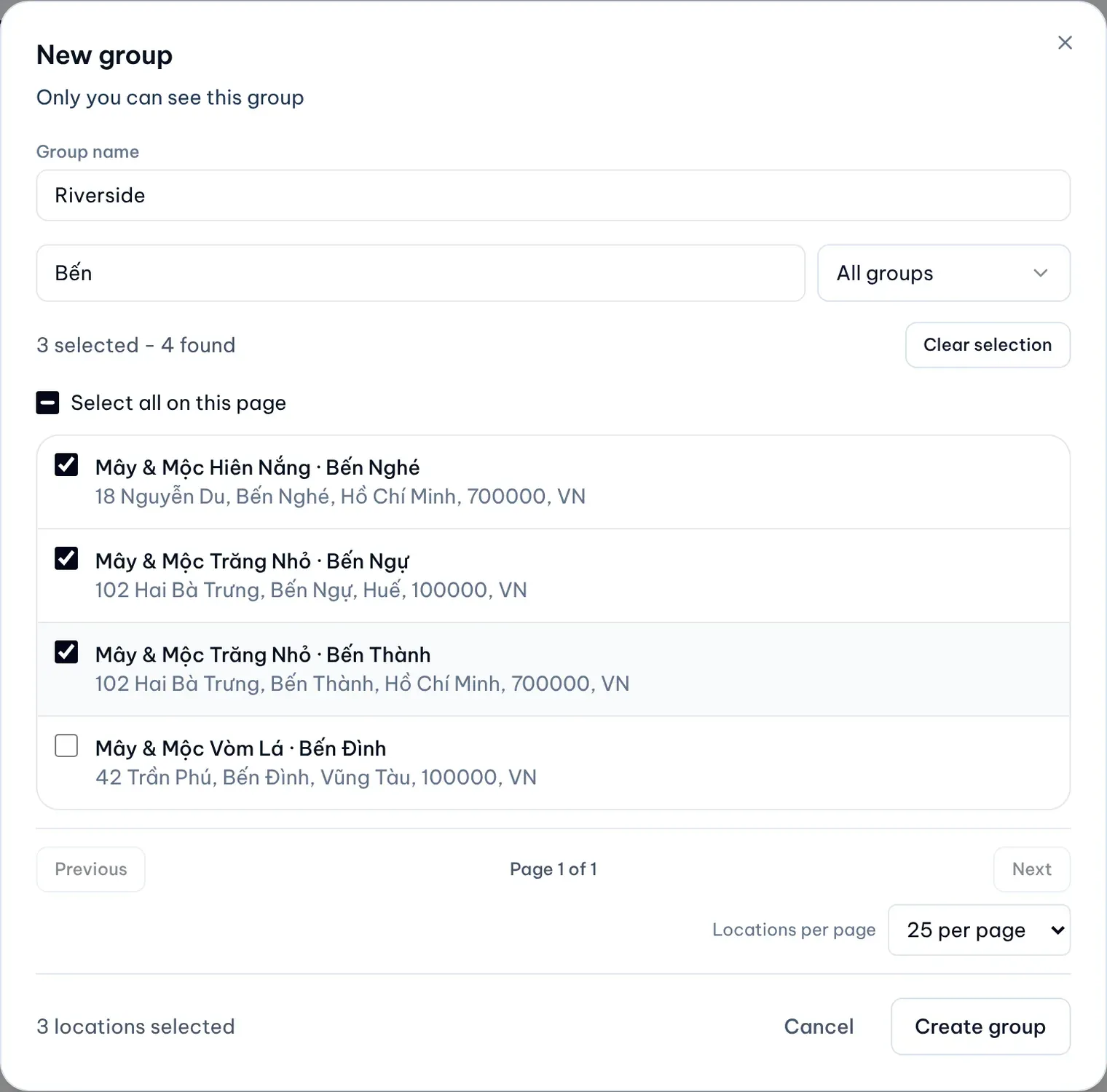
The new group is private, and the list opens filtered to it.
Use a group
Open the location picker on any page that has one and choose the group under My groups or Company groups. The group stays selected as you move between pages that use the picker.
Change or delete your private group
You manage your private groups from the location lists in the Posts composer and in the Locations step of Bulk Update. Viewers can’t create posts or Bulk Update requests, so they won’t usually use these lists. Choose your group in the group filter there. A bar with your group’s name and size appears:
- Rename gives the group a new name.
- Add selected and Remove selected add or remove the locations you ticked.
- Delete removes the group. Its locations stay as they are.
The same list has Save as group, which saves the locations you ticked as a new private group.
Share a group with the company
Owners and Admins manage company groups in Settings → Company → Location groups.
- Open Settings → Company and find Location groups.
- Under Your private groups, select Share with company on the group and confirm.
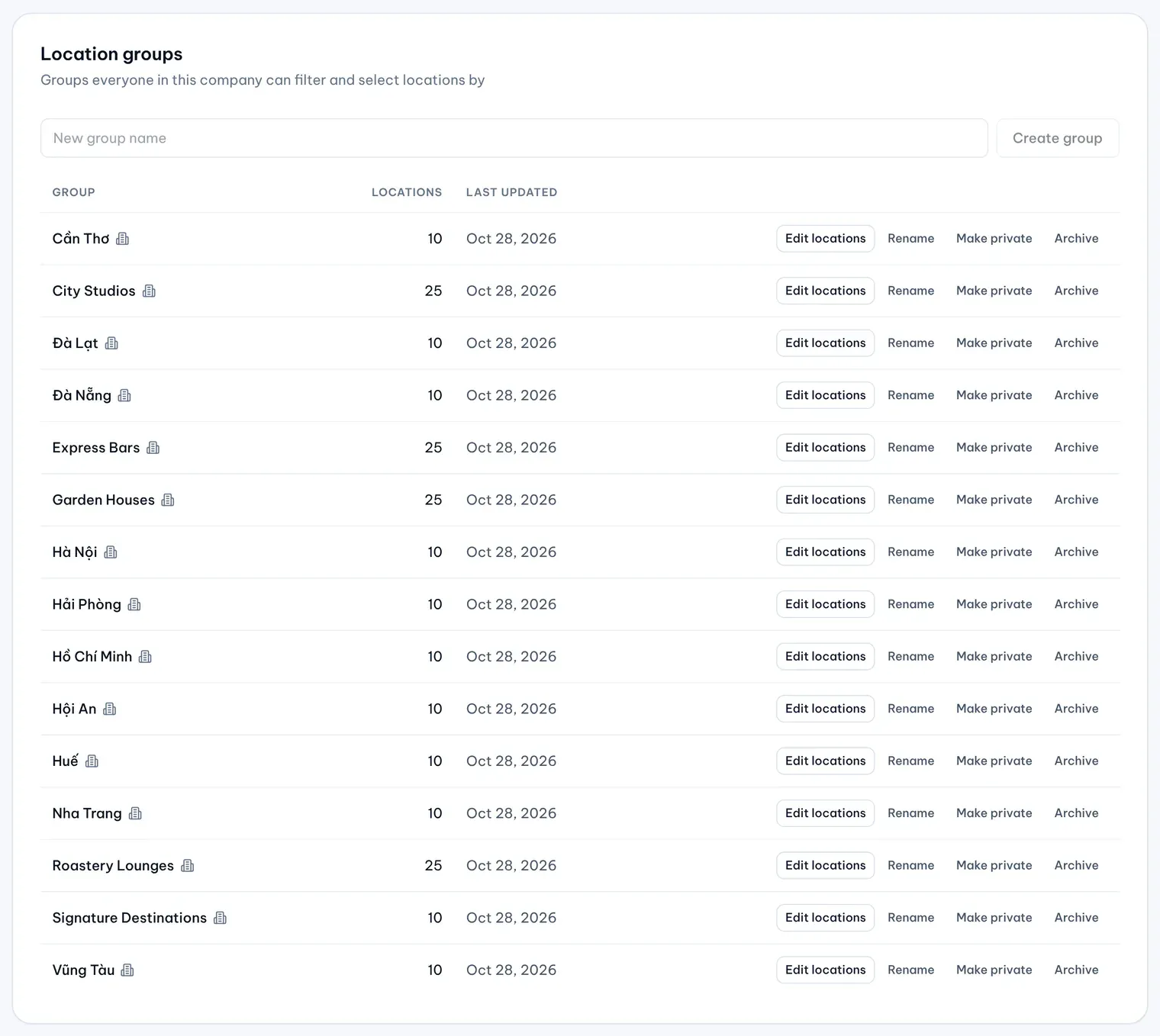
Create group on the same card makes a new, empty company group; add its locations with Edit locations. The card lists every company group with its number of locations and last update, and offers Edit locations, Rename, Make private and Archive. Share, Make private and Archive each ask you to confirm. Sharing fails if a company group already has the same name; rename one of them first.