
ArticleAccess & Approval
Roles and approvals for regional managers - who does what across a network
How to split work between head office, regional managers and branch staff in MX: roles, location access, approvals, automation presets and location groups
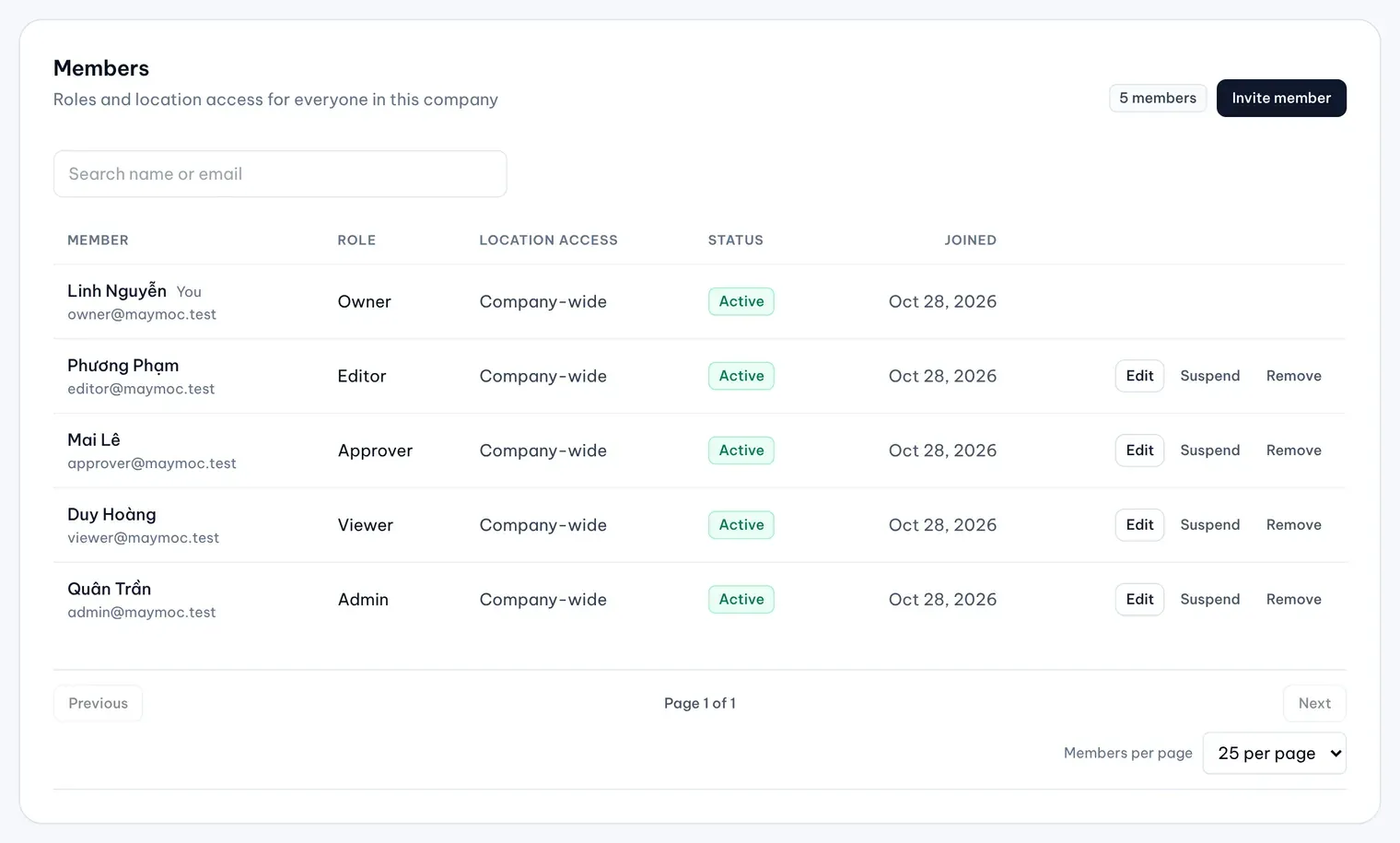
A network of thirty branches usually runs on three layers: head office sets the rules, regional managers look after a handful of cities, and branch staff deal with customers. The tools often have only two layers: people who can change everything and people who can’t. The result is predictable. Either head office approves every phone number change in person, or a branch manager in Đà Nẵng can edit a profile in Hà Nội by mistake.
This article sets out one way to map those three layers onto roles and approvals, so each person sees the locations they are responsible for and decides only what they should.
Start from decisions, not job titles
Before assigning anyone a role, list the decisions that touch your public profiles:
- Who changes a location’s phone, hours or description?
- Who writes replies to reviews, and who approves them?
- Who publishes posts for a branch?
- Who decides on changes that touch many locations at once?
- Who only needs to watch the numbers?
Then decide which of those should wait for a second person. A role is just a bundle of answers to these questions.
The five roles in MX
Every member of a company in MX has one of five roles:
- Owner can do everything, including drafting review replies. Only an owner can change another owner.
- Admin manages the company: settings, members, the Google connection, Touchpoints, Location Finder and Protect. Admins approve and can edit a reply before approving it.
- Approver decides on review replies, location changes, Bulk Update requests and posts waiting in Approvals, and can suggest location changes.
- Editor suggests location changes, writes posts, uploads media and comments in Approvals, but can’t approve.
- Viewer reads the Dashboard, Locations, Reviews, Posts and Approvals, and changes nothing.
These MX roles are separate from the owners and managers of each profile on Google, which Google explains in Manage your Business Profile owners and managers. Once day-to-day work happens in MX, it is worth keeping that Google list short.
Head office: owners and admins
Keep owners and admins few. They see every location and can decide everything, so these roles belong to the people accountable for the whole network: the business owner, the head of operations, perhaps one person in marketing. Owners and admins always stay company-wide; they cannot be limited to some locations.
Regional managers: approvers limited to their region
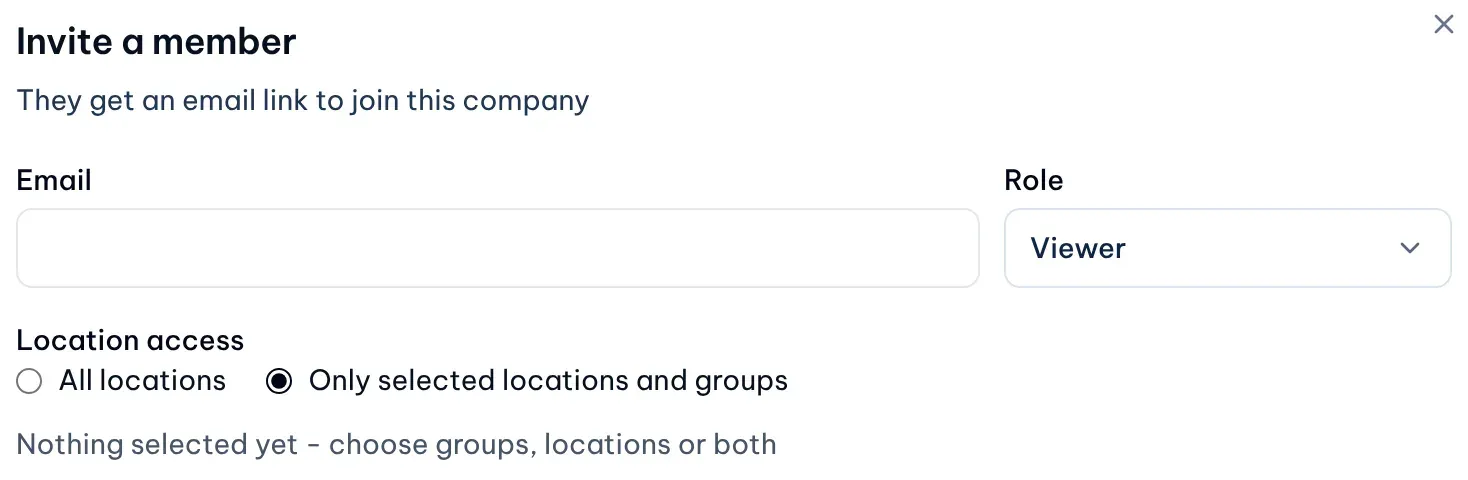
On Business, an owner or admin can limit an approver, editor or viewer to chosen locations and company groups. The member keeps the role, but only for those locations: they see only them, and they act on a request only when every location in it is theirs.
For a regional manager, that means an approver limited to the region’s group. They decide the replies, location changes and posts for their branches, and nothing outside them. A batch that also touches other locations stays waiting without buttons for them, so it goes to someone with wider access. Bulk Update requests are decided only by members who see every location.
Branch staff: editors and viewers
Branch managers who keep their own profile up to date are a natural fit for the editor role, limited to their branch. They suggest a change to the opening hours, write a post for a local event or upload new photos, and an approver decides. Staff who only need to follow reviews and results can be viewers.
Members limited to some locations can’t use Bulk Update or run a manual sync; those stay with people who see the whole company.
Build location groups around how you manage
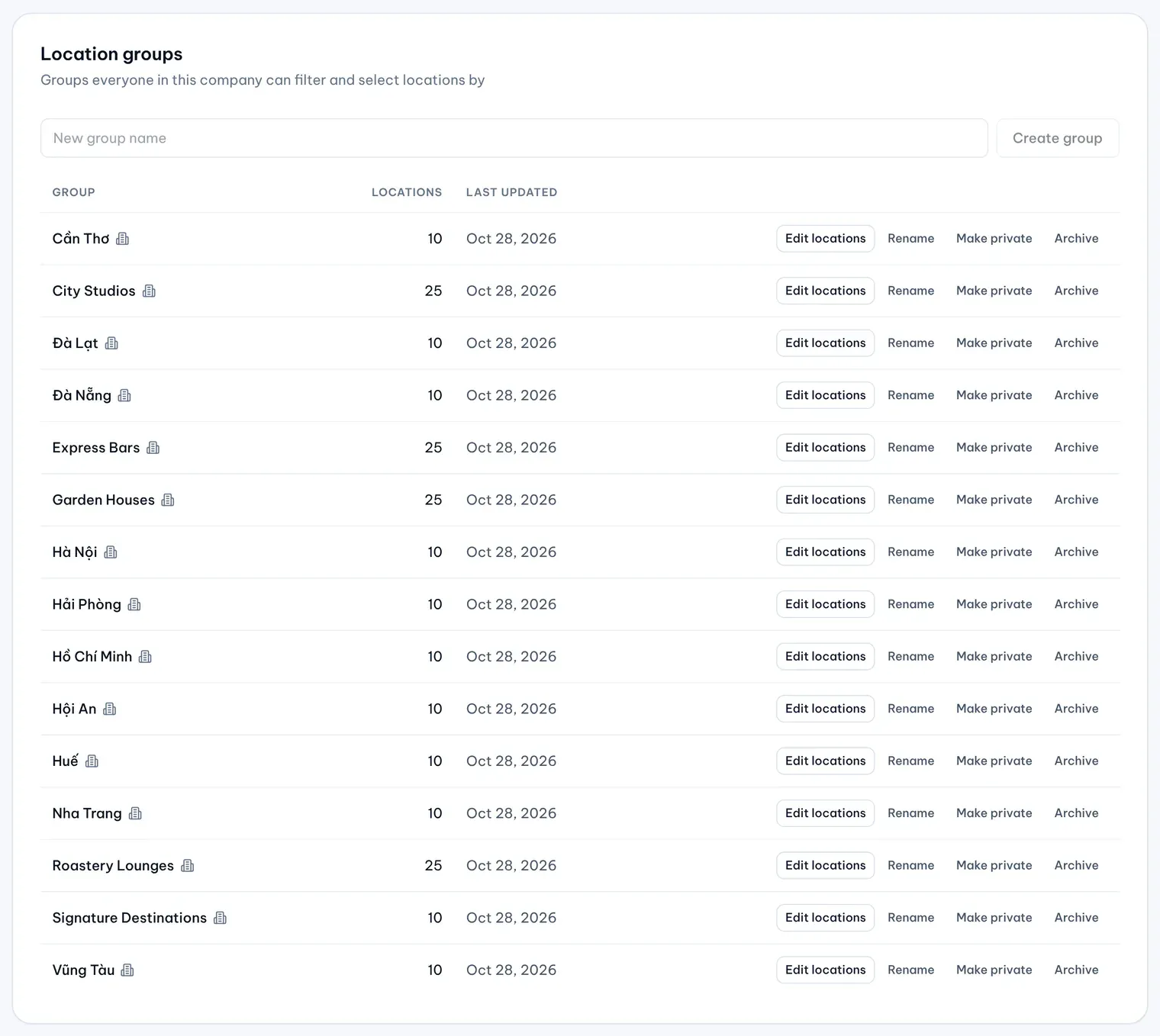
Access, filters and reports all get easier when your groups match your organisation. Owners and admins create company groups in Settings → Company, shared with everyone, for example one per region, city or brand. Everyone can also keep private groups for their own use.
When a member’s access is set to a group, a location added to that group later becomes visible to them too, and MX asks you to confirm before it does. That makes a regional group the simplest way to keep a regional manager’s access up to date as the network grows.
Decide what never waits: automation presets
On Pro and Business, Settings → Automations sets what MX does without a person. The built-in presets are Full automation, Always require approval and Auto reply only, and you can save your own. You can also let MX approve low-risk location changes made by your own team; high-risk changes always wait for a person. One switch turns every automation off, while your own approvals still go out.
A cautious starting point is Always require approval: every reply and every location change waits in Approvals, and you relax the rules once the regional approvers have a rhythm. The rules apply to the whole company, so agree them at head office.
A starting setup
| Who | Role | Location access |
|---|---|---|
| Business owner | Owner | Company-wide |
| Head of operations | Admin | Company-wide |
| Regional manager | Approver | Their region’s company group |
| Branch manager | Editor | Their branch |
| Finance or an agency partner | Viewer | The locations they report on |
Adjust it to your structure, but keep the principle: the narrower the job, the narrower the access.
On Pro and Free
Member invites and location access are part of Business. Pro allows up to 3 users; to add a member on Pro, contact MX support. Free has one user. Changing roles, suspending and removing members works on every plan. See the plan comparison.
Current limits
- Only approvers, editors and viewers can be limited to some locations. Owners and admins stay company-wide.
- Location access and self-service invites need Business.
- Automation rules apply to every location in the company; there is no rule set per region.
- Only the company owner drafts review replies.
- A change to a field locked by Protect (Business) needs an owner or admin, even when an approver could decide the rest.
Further reading
- Knowledge baseSee what each role can do
- Knowledge baseInvite members and choose their roles
- Knowledge baseFind what is waiting in Approvals
- Knowledge baseChoose automation presets and location change rules
- Knowledge baseCreate and use location groups
- Knowledge baseCompare what each plan includes