
When a customer scans one of your Touchpoints QR codes, a feedback page opens on their phone. They rate the visit first, then choose what to do next: leave a Google review, call or message the location, or send you private feedback. The Experience editor sets what that page looks like and says, for every QR code in the company.
Only Owners and Admins see Touchpoints in the sidebar.
Open the editor
-
Open Touchpoints → Experience.
-
Work through the three tabs, Landing page, Feedback form and Contact info. The Preview on the right shows the page as customers will see it.
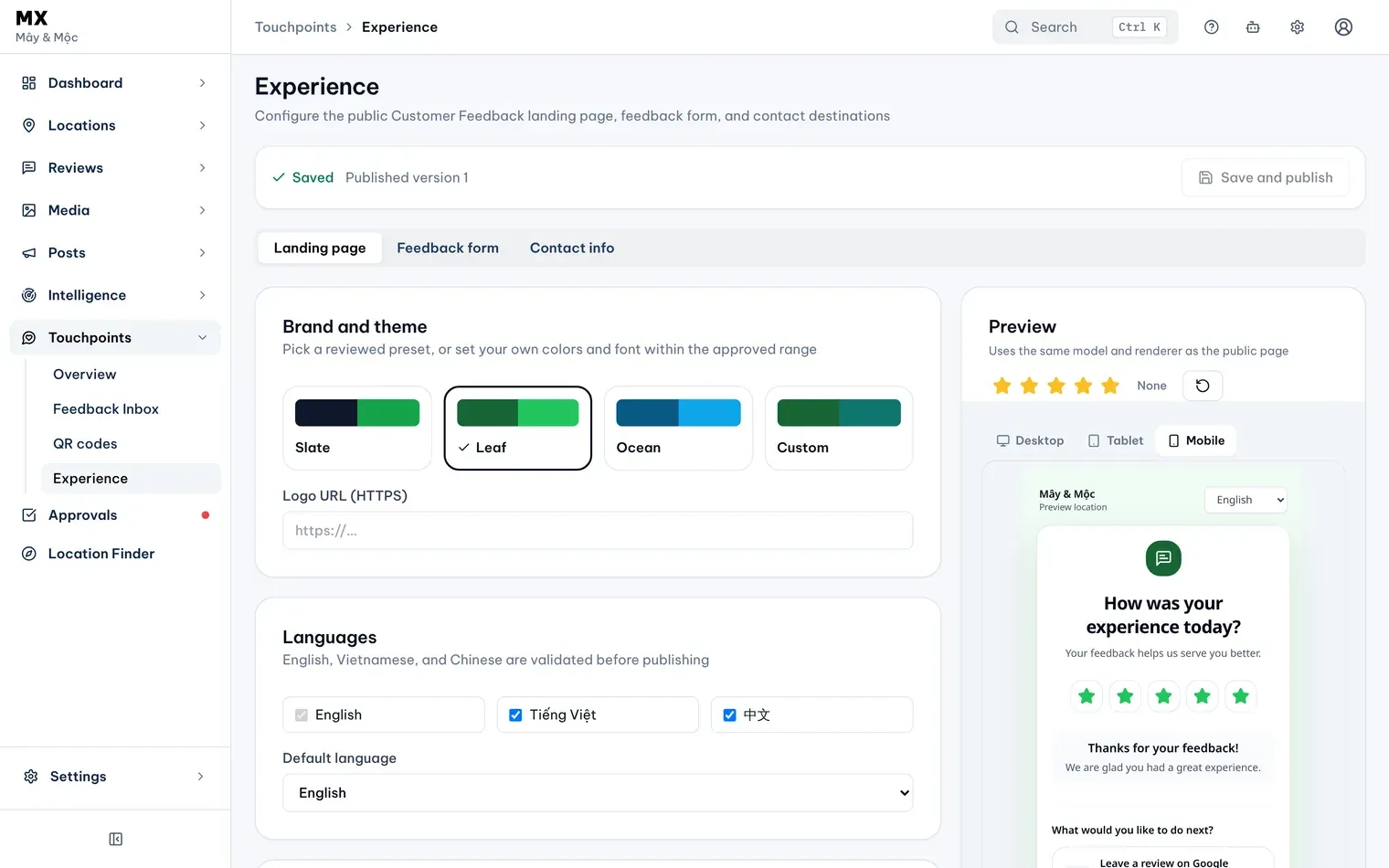
1: the three tabs. 2: Save and publishIllustrative data
Choose the look and languages
On the Landing page tab:
-
Brand and theme: pick Slate, Leaf or Ocean, or Custom to set your own primary, accent and background colors (six-digit hex codes such as #0f172a), a font and a corner style. If a custom color would be hard to read, MX shows a warning; it does not stop you publishing. You can also add a logo by its web address in Logo URL (HTTPS).

Illustrative data -
Languages: tick the languages the page offers, from English, Tiếng Việt and 中文, and choose the Default language. Customers can switch language on the page.
-
Content: edit every heading and message in the order a customer meets them, from the rating prompt to the thank-you message, with separate wording for a good and a low rating. Use the language buttons above the fields to write each language. MX publishes only when every language you ticked has its wording.
Choose what customers can do after rating
The Actions card on the same tab lists the choices the page offers after a rating: Google review, Phone, Zalo, WhatsApp and Private feedback.
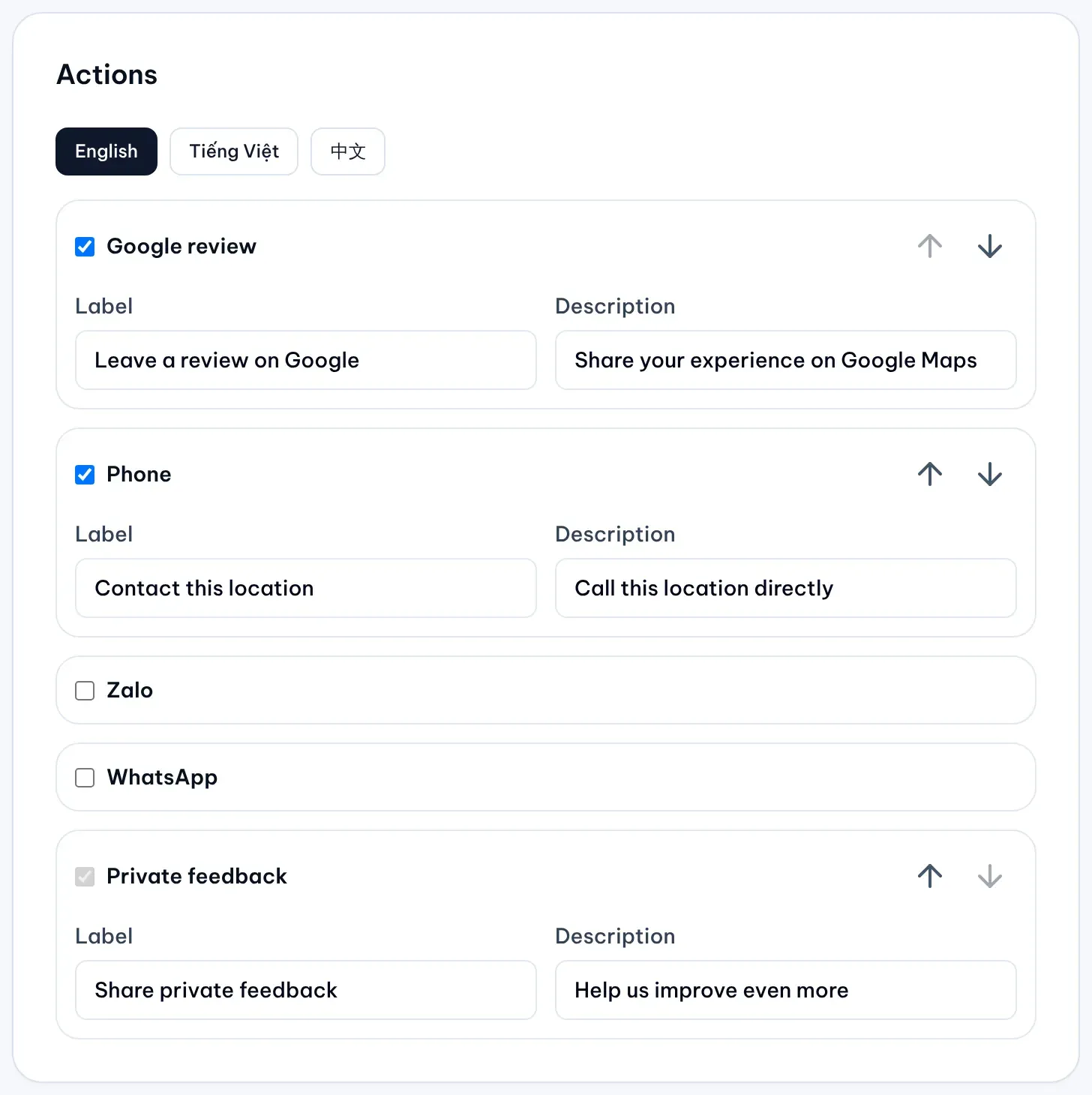
- Tick an action to offer it, and use the arrows to change the order. The new order shows in the Preview.
- Edit each action’s Label and Description, once per language.
- Private feedback is always on, so customers can always send feedback directly to your business.
- The Google review action sends the customer to Google to review the location the QR code belongs to. Phone calls the location’s number, chosen as described under Set the contact details. Zalo and WhatsApp need a
zalo.meorwa.melink on the Contact info tab.
Add questions to the feedback form
The Feedback form tab sets the form a customer fills in when they choose private feedback.
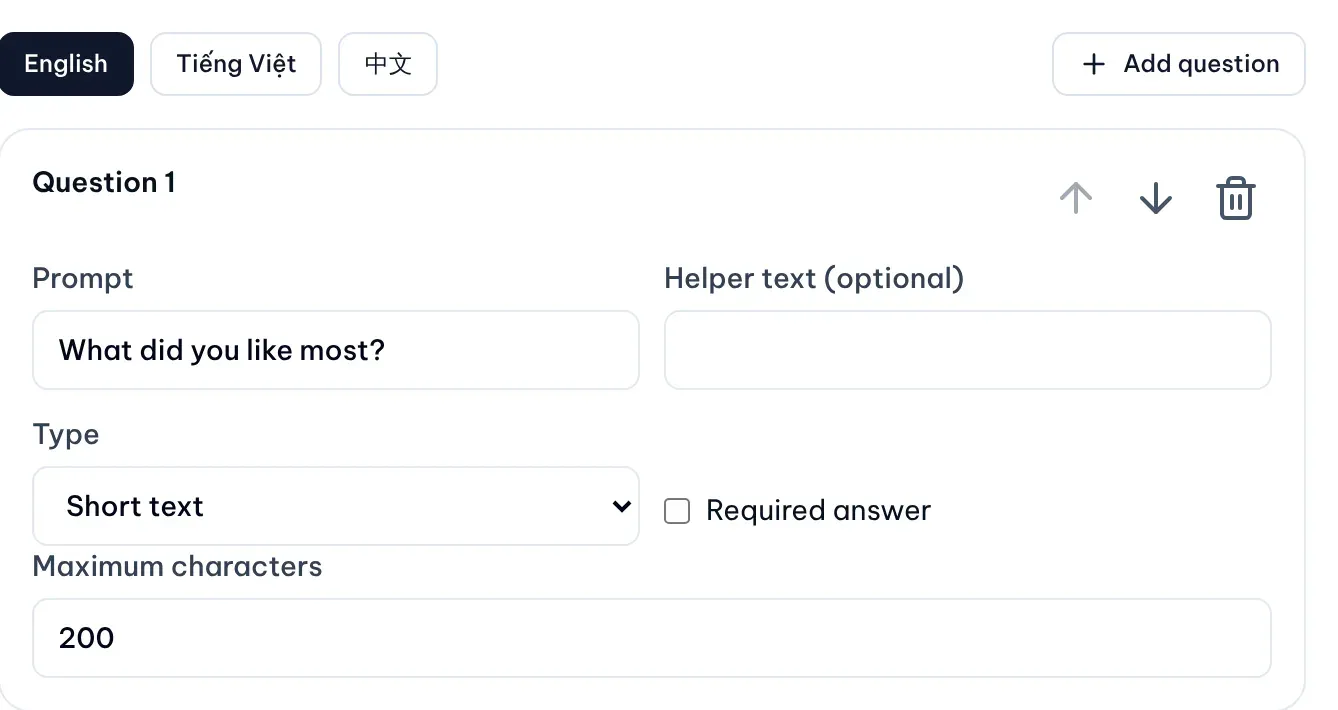
- If the form has no questions yet, pick a starting set: Essential (one open comment), Service check or Detailed visit. Otherwise select Add question. A form holds up to ten questions.
- For each question, write the Prompt and, if it helps, the helper text. Choose its Type: Short text, Long text, Single choice, Multiple choice or Rating.
- Tick Required answer if the customer must answer it. For text, set the maximum characters; for a choice, edit the options, add more with Add option, or add an “Other” option with Add Other.
- Use the language buttons to write the question in each language, and the arrows or the bin to reorder or delete it.
- Under Optional contact fields, tick Request name, Request email or Request phone to ask for contact details. These fields are never required: customers can always send feedback without giving their name.
Before sending, the customer ticks a box agreeing that any contact detail they gave can be used to answer their feedback, with a link to the MapLovin Privacy Policy.
Set the contact details
The Contact info tab holds the numbers and links behind the Phone, Zalo and WhatsApp actions.
- Company contact defaults: a Phone, Zalo URL and WhatsApp URL used for any location without its own.
- Location overrides: search for a location, open it and enter its own phone, Zalo or WhatsApp, then select Save override. An override is saved for that location straight away; it does not wait for Save and publish. Each location shows how many overrides it has and whether its Google Business Profile gives a Google review link (Google available or Google unavailable).
For the phone action, MX uses the location’s override first, then the location’s phone number on Google, then the company default.
Preview and publish
- Check the page in the Preview and switch between Desktop, Tablet and Mobile. Nothing you do in the preview is sent or counted.
- Choose a star rating above the preview to see what happens after a good or a low rating. The refresh button takes the preview back to the start.
- Select Save and publish. Until you do, your changes are a draft: the bar above the tabs says Unsaved changes, and customers still see the published version. If something is missing, such as a language without its wording or an action with no number or link for a location, MX says what to fix and publishes nothing.
Each publish becomes a new version, shown as Published version and a number above the tabs. Every QR code shows the new version from then on. Feedback already received keeps the questions it was answered with, so changing a question later does not change past answers.