
Each QR code belongs to one location and one spot in it, such as the reception desk or table 12. Scanning it opens your feedback page at mlv.asia followed by its short code, so every scan, rating and piece of feedback is counted for that location and that spot.
Only Owners and Admins see Touchpoints. Open Touchpoints → QR codes to work with codes; the counts at the top show the total and how many are active, disabled and archived.

Create a QR code
-
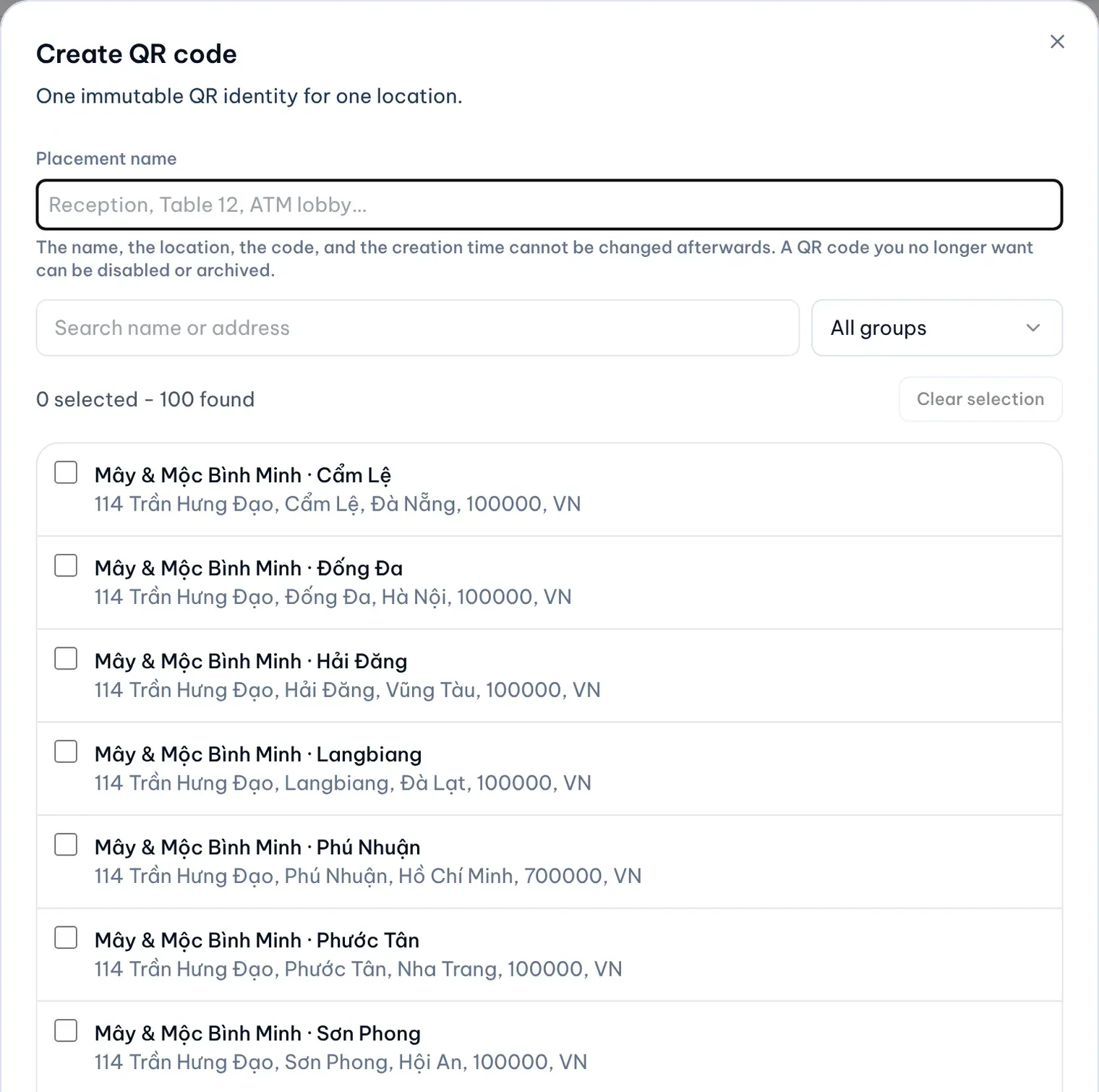
Select Create QR code.
-
Type a Placement name that says where the code will go, such as “Reception” or “Table 12”.
-
Pick the location. Search by name or address, or narrow the list to a group.
Illustrative data -
Select Create QR code at the bottom of the dialog.
To create a code with the same placement name at many locations, select Bulk create instead, type the placement name once and tick up to 50 locations. MX creates one code for each. Creating codes never changes a location’s profile.
Choose how codes look
-
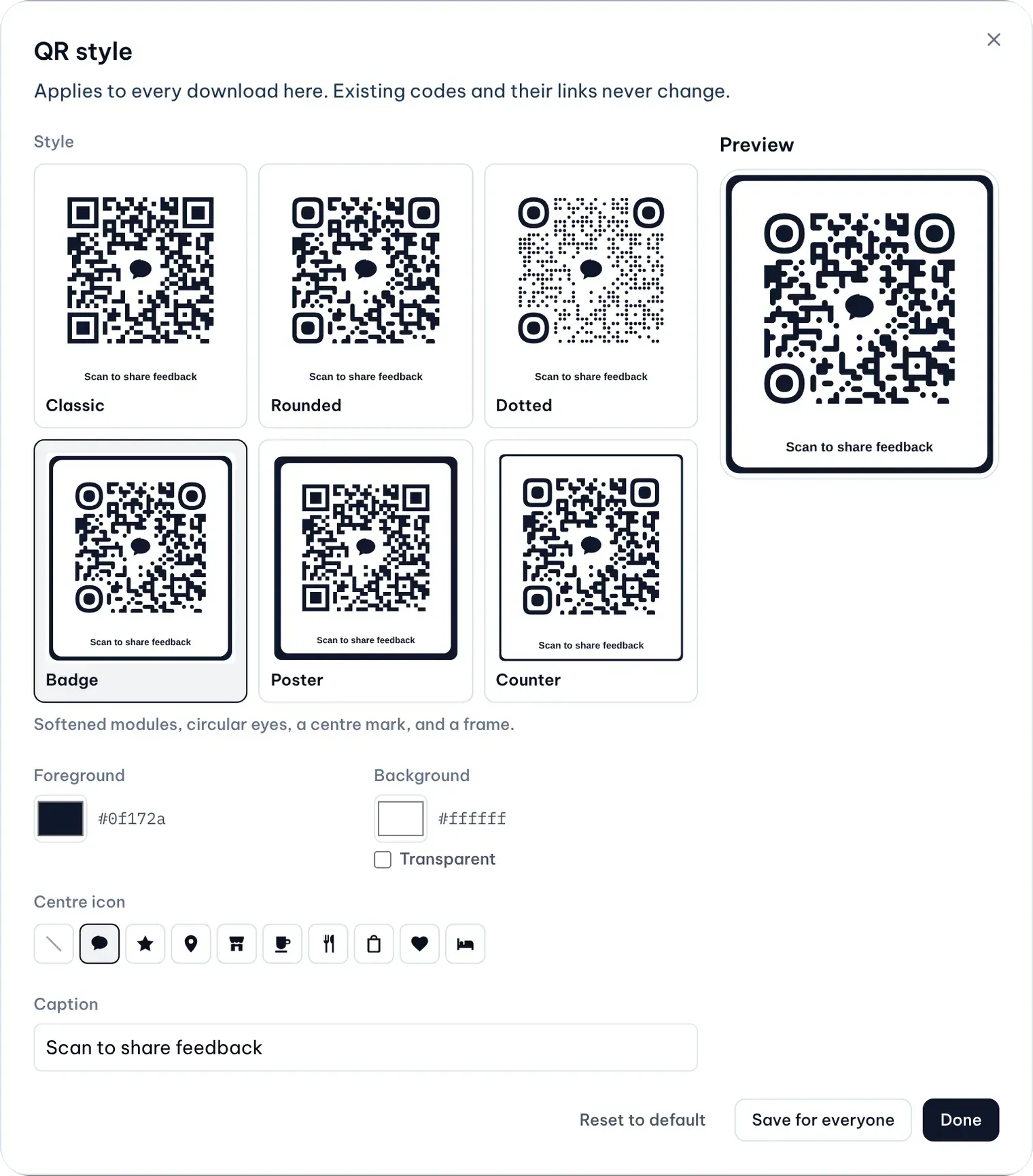
Select QR style.
-
Pick a style: Classic, Rounded, Dotted, Badge, Poster or Counter.
-
Set the Foreground and Background colors, or tick Transparent for no background.
-
Choose a Centre icon, or the crossed-out tile for none.
-
Edit the Caption printed under the code, or leave it empty for no caption.
Illustrative data -
Select Save for everyone to make this the company’s style for every download, or Done to use it only for your own downloads now. Reset to default goes back to MX’s standard style.
If the two colors are too close for a phone camera to read easily, MX shows a short warning. It does not stop the download, so test a printed code with a phone before you print many.
Changing the style only changes the files you download next. Codes already printed keep working, because the link inside a code never changes.
Download codes to print
-
One code, quickly: select PNG or SVG in the code’s row.
-
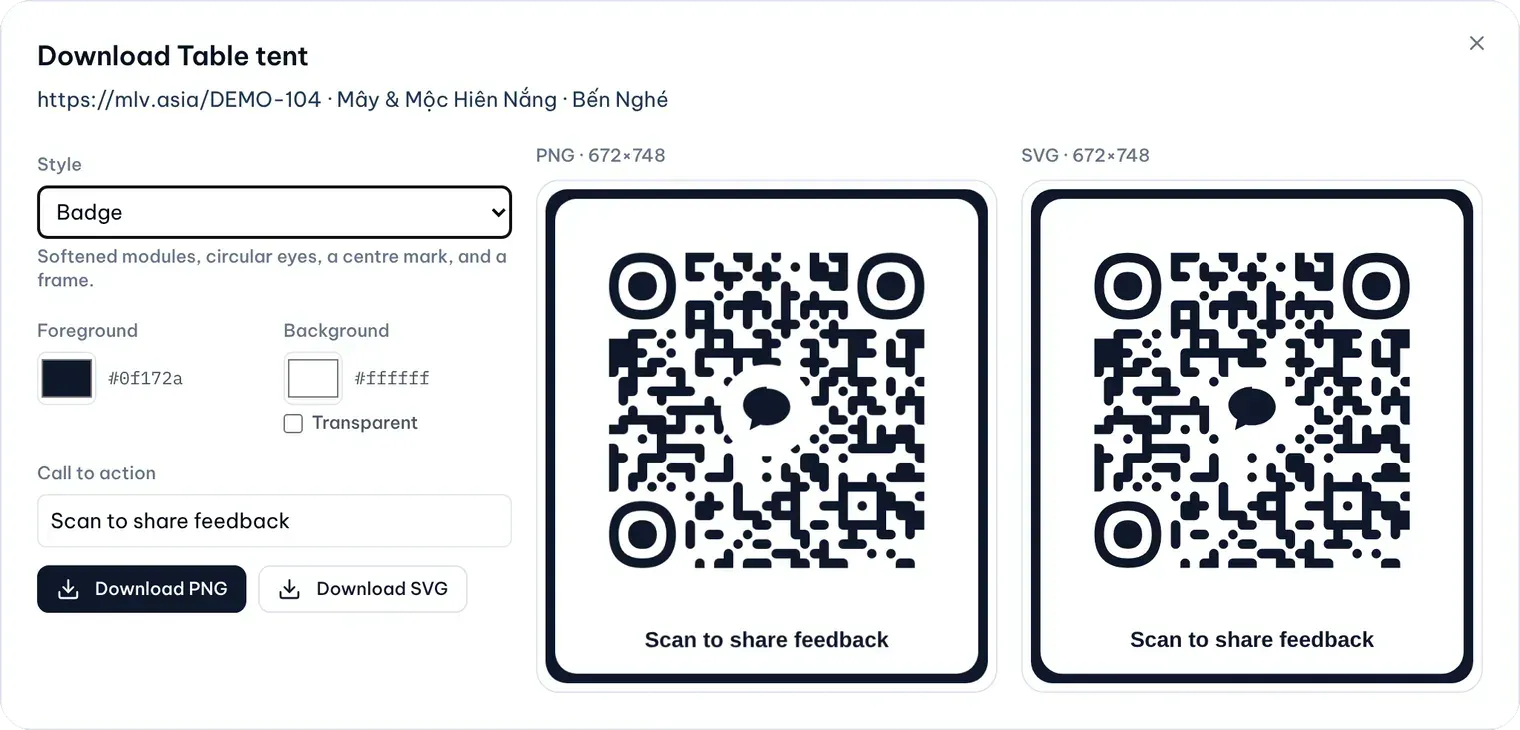
One code, with a preview: select the code’s name. The dialog shows the link and both files side by side. You can adjust the style, colors and Call to action (the caption) there too; like the QR style settings, the change also applies to your other downloads on the page. Then select Download PNG or Download SVG.
1: Download PNG. 2: Download SVGIllustrative data -
Several codes: tick them in the list, or tick the box in the header to select the whole page, then select Download PNGs or Download SVGs. MX saves one file per code, up to 25 at a time. The selection covers only the page you are on.
SVG files stay sharp at any size, which suits large prints; PNG files suit documents and quick printing.
Find a code
Search by QR name, short code, location name or address. Filter by status (Active, Disabled, Archived), and group the list by location or by QR name.
Each row shows the code’s totals since it was created: scans, last scan, ratings with their average, review clicks and private feedback. A review click means the customer chose the Google review button; it does not prove a review was posted.
Turn a code off or archive it
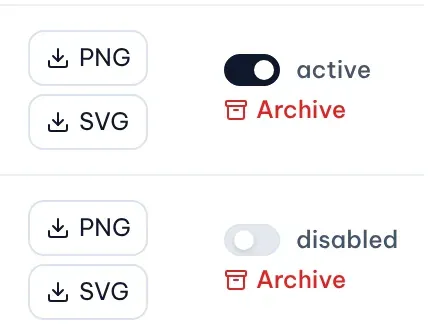
- Turn it off for now: use the switch in the code’s row. A disabled code stops opening the feedback page until you switch it back on.
- Retire it for good: select Archive, read the warning, then select Archive permanently. Every printed copy stops working, customers who scan it see an unavailable page, and the code can’t be turned back on or reused.
Turning off or archiving a code keeps all its scans, ratings and feedback in MX.