
Customers can send feedback directly to your business through the feedback form. Owners and Admins can read submissions in the Feedback Inbox.
Find feedback
-
Open Touchpoints → Feedback Inbox. The newest feedback is at the top.
-
Narrow the list with the filters above it: search the answers, contact details, QR code names and locations; pick a location or a location group; or filter by QR code, star rating, status and date. The Inbox starts on the last 30 days; choose All dates to see everything.
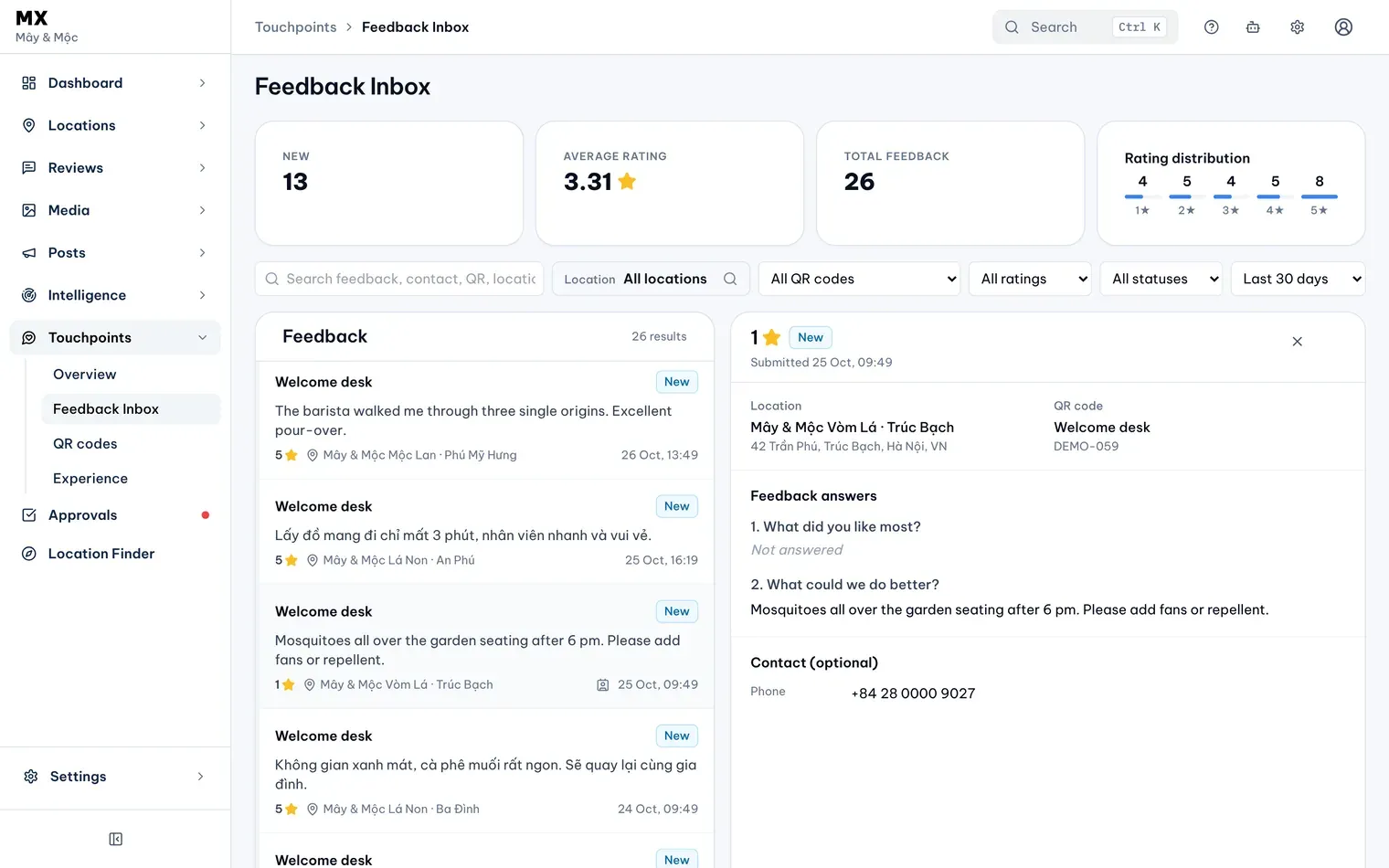
1: filters. 2: the selected itemIllustrative data -
Select an item in the list to read it on the right. On a narrower window it opens in a panel over the list.
The cards above the filters count the feedback that matches them: how many are New, the Average rating, the Total feedback and how many gave each star rating.
When you move to another page from the sidebar, MX keeps the location or group you chose, and the date range on pages that have one, such as the Touchpoints Overview, the Dashboard and Reviews.
Read a piece of feedback
The open item shows:
- the star rating, its status and when it was sent;
- the location and the QR code it came from;
- Feedback answers: each question with the customer’s answer, or “Not answered”. The questions are shown as they were when the customer answered, even if you have changed the form since;
- Contact (optional): the name, phone or email, only if the customer gave them.
Mark it read, archived or resolved

- Opening feedback does not mark it read. Select Mark as read once you have seen it, or Archive to move it out of the way.
- Status only moves forward, from New to Read to Archived. Archived feedback can’t be moved back, but it stays in the Inbox under the Archived status filter.
- Turn on Resolved once someone has answered the customer. MX shows who marked it and when, and adds a Resolved badge. You can turn it off again. Resolved is separate from the status, so archived feedback can be resolved or not.