
GuideLocations
Protect - keep your Google profile details the way you set them
Lock the profile fields that matter on every location, hear about outside changes on Google, and put your value back automatically or by choice
Table of contents
The problem
A Google Business Profile is not only edited by you. Anyone with owner or manager access to a profile can change its details, customers can suggest edits, and Google can update a profile from other sources it trusts. Google explains this in Manage Google updates to your Business Profile. Most of these changes are harmless. Some are not: a wrong phone number, an old website, changed opening hours or a new business name can send customers to the wrong place, and nobody notices until a customer complains.
Doing it by hand
Without help, someone has to open each profile regularly, compare the name, phone, website, address, description and hours with what they should be, and correct anything that drifted. With many locations this check is easy to skip, and the managers who can edit a profile (see Google’s page on owners and managers) are not always the people who know the right value. When a change is found, there is rarely a record of what it was, when it happened or who put it right.
What changes with Protect
Protect watches the profile fields you choose on every location in MX. When one of those fields changes outside MX, on Google or through a Google suggestion, MX finds it and either tells you or sends your value back to Google, depending on the mode you picked for that field. Every change it finds, and what happened to it, is listed in one place.
What you get
- The details that matter stay right. Lock the fields customers rely on and choose, field by field, whether you want to hear about changes or have them put back.
- A rule you set, not a guess. Restoring is rule-based: Protect puts back the value it holds for that field and location. No AI decides what to revert.
- A decision when it counts. Changes that need a person wait for an owner or admin, who can restore your value or keep the new one.
- A record. An activity list shows what changed, where, and how it ended.
How it works in MX
Open Locations → Protect.
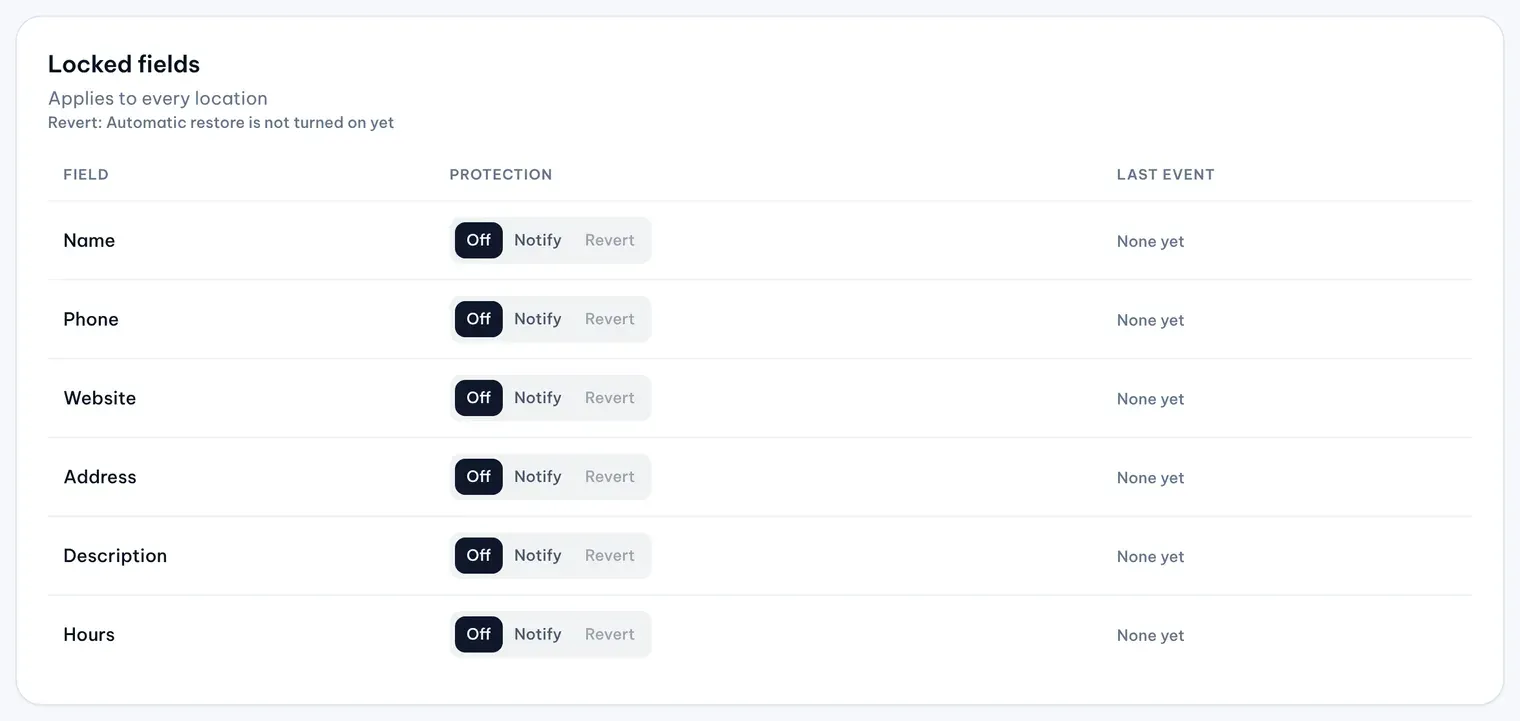
- Choose a mode for each field. Under Locked fields, set Name, Phone, Website, Address, Description and Hours to Off, Notify or Revert. Off means the field is not watched. Notify lists the change in Activity and adds a Protect alert to the Dashboard’s Needs attention for owners and admins; nothing is sent to Google. Revert sends the protected value back to Google automatically, then checks that Google shows it. Choosing Revert for Name or Address asks you to confirm, because changing a name or address on Google can trigger re-verification.
- Start from correct values. After you lock a field, protection starts with MX’s next check of Google. That first check records each location’s current Google value as its protected value and restores nothing, so make sure the values on Google are right before you lock a field. The page shows when Google was last checked.
- Restore or keep. Each change in Activity shows the location, the field, Google’s value and the protected value, and whether the profile was edited on Google or Google shows its own suggested value. An owner or admin can choose Restore to send the protected value back, or Keep Google’s value to make it the new protected value. Keeping a Google suggestion accepts it on Google; keeping an edit made on the profile sends nothing to Google.
- Changes made in MX still go through Approvals. When someone edits a locked field in MX or sends a Bulk Update request that changes one, the change goes to Approvals as usual, but only an owner or admin can decide it. Approvers are told why, and no automation approves it. For Bulk Update, an owner or admin decides the whole request. Once an approved change is applied, it becomes the new protected value, so Protect never reverts your own change.
- Follow the activity. Four tiles at the top count protected locations, detected and restored changes, and the changes that need attention. Filter the list by field and outcome, or pick one location or group. Each location’s page also shows its latest Protect events under Location change activity, and automatic restores read “Restored by Protect” in Approvals history.

Who can use it
Protect is part of the Business plan. Only owners and admins see Locations → Protect, set the modes and decide changes; for other roles the page does not exist. Anyone who can open a location sees its latest Protect events on the location’s page.
Current limits
- Protect covers six fields: name, primary phone, website, address, description and the regular weekly hours. Store code, categories, special hours, attributes, additional phones and photos are not protected.
- A mode applies to every location. You can’t set it per location.
- MX finds outside changes when it checks Google, not the moment they happen.
- The first check records the current Google values and restores nothing.
- A restore that can’t run can become a notification, and repeated changes to the same field at one location pause automatic restoration there until an owner or admin decides.
- Changes Google suggested before protection started are never restored automatically, and pausing automations also holds restores.
- The activity list has no export.
Good to know
- Switching a field from Notify to Revert only affects changes found after the switch. Setting a field to Off closes its open changes.
- An automatic restore runs on the authority of the person who chose Revert. If that person is no longer an owner or admin, restores for the field are held until another owner or admin confirms the setting under their own name.
- For the step-by-step help, see Choose which fields Protect locks and Handle a change to a locked field.
Further reading
- Knowledge baseChoose which fields Protect locks
- Knowledge baseHandle a change to a locked field
- Knowledge baseApprove MX changes to locked fields
- BlogGet found and protected - accurate locations before the customer arrives
- BlogBulk Update - change phone, website, description or hours across many locations