
GuideLocations
Content Plan - keep every location's Google profile posting, week after week
Plan Google posts for every location ahead: schedule one post or set a weekly rhythm, let AI draft from your Brand kit and approve before anything goes live
Table of contents
The problem
Posting one piece of news to every branch is the easy part. The hard part is doing it again next week, and the week after. Google posts are short updates, events and offers that customers see on a business’s profile in Search and Maps, and Google archives posts older than six months unless they carry a date range. A profile that posted once in spring looks quiet by autumn.
For a chain of cafés, shops or clinics, “post regularly” becomes a standing job: decide what to say, write it in the brand’s voice, adjust it for each branch, get it checked and publish on the day.
Doing it by hand
Someone keeps a calendar in a spreadsheet, writes a post on Monday, sends it to a manager and then publishes it to each profile. When that person is on leave or busy with an opening, the calendar slips. Copy written in a hurry drifts from the brand’s voice, and branches in different cities get the same text with no local detail.
What changes with Content Plan
Posts → Content Plan lets you plan posts ahead. For one post at a set time, you schedule it. For posts that repeat, you set up a plan: a rhythm such as every Wednesday at 9:00, the locations or group it goes to, and whether you write each post or let AI draft them from your Brand kit. MX sends every plan post to Approvals ahead of its slot and publishes it on time once approved.
What you get
- A steady rhythm without a weekly scramble. The plan gets the next post ready ahead of time.
- Posts that sound like you. AI plans write from one Brand kit: your tone, audience, products, offers and words to avoid.
- Local detail at scale. Merge fields put each location’s name and city into the text.
- Control before anything goes live. Every plan post goes through the AI policy check and Approvals. Automatic approval is off unless an owner or admin turns it on for a plan.
Relevant content helps provide the signals Google’s search and AI experiences may use. Content Plan helps you keep that content coming; it does not promise a ranking.
How it works in MX
Schedule a single post
On the Content Plan page, select Schedule a post. Write it as you would in Posts, then under Schedule pick a date and time in the company timezone. It can’t be too close to now and must be within the next year. Once approved, it publishes at that time, or straight away if approved later. Until it starts publishing, an owner, admin or editor can cancel it.
Set up a plan
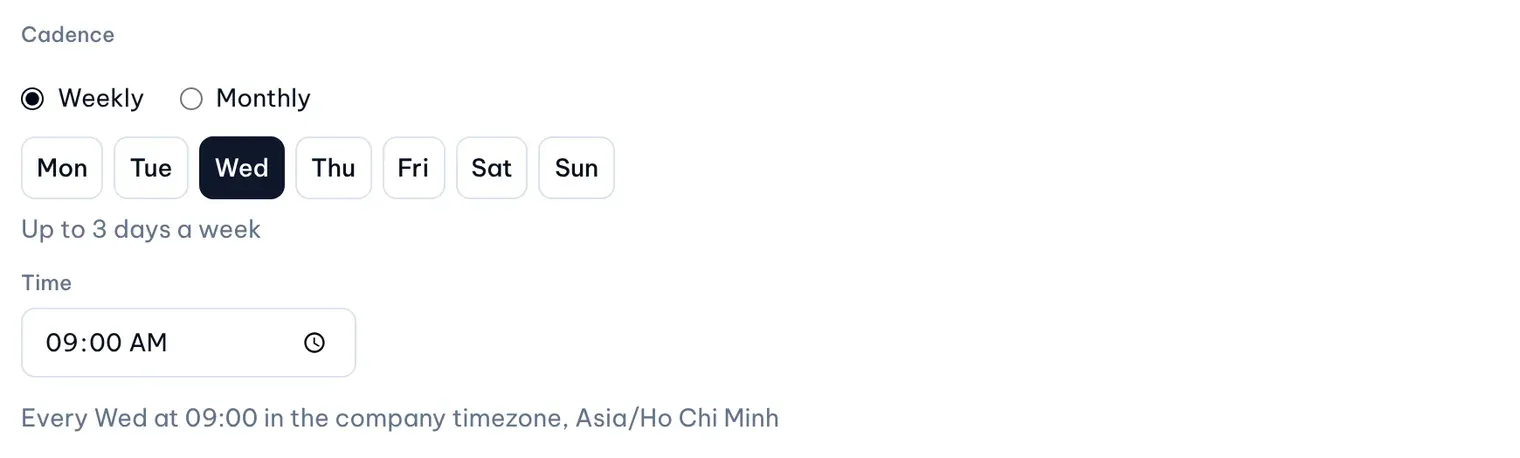
Select New plan, name it and choose the Mode: Manual, where you write each slot’s post, or AI, where MX drafts posts ahead for you to review. An AI plan also takes a Direction: Balanced, Branding, Sales or Local/SEO. Then set the Cadence: weekly on one to three weekdays, or monthly on days 1 to 28 or the last day, at one time of day. Choose the start and end dates and the locations or a group, then Create plan and Activate plan.
Fill in the Brand kit
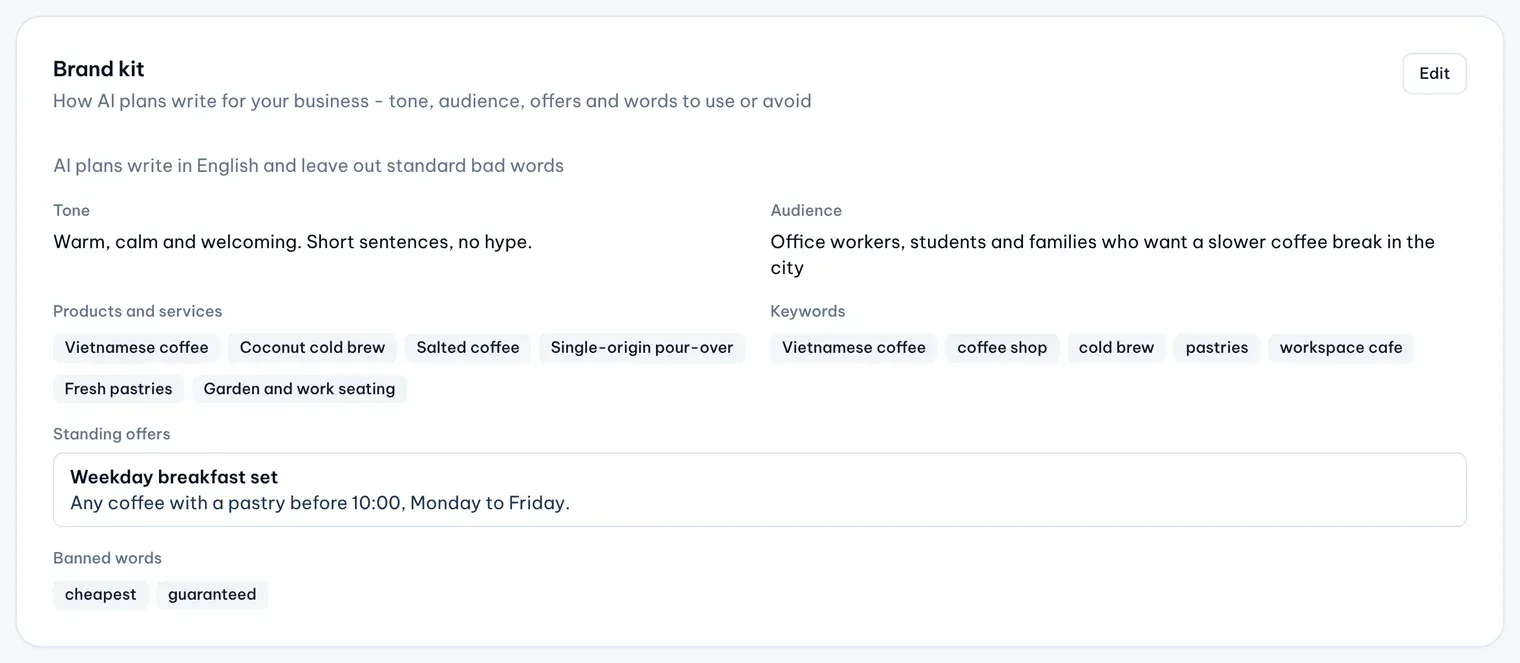
Owners and admins fill in the Brand kit in Settings → Company: the language AI plans write in (Vietnamese or English), tone and audience, products and services, keywords, banned words and standing offers with their terms and dates. Leave out phone numbers, emails and links. Only AI plans read the Brand kit.
Make each post local
Type {location_name} or {city} in a plan post or a scheduled post, and MX fills in each location’s own name or city when the post goes to Approvals. If a location has no city in its profile, or the text has any other word in braces, MX stops and says why. In an AI plan, Variants splits the locations across several versions of each post, and each variant is approved on its own.
Review plan posts
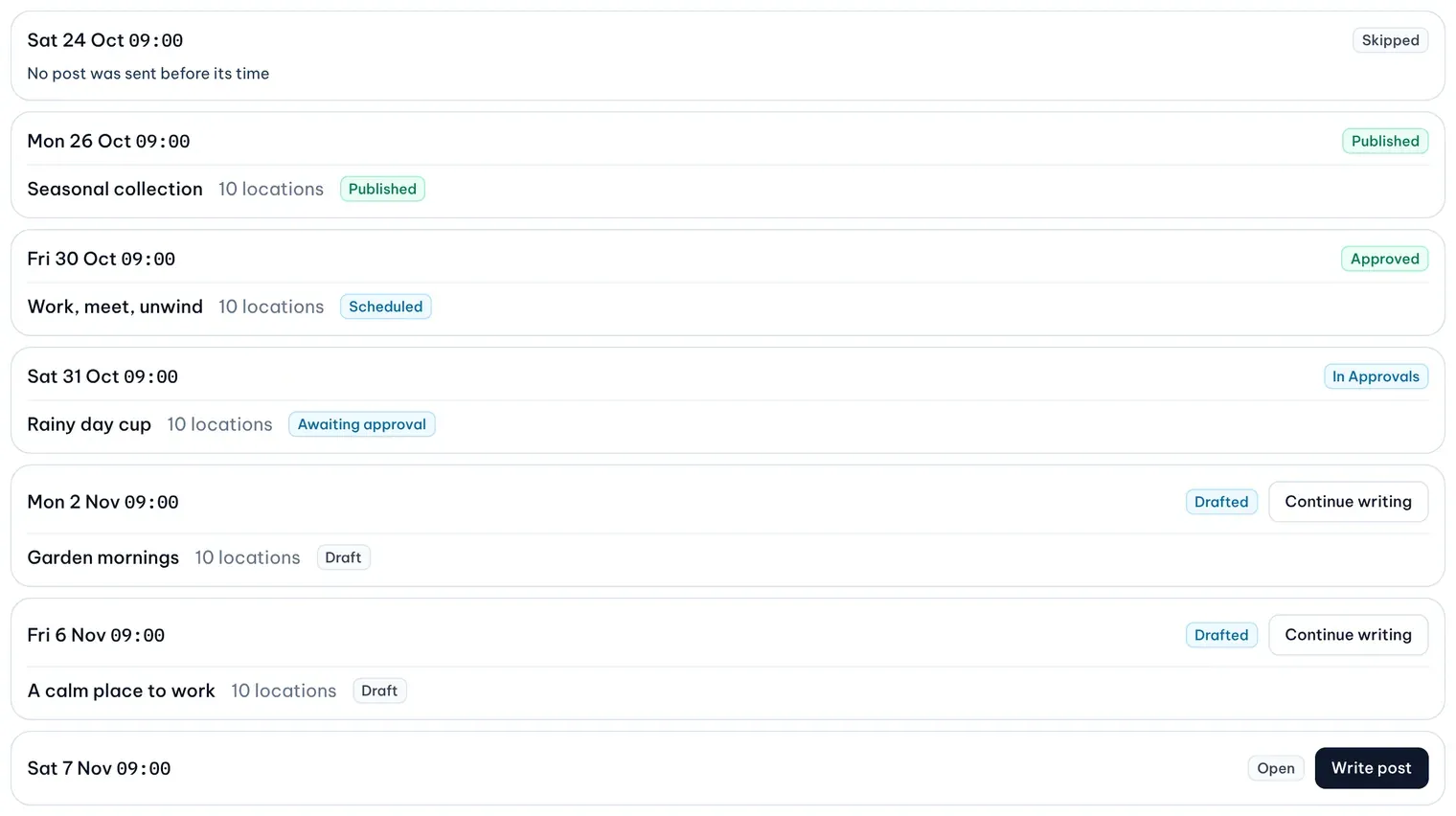
The plan’s page lists each slot with its state, such as Drafted, In Approvals or Published. Open a draft to change its text, type or photo. Ahead of each slot, MX sends the draft to Approvals with the same checks as a post you send yourself; a draft that fails a check stays a draft so you can fix it. An approver chooses Approve post or Reject post, and an approved post publishes at its slot time. Once a post is published, Google checks it against its own photos, videos and posts content policy.
Turn on automatic approval, if you want it
For a plan you trust, an owner or admin can turn on Approve automatically. A person still approves the plan’s first two posts. After that, a post that has waited unchanged in Approvals for a waiting period and passed the AI policy check is approved at its slot time. A flagged post, a post the check couldn’t review or a post edited too close to its slot always waits for a person. Approvals history marks these posts Approved automatically - Content Plan.
Who can use it
Content Plan is on Pro and Business; on Free the page shows a locked card. Owners, admins and editors schedule posts and create and edit plans, and every member can read them. Owners, admins and approvers approve or reject plan posts. Only owners and admins edit the Brand kit and turn on automatic approval. Posts itself, publishing once approved, is on every plan: see the Google posts guide.
Current limits
- Posts are published to Google Business Profile only. A published post cannot be edited or deleted from MX.
- A location gets at most one scheduled post a day across all plans and scheduled posts.
- Merge fields are
{location_name}and{city}only. - The number of active plans, the posts a plan holds, the variants per AI post and the AI plan posts each month are limited by plan. Pro runs up to three active plans at a time.
- Posts made in Posts and single scheduled posts are never approved automatically.
- There are no post performance figures.
Good to know
- When AI runs out of suitable photos, the plan shows Needs media and stops drafting until you add more.
- Disconnecting Google Business Profile pauses every active plan until an owner or admin resumes it.
Further reading
- Knowledge baseSet up a content plan
- Knowledge baseSchedule a post for a later time
- Knowledge baseSet up the Brand kit for AI plans
- Knowledge basePersonalize plan posts with merge fields and variants
- Knowledge baseReview and approve plan posts
- BlogGoogle posts - one update for every location, approved before it goes live