
Market Scanner finds the businesses on Google Maps that match your keywords in the areas you choose, such as car washes across two districts. Use it to see who else operates near your locations.
The businesses it finds are other businesses, not your locations. MX never adds them to Locations, never manages their Google profiles, and keeps them only inside the scan.
Owners and Admins create and run scans. Every member of the company can read the results.
Create a scan
-
Open Intelligence → Market Scanner. Your scans are listed as cards, with a New scan card first.
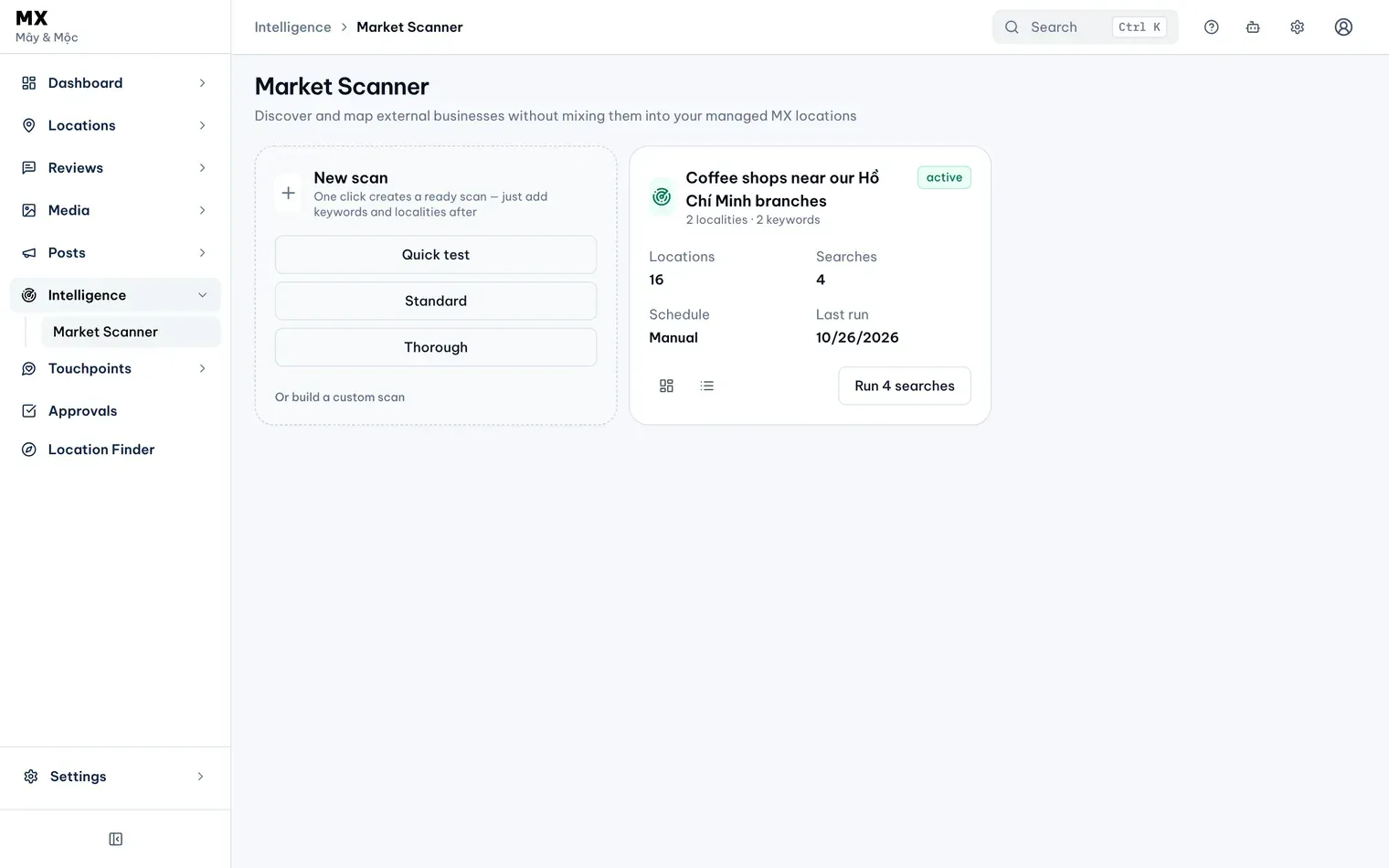
1: Intelligence, Market Scanner. 2: Or build a custom scanIllustrative data -
Select Or build a custom scan. The quick buttons on the card, Quick test, Standard and Thorough, create a scan at once with sample keywords and a sample area, which you then change in the scan’s settings.
-
Under Basics, give the scan a name and choose its Language, Vietnamese or English. Set Max results per search, up to 120. The Quick test, Standard and Thorough buttons above the fields fill in suggested values.
-
Under Search keywords, type up to three keywords, one per line, as customers would search for them on Google Maps.
-
Under Localities, choose a country and a city, then type the neighborhood or district. Select Add locality for more, up to three.
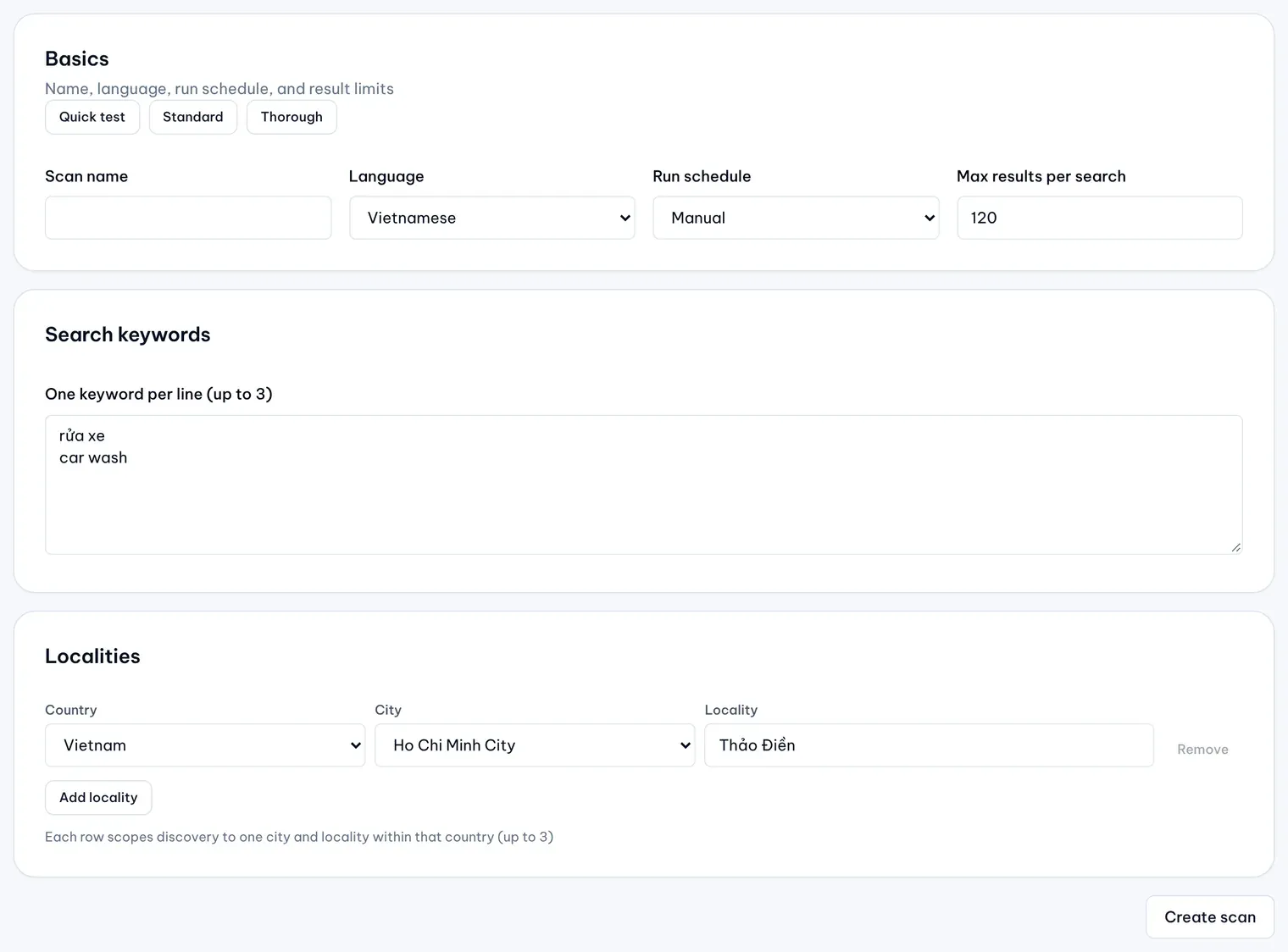
Illustrative data -
Select Create scan. MX opens the scan’s Overview.
MX runs one search for each keyword in each locality, so a scan has at most nine searches.
Run the scan
- On the scan’s Overview, select the run button, which shows the number of searches, such as Run 4 searches. The same button is on the scan’s card in the list.
- Follow the Scan coverage card. It shows each keyword and locality with its status (pending, running, succeeded or failed) and how many businesses it found so far. The page updates itself while searches run.
- When the searches have finished, select Browse locations to see what was found.
Each search reports how many results were accepted and how many rejected. Rejected results lack required business information. result cap reached means the search stopped at your maximum: raise Max results per search, or use a narrower keyword or locality, and run it again.
Running a scan again updates the businesses already found and adds new ones.
Change a scan
On the scan’s Overview, open Scan settings (it shows a summary of the keywords and localities) and select Edit. Change the fields as when you created it, then select Save setting.