A scan’s results are the businesses Google Maps returned for its keywords and localities. They are other businesses, not your locations: MX keeps them inside the scan and never adds them to Locations.
Check the scan’s overview
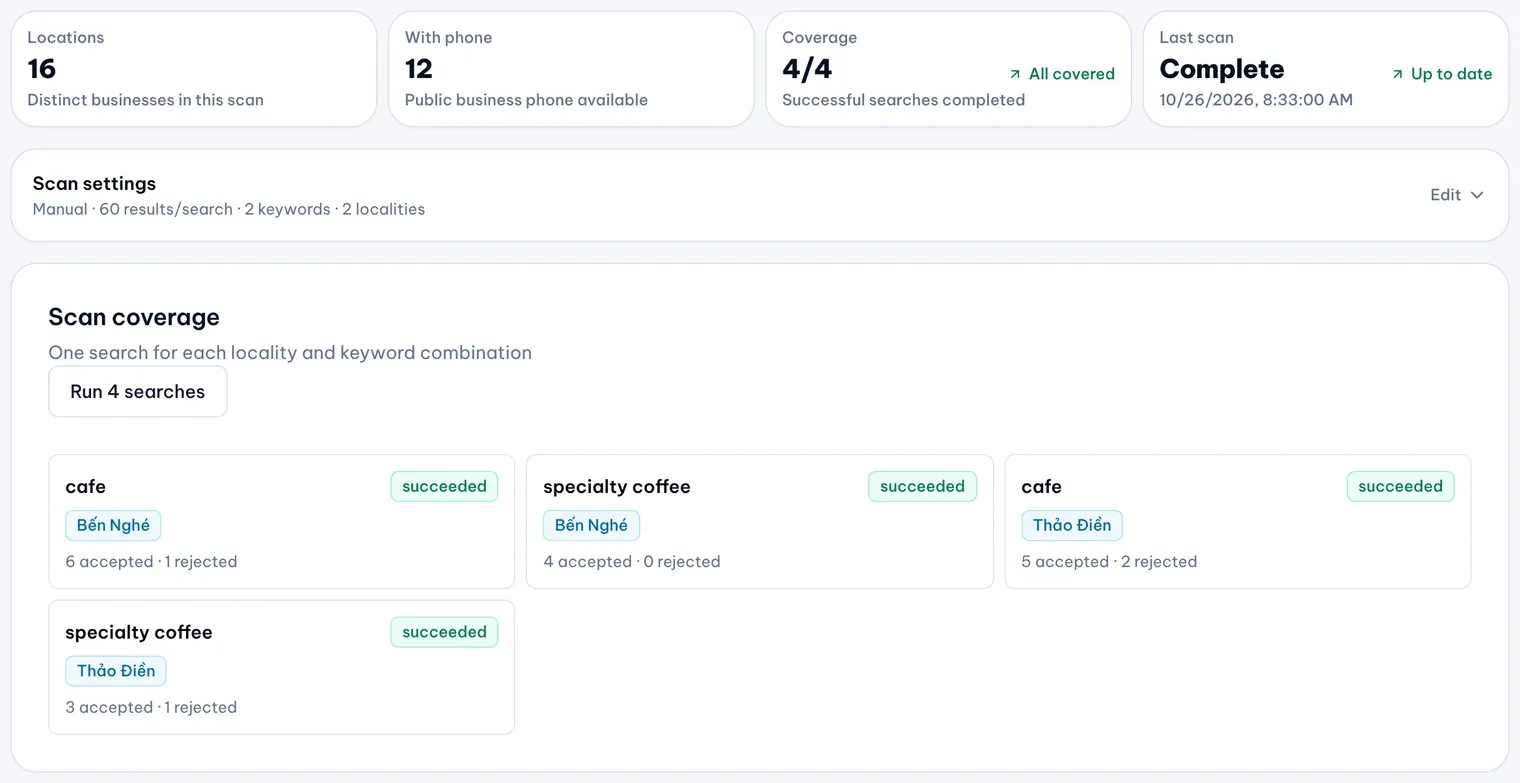
Open Intelligence → Market Scanner and select a scan’s card. Its Overview shows:
- Locations: how many different businesses the scan has found;
- With phone: how many of them list a public phone number;
- Coverage: how many of the scan’s searches succeeded, out of the total;
- Last scan: when the last run finished.
Below them, Scan coverage shows each keyword and locality with how many results it accepted and how many it rejected; rejected results lack required business information. A finished search does not prove that every business in the area was found.
Browse and filter the businesses
- Select Browse locations on the Overview, or the Locations tab at the top of the scan.
- Type in Search to find a business by name or address.
- Select More filters to narrow the list by Locality, Category (type the category exactly as Google Maps names it), Operating status (Open, Temporarily closed or Permanently closed), Phone (Has phone or No phone) and Starred.
- Select Apply filters. Clear removes them all.
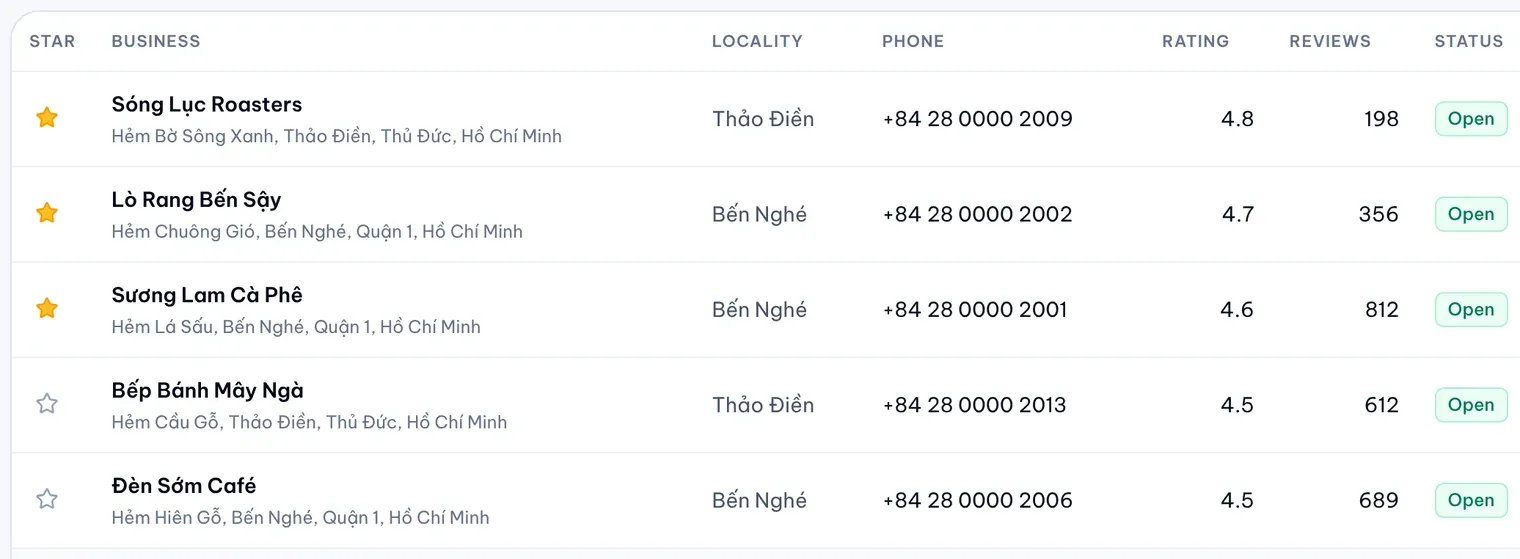
The list shows each business with its locality, phone, Google rating, number of Google reviews and operating status, 50 to a page. Use Previous and Next below the list to move between pages.
Select Map to see the businesses on the current page on a Google map. Select a pin to see the business’s address and status, with links to View detail and to Google Maps. List brings the table back.
Star the businesses to watch
Select the star at the start of a row to star a business, and again to remove it. Then choose Starred only in the Starred filter to see only those. Stars are shared by everyone in your company and nobody outside it sees them.
Owners, Admins, Approvers and Editors can star businesses. Viewers see the stars but can’t change them.
Export the list
Select Export CSV to download every result that matches your search and filters, not just the current page, as a CSV file you can open in a spreadsheet. MX can’t export more than 10,000 businesses at once; filter the list first if the scan found more.
Compare a business with your nearest location
Select a business’s name to open its page.
- Public business facts: its phone, website, category, operating status, Google rating, number of Google reviews and Google Place ID. Open in Google Maps opens its listing.
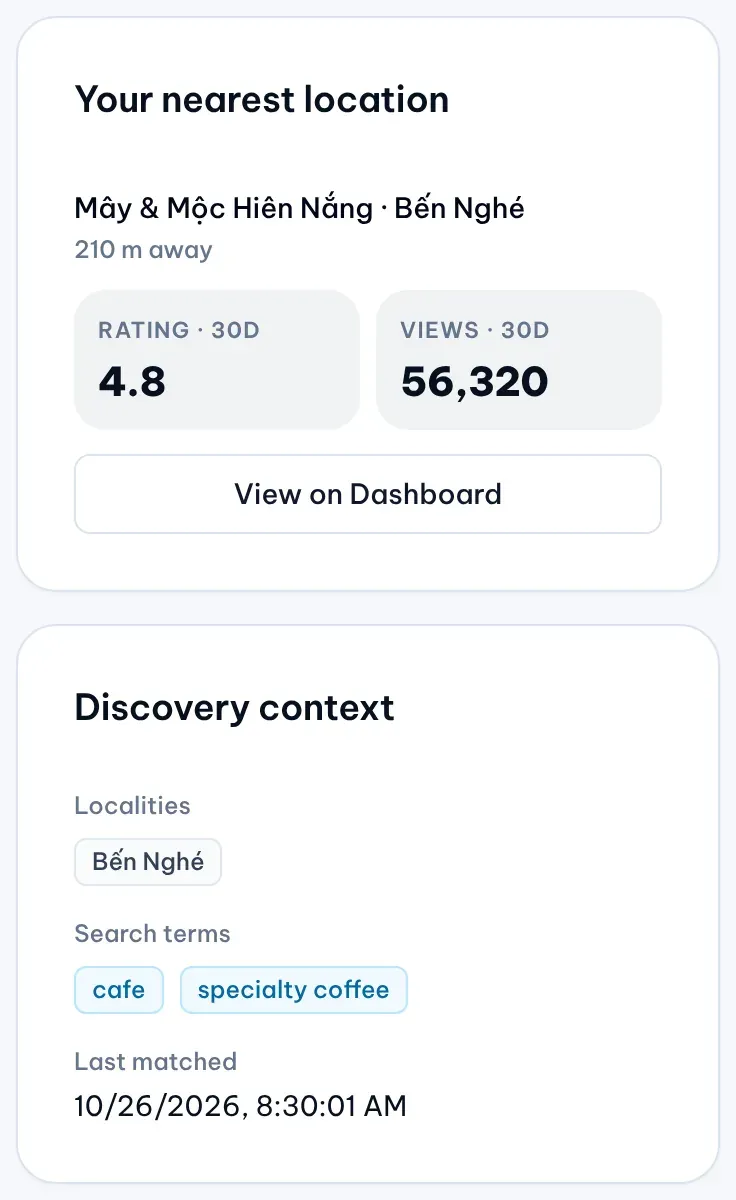
- Discovery context: the localities and keywords that found it, and when a search last matched it.
- Your nearest location: your own active location closest to it, if one is within 10 km. The card shows how far away it is and that location’s own average review rating and Google profile views over the last 30 days. Select its name to open it in Locations, or View on Dashboard to see it on the Dashboard.
If none of your locations is within 10 km, or MX has no data for the nearest one yet, the card doesn’t appear.