
Location Finder is a store locator you place on your own website. Visitors search your locations, see them on a Google map and in a list, and call, open the website or get directions to the one they pick. MX fills it from your locations, so you set only how it looks.
Only Owners and Admins see Location Finder in the sidebar, below Approvals. Each company has one Location Finder.
Open the settings
-
Select Location Finder in the sidebar. The page opens on the Appearance tab.
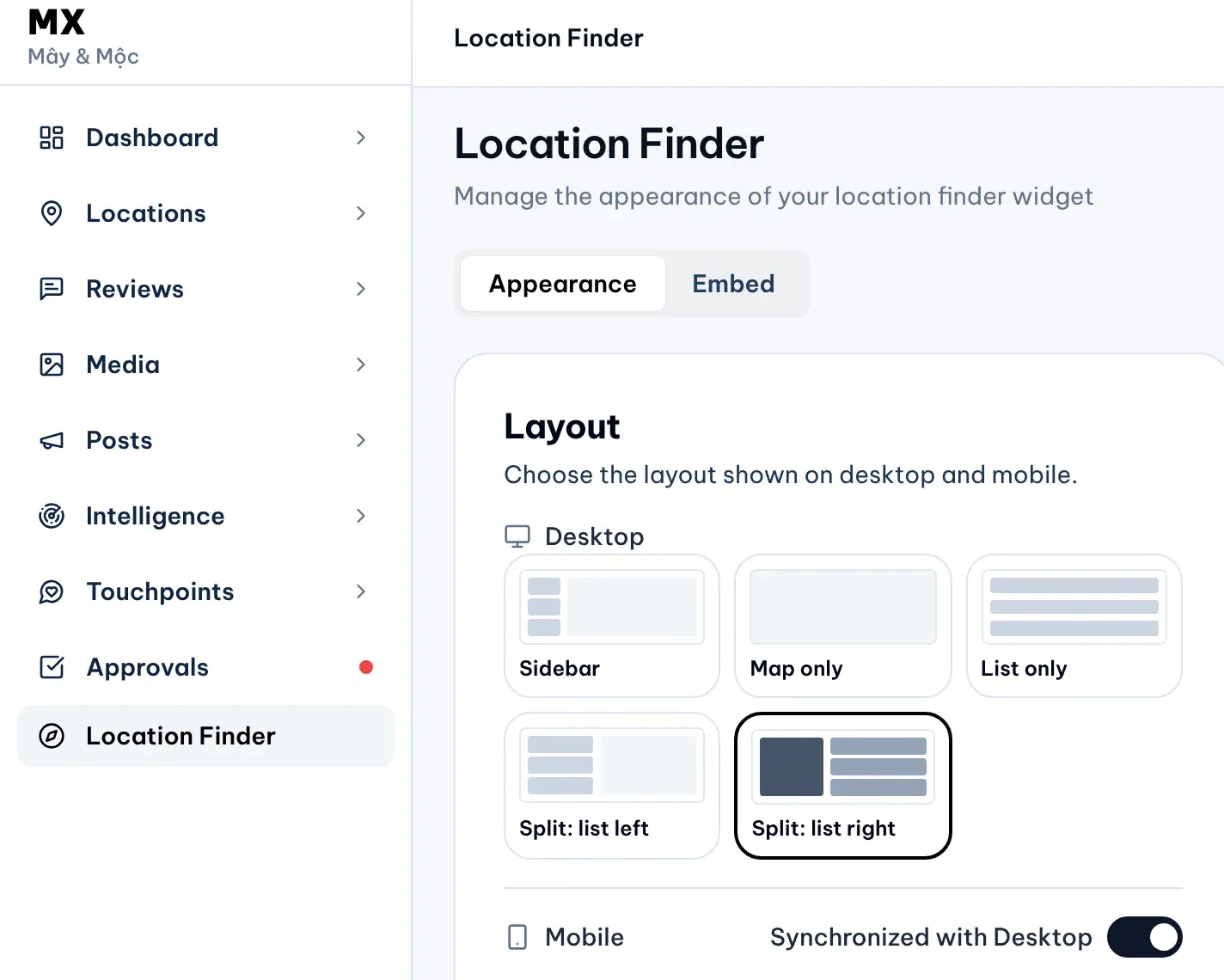
1: Location Finder. 2: Appearance and Embed tabsIllustrative data -
Change the settings on the left, as described below. The Live preview on the right shows them straight away; switch it between Desktop, Tablet and Mobile.
-
When you are done, select Save & Publish at the bottom of the settings. Until you do, the preview is only a draft and your website keeps the published look.
Pick a layout
Under Layout, choose how the map and the list share the space on a computer: Sidebar, Map only, List only, Split: list left or Split: list right.
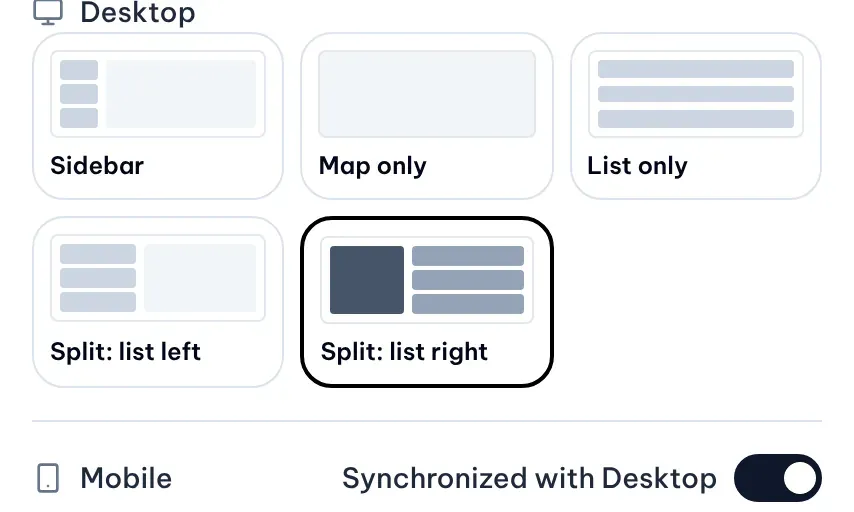
On phones the finder uses the same layout while Synchronized with Desktop is on. Turn the switch off to pick a different layout for phones.
Feature one location
Under Featured location, pick a location to open the finder focused on it, such as your flagship store. Visitors can still browse every location. Leave No featured location to show them all evenly.
Set the theme, colors and markers
-
Theme: Light, Dark, or Auto to follow the visitor’s device.
-
Colors: a Primary color and an Accent color, as six-digit hex codes such as #0f172a. Leave a field empty to use the finder’s own color.
-
Map markers: choose whether markers show a Number or an Icon. With Icon selected, pick a Marker icon, or select More… to search for others. The same marker is used on the map and in the list.
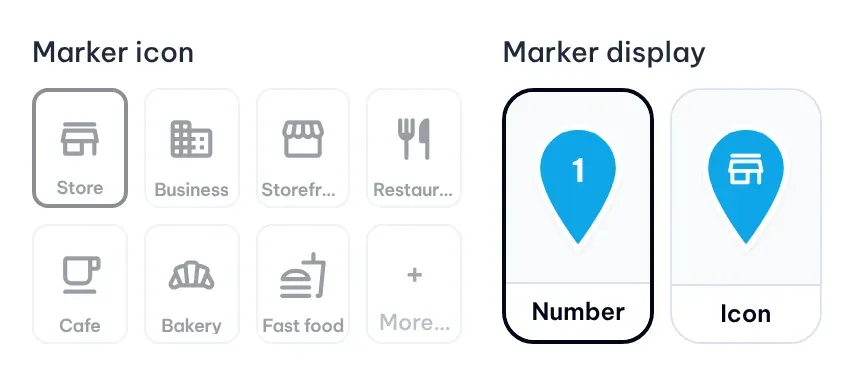
Illustrative data -
Typography: pick the font used throughout the finder, such as Inter, Noto Sans or Roboto, or keep System default.
-
Border radius: set how round cards and buttons are, from 0 to 24 px. Reset to default (16px) goes back to the standard.
What visitors see
Visitors can search by name, address, city or district, pick a region, and show only the locations that are open now. Each location in the list has buttons to call, open its website, get directions and open it on Google Maps, when the location has that information.
The finder lists every active location in MX, with the details from its profile. A location you pause or remove drops out of it.