GuideTouchpoints
QR codes - one code per location and placement for customer feedback
How to create, style, download, pause and retire Touchpoints QR codes in MX, and read scans, ratings and feedback for each code
Table of contents
The best time to ask for feedback is while the customer is still at the table or the counter. A QR code does that well, but a single code for every branch, or a link made with a free QR generator, cannot tell you which location or which spot a response came from. Nothing records how often each code is scanned, and when a code is printed in the wrong place there is no way to switch it off.
Touchpoints QR codes belong to one location and one placement, such as Counter or Table tent. MX counts the scans, ratings, Google review clicks and private feedback for each code, and you can pause or retire any code. You can see which locations and which spots customers actually use, and keep control of every code you have printed. For the whole feature, from the feedback page to the results, see the Touchpoints guide.
How it works in MX
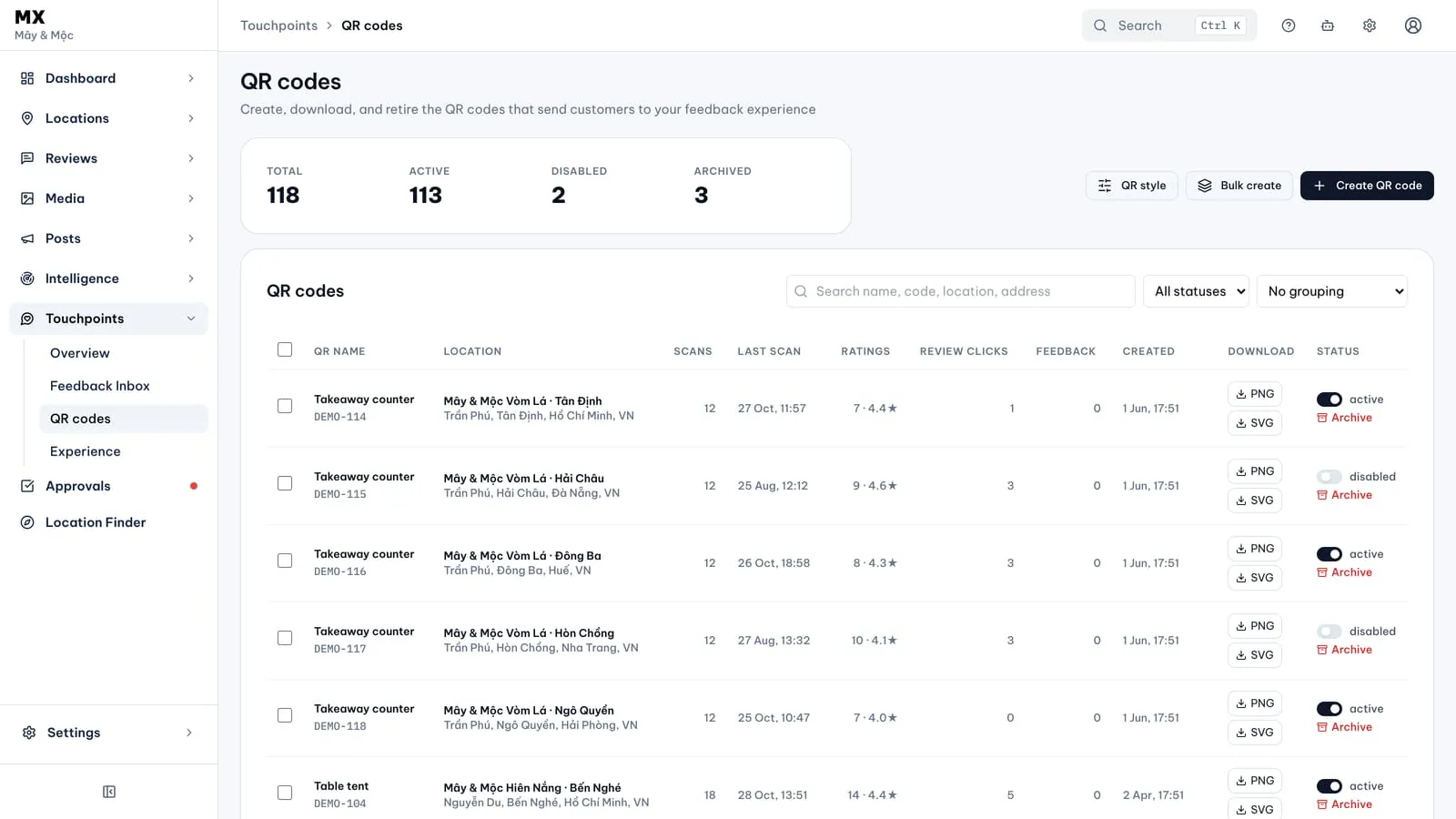
Open Touchpoints → QR codes. The page shows how many codes you have in total and how many are Active, Disabled or Archived.
- Choose Create QR code, type a placement name, such as “Counter” or “Table 12”, and pick the location. You can search locations by name or address, or narrow the list to a group.
- To set up many locations at once, choose Bulk create, type one placement name and tick the locations. MX creates one code per location, up to 50 at a time. This creates codes only; it does not change any location’s profile.
- Download the code and print it where customers will see it.
Each code opens a short web address, mlv.asia/ followed by its short code. It leads to the feedback page you set up in Touchpoints → Experience (see Set up the feedback page customers see), with that location’s details. A code’s name, location, short code and creation date cannot be changed later.
Read the numbers for each code
The list shows each code’s placement name, location, scans, last scan, ratings (count and average), Google review clicks, private feedback and creation date. These are totals for the life of the code. A review click means the customer chose the Google review button; it does not prove a review was posted. The Touchpoints Overview shows the same activity for a timeframe you pick, and private feedback itself waits in the Feedback Inbox.
Search by placement name, short code, location name or address, filter by status, and group the list by location or by placement name.
Style and download
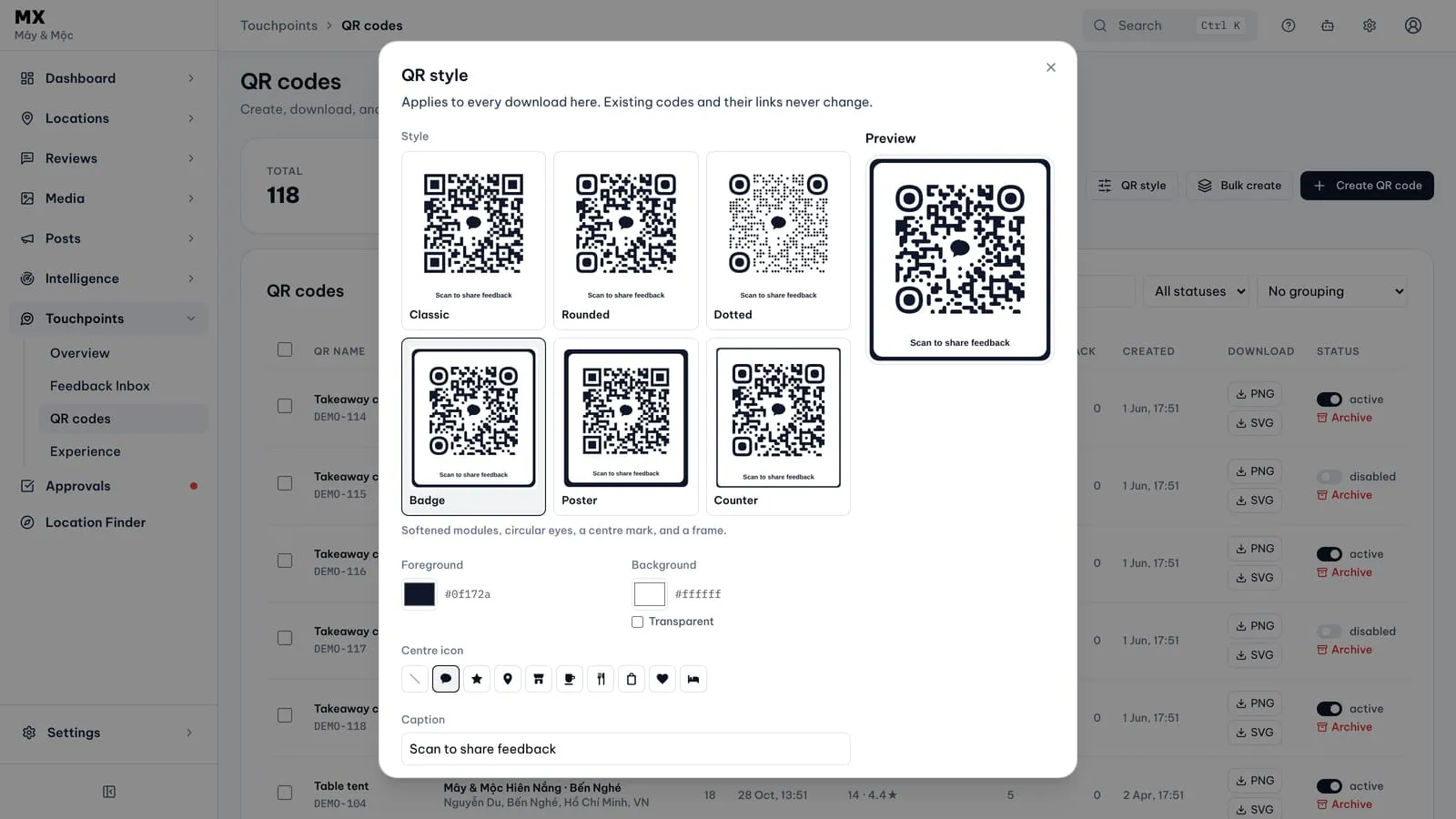
Choose QR style to set the look of your downloads:
- six styles: Classic, Rounded, Dotted, Badge, Poster and Counter;
- foreground and background colours, or a transparent background;
- an optional small icon in the centre, such as a speech bubble, a star or a cup;
- an optional caption of up to 30 characters, such as “Scan to share feedback”.
Save for everyone makes your choice the company default for every download; Done uses it only for your own downloads. The style is only how the image looks: changing it never changes the link inside codes you have already printed.
Download any code as a PNG or SVG file from its row, or select several codes and download up to 25 at once. SVG stays sharp at any size, which suits large prints. If the two colours are too close for a phone camera to read easily, MX shows a warning but still lets you download, so print one copy and scan it with a few different phones before you print in volume; Classic is the plainest style for small prints.
Place codes where customers can choose to scan them in their own time. Google’s policy on reviews asks businesses not to require or pressure customers to leave ratings or reviews while they are on the premises. The Touchpoints page offers the Google review link to every customer, alongside the other choices, whatever their rating.
Pause or retire a code
- Turn a code off with the switch in its row to pause it. It stops opening the feedback page until you switch it back on.
- Archive a code you will never use again. This is permanent: printed copies stop working, customers who scan it see an unavailable page, the code cannot be turned back on and its short code is never reused. MX asks you to confirm first.
Turning off or archiving a code keeps all its scans, ratings and feedback in MX.
Who can use it
Owners and admins, on every plan. Other roles do not see Touchpoints.
Current limits
- Codes work only for locations connected through Google Business Profile.
- Downloads are PNG and SVG. MX does not make PDFs, posters or print sheets.
- A code cannot be renamed or moved to another location. Create a new one and archive the old one.
- Selecting several codes for download covers the page you are on, up to 25 codes at a time.
Further reading
- Knowledge baseCreate and print QR codes
- Knowledge baseSet up the feedback page customers see
- Knowledge baseRead the Touchpoints Overview
- BlogTouchpoints - QR codes that collect ratings and private feedback per location