
GuideTouchpoints
Feedback Inbox - private customer feedback from every location in one list
How customers send private feedback from a Touchpoints QR code, and how owners and admins read, filter and track it in the Feedback Inbox
Table of contents
Many customers leave without saying what went wrong. Comment cards, chat messages and notes passed on by staff get lost, are not tied to a location, and nobody can tell what has already been read. By the time a problem reaches the owner, it is often too late to fix it for that customer.
With Touchpoints, a customer scans a QR code, rates the visit and can send private feedback directly to your business. Every submission arrives in one Feedback Inbox with its rating, location and QR code. You hear about problems while you can still act on them, see which location and which spot they come from, and keep track of what has been dealt with.
What the customer sees
- The customer scans a Touchpoints QR code. The feedback page opens in English, Vietnamese or Chinese, from the languages you turn on, and the customer can switch language on the page.
- They rate the visit from 1 to 5 stars and choose what to do next: leave a review on Google, contact the location (phone, Zalo or WhatsApp), or share private feedback.
- For private feedback they answer your questions. Name, phone and email fields appear only if you turn them on, and are never required. Before sending, a customer who leaves contact details ticks a box agreeing that they can be used to answer their feedback.
Every rating gets the same choices in the same order, and the Google review option is never hidden. Google’s policy on reviews does not allow businesses to discourage negative reviews or ask only happy customers for positive ones.
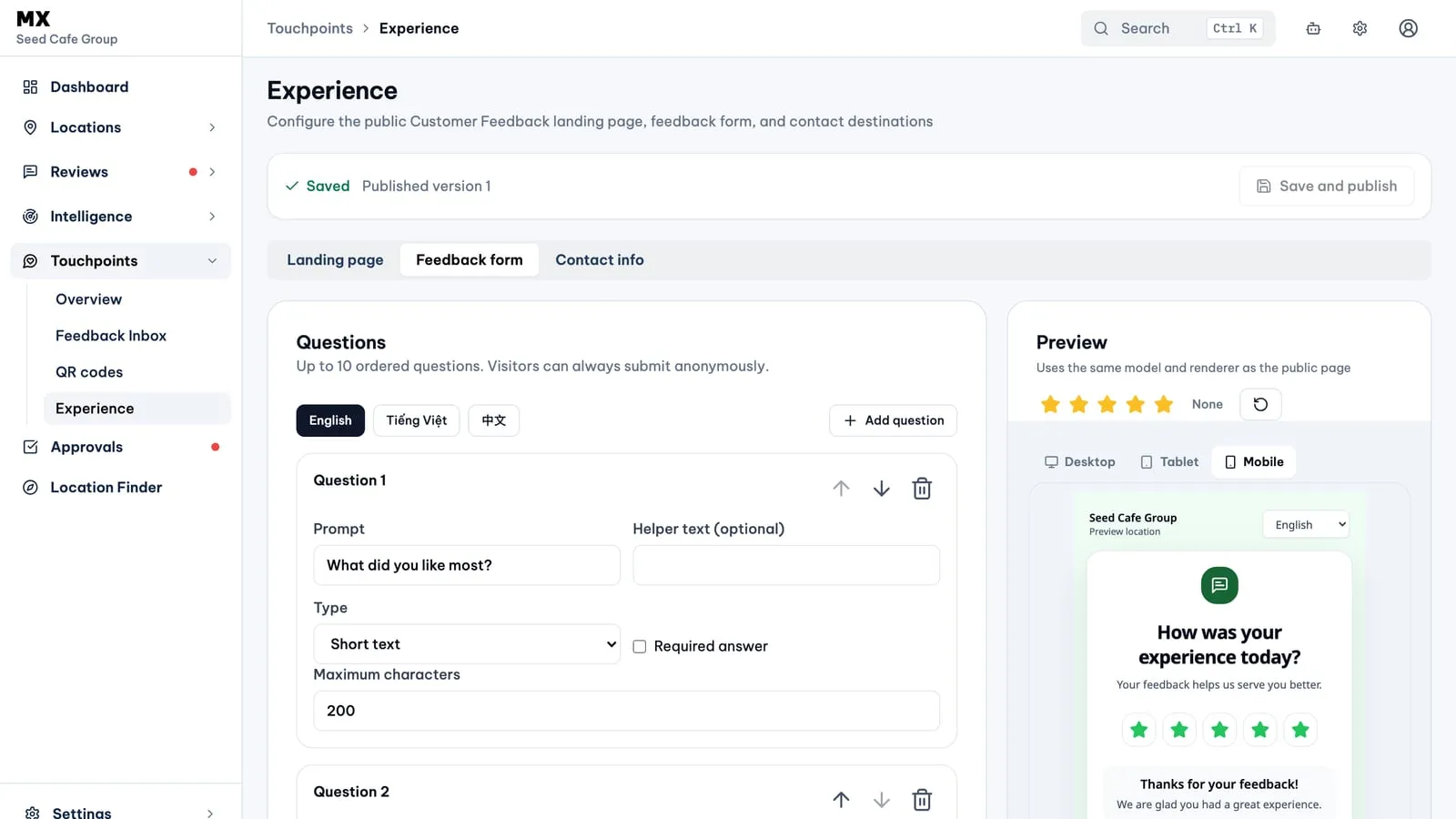
You set the questions in Touchpoints → Experience → Feedback form: up to ten, as short text, long text, single choice, multiple choice or rating questions, in each language you offer. A new form can start from a ready-made set (Essential, Service check or Detailed visit). The Preview shows the page as customers will see it; Set up the feedback page customers see has the steps.
Read feedback in the Feedback Inbox
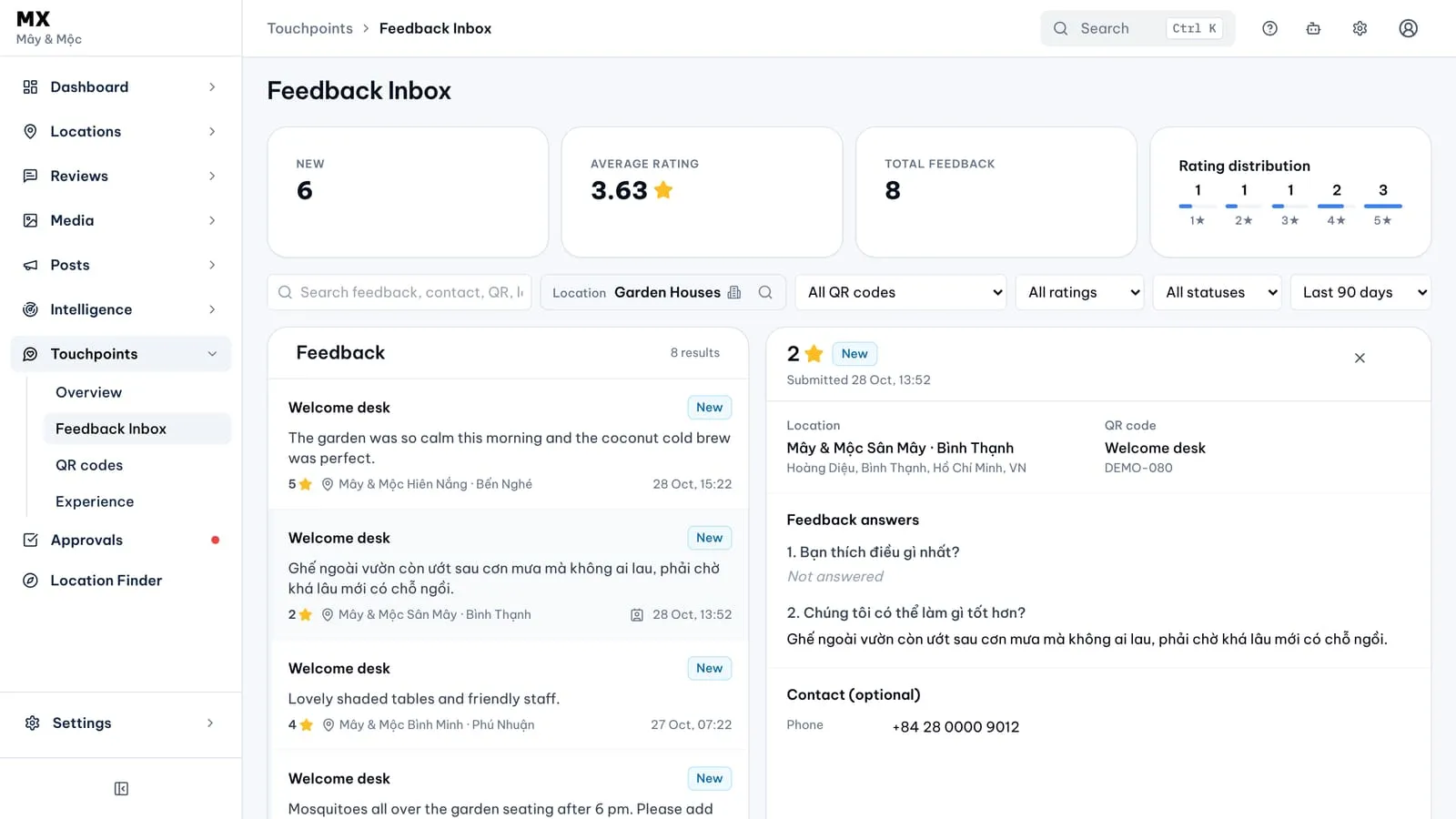
Open Touchpoints → Feedback Inbox. The newest feedback is at the top. Above the list you see the number of new items, the average rating, the total and the rating distribution for the filters you have chosen.
- Search the answers, contact details, QR code names and locations.
- Filter by location or location group, QR code, rating, status and date. The Inbox starts on the last 30 days; choose All dates to see everything.
- Open an item to see the rating, its status and when it was sent, the location and the QR code it came from, every answer, and any contact details the customer left. Questions appear as they were when the customer answered, even if you have edited the form since.
Keep track of what is done
Each item is New, Read or Archived. Opening an item does not mark it read: choose Mark as read once someone has looked at it, and Archive to move it out of the way. Archiving files an item away without deleting it; choose the Archived status filter to see it again. These changes go one way: an item cannot go back to New or leave the archive.
Once someone has answered the customer, turn on Resolved. MX shows who marked it and when, and adds a Resolved badge; you can turn it off again. Resolved is separate from the status, so an archived item can be resolved or not. The share of feedback marked resolved shows on the Touchpoints Overview and, for owners and admins, in the Feedback rating on the Dashboard.
MX does not send replies to customers. Contact the customer with the details they chose to leave, then mark the feedback resolved. Read and resolve private feedback walks through each step.
Who can use it
Owners and admins, on every plan. Other roles do not see Touchpoints.
Current limits
- You cannot reply from MX. To follow up, use the contact details the customer chose to leave.
- There is no assignment, ticketing or internal notes.
- MX does not send email or in-app alerts for new feedback.
- Read and Archived cannot be undone; Resolved can be turned off again.
- The inbox holds feedback sent through Touchpoints QR codes only. The QR codes guide covers creating and printing them.