
GuidePlatform
Market Scanner - see which businesses operate around your locations
Search Google Maps for businesses that match your keywords in the areas you choose, then browse, star and export them from one list in MX
Table of contents
The problem
Before you open a new branch, or when one location starts to slow down, the first question is often simple: who else is there? Which cafés, car washes or clinics operate in that district, how are they rated, and how many reviews do they have? The answer sits on Google Maps, spread over many separate searches, and it changes as businesses open and close.
Doing it by hand
The manual way is to search Google Maps one keyword and one area at a time, scroll the results, and copy names, phone numbers, ratings and review counts into a spreadsheet. Each search shows a slightly different list, nobody remembers which combinations were already covered, and the spreadsheet is out of date the next time someone asks. Google itself explains that local results depend on relevance, distance and prominence (Tips to improve your local ranking on Google), so one quick search rarely shows the whole picture.
What changes with Market Scanner
Market Scanner runs those searches for you. You enter up to three keywords, as customers would type them into Google Maps, and up to three areas. MX runs one search for each keyword in each area and gathers the businesses Google Maps returned into one list you can browse, filter, star and export.
The businesses it finds are other businesses, not your locations. MX keeps them inside the scan, never adds them to Locations and never manages their Google profiles.
What you get
- One list instead of many searches. Every business a scan found, with its locality, phone, Google rating, number of Google reviews and operating status.
- A clear view of what was searched. A coverage view shows each keyword and area, whether its search finished and how many results it found.
- Context for your own network. Beside a business, MX shows your nearest active location, if one is within 10 km, with that location’s own rating and Google profile views.
- A shared shortlist. Star the businesses worth watching. Stars are shared with everyone in your company and nobody outside it.
How it works in MX
Open Intelligence → Market Scanner. Your scans are listed as cards, with a New scan card first.
Set up a scan
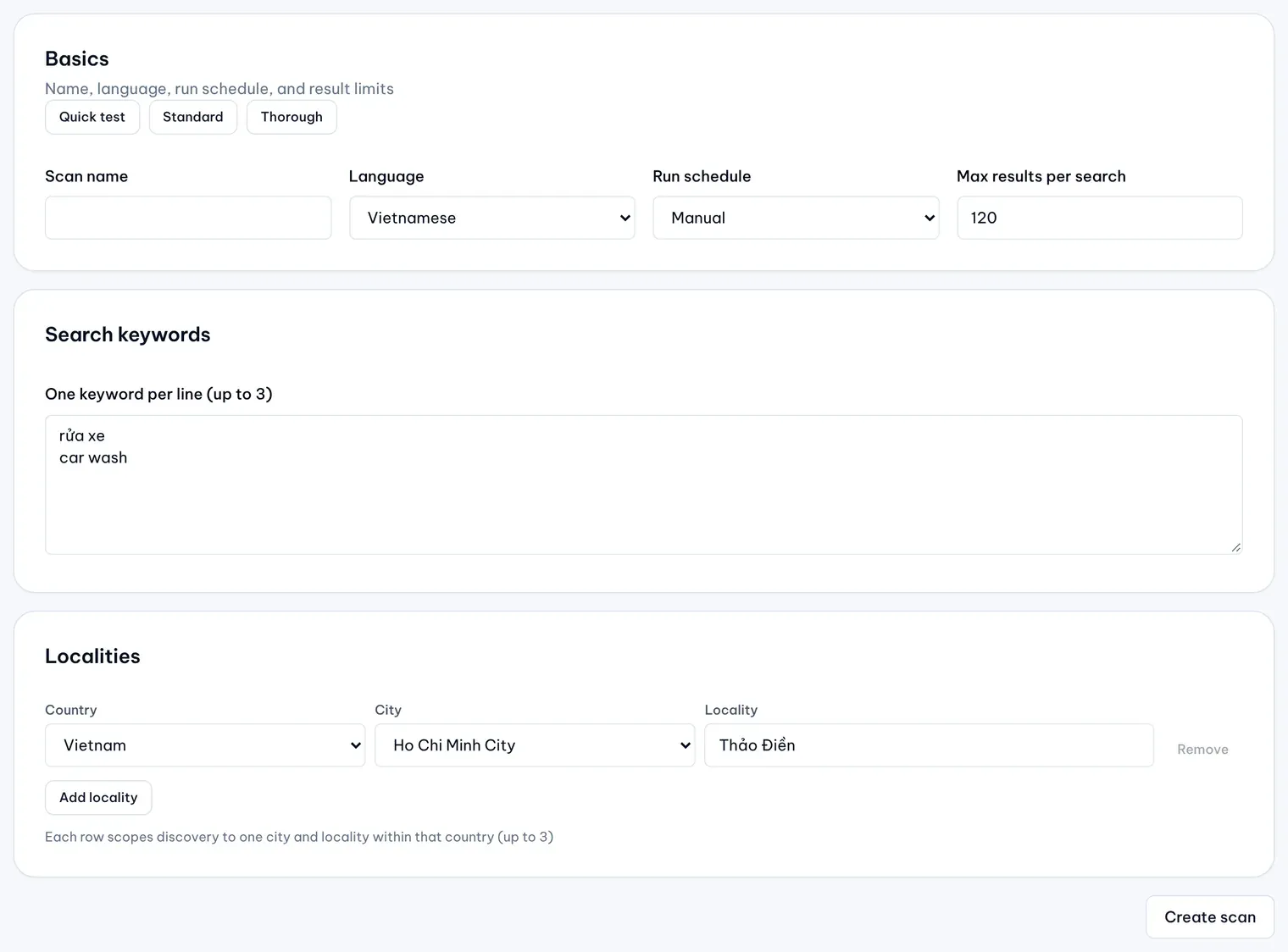
Choose Or build a custom scan, or one of the quick buttons (Quick test, Standard, Thorough) to start from suggested values. Give the scan a name and a language, Vietnamese or English, and set Max results per search, up to 120. Under Search keywords, type up to three keywords, one per line. Under Localities, choose a country and a city, then the neighborhood or district; add up to three. A scan therefore has at most nine searches.
Run it and check coverage
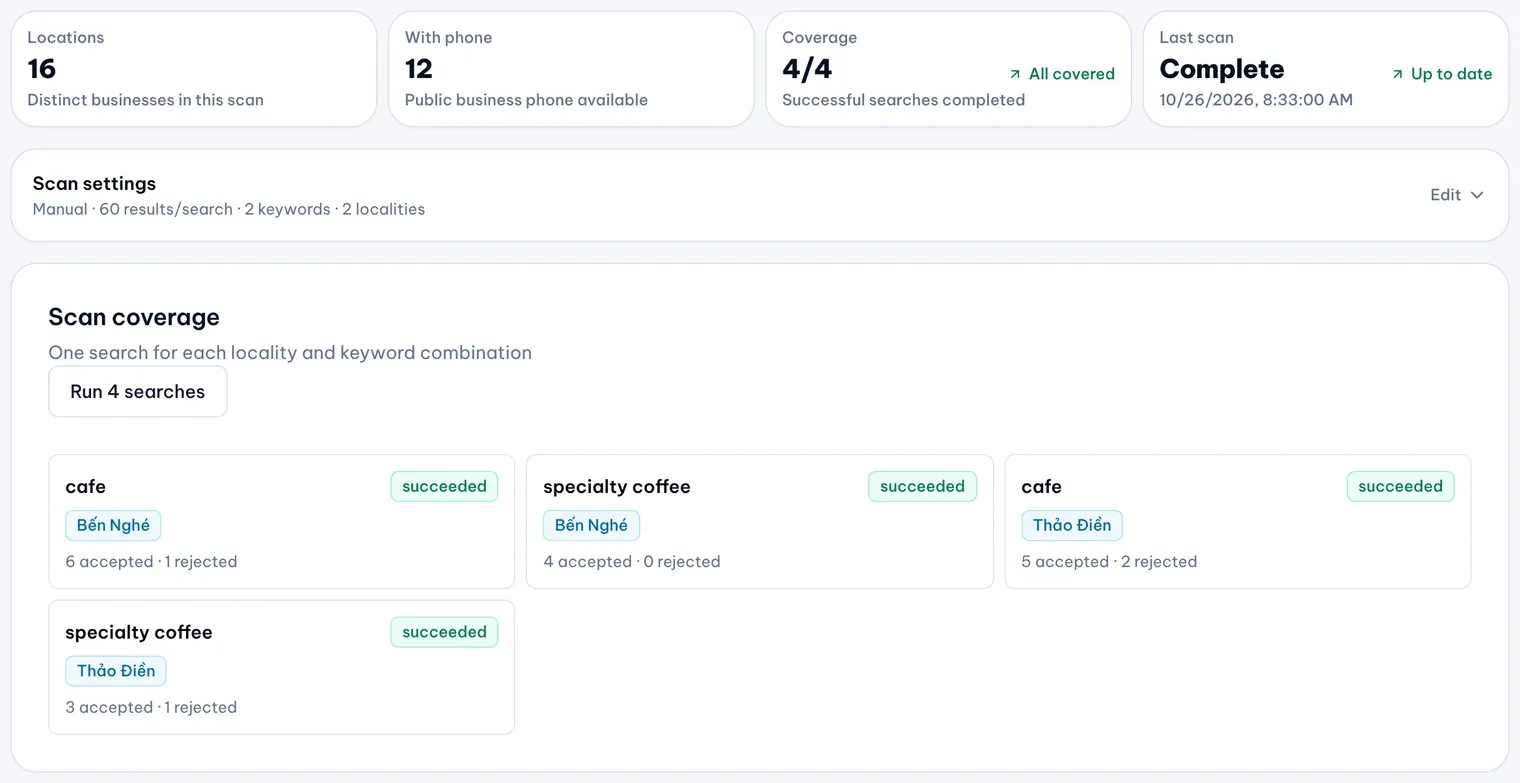
On the scan’s Overview, select the run button, which shows the number of searches, such as Run 4 searches. Scan coverage shows each keyword and locality with its status and how many results were accepted or rejected; rejected results lack required business information. If a search reads result cap reached, raise the maximum or use a narrower keyword or locality and run it again. Running a scan again updates the businesses already found and adds new ones.
A finished search is not proof that every business in the area was found. Google Maps returns what matches the keyword, and each search stops at 120 results at most.
Read the results
Select Browse locations. The list shows 50 businesses a page; search by name or address, and use More filters for locality, category, operating status, phone and starred. Switch to Map to see the current page on a Google map.
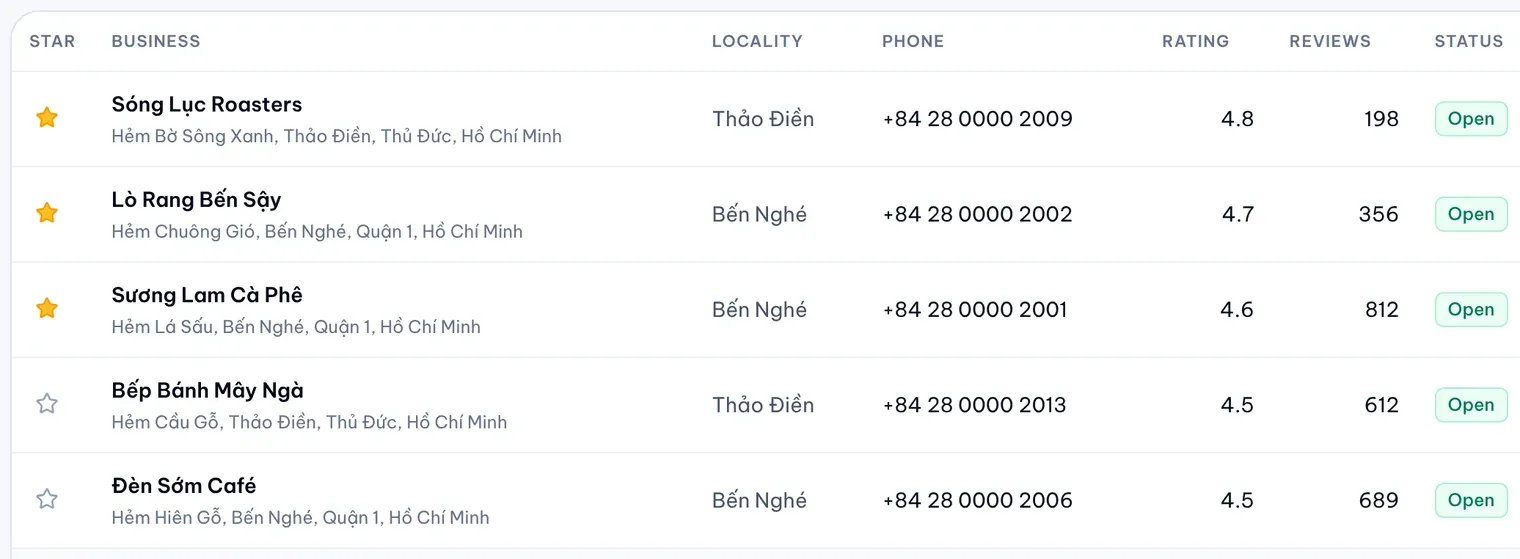
Select a business to see its public details from Google Maps, the keywords and localities that found it, and your nearest location within 10 km. Those details are what Google shows publicly; Google explains where it gets them in How Google sources & uses info in Business Profiles. Select Export CSV to download every result that matches your search and filters as a spreadsheet file.
Who can use it
Market Scanner is part of the Business plan. Owners and admins create, change and run scans. Every member of the company can read the results. Owners, admins, approvers and editors can star businesses; viewers see the stars but can’t change them.
Current limits
- A scan has up to three keywords and three localities, so at most nine searches, and each search returns at most 120 results.
- Scans run only when an owner or admin selects the run button. The Run schedule setting does not start scans by itself.
- Results show what Google Maps listed when the scan last ran. MX does not follow these businesses over time or send alerts about them.
- MX does not collect these businesses’ reviews or photos.
- Export is a CSV file of up to 10,000 businesses at a time. There is no Excel export.
Good to know
- Category filters use the category exactly as Google Maps names it.
- For the step-by-step help, see Set up and run a market scan and Read Market Scanner results.
Further reading
- Knowledge baseSet up and run a market scan
- Knowledge baseRead Market Scanner results